
Connected to Wi-Fi but No Internet in Windows 11: Complete Fix Guide
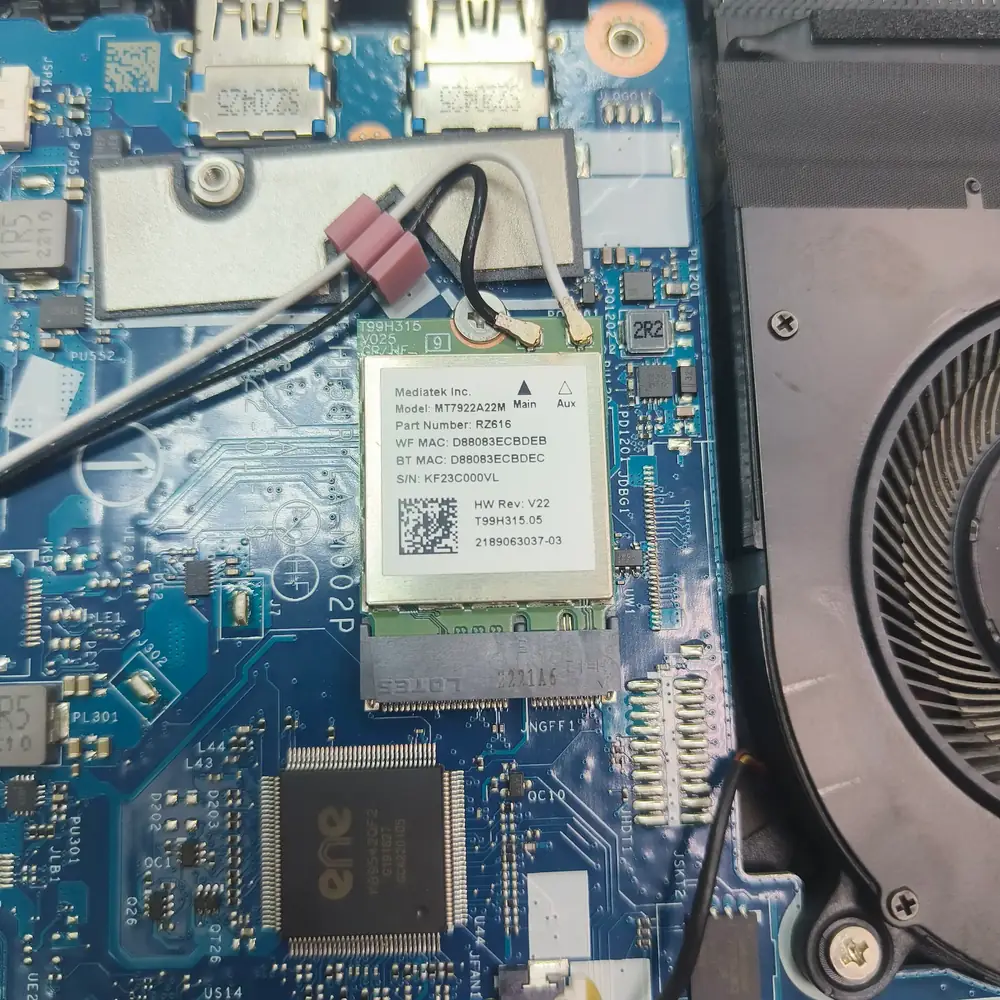
Table of Contents
- Start With the Two-Device Test
- Step 1: Run Windows 11 Network Diagnostics
- Step 2: Restart the Correct Device
- Step 3: Check the Default Gateway
- Step 4: Separate DNS From Internet Access
- Step 5: Check VPN and Proxy Settings
- Step 6: Test Another Network
- Step 7: Repair the Windows Network Stack
- Step 8: Use Network Reset Only When the Evidence Supports It
- Common Cases That Look Like 'No Internet' but Are Not
- When the Problem Points to Hardware
- Frequently Asked Questions
- The Bottom Line
Windows 11 can show a Wi-Fi connection while websites and apps still cannot reach the internet. Learn how to separate router, DNS, VPN, proxy, DHCP and Windows problems without resetting the wrong layer.
If Windows 11 says Connected to Wi-Fi but Edge, Chrome, apps or games cannot reach the internet, avoid treating the Wi-Fi icon as proof that the whole connection is healthy. The wireless link can be working while DNS, DHCP, routing, the gateway, a VPN, a proxy, or the ISP path is broken. Microsoft separates Wi-Fi connectivity troubleshooting from broader internet access issues for exactly this reason.
Start With the Two-Device Test
Connect another phone or computer to the same Wi-Fi network. If both devices have no internet, the problem is probably above the individual Windows laptop: router, modem, access point or ISP. If other devices work normally and only this Windows PC is affected, focus on the laptop's DNS, DHCP, VPN, proxy, adapter, driver and Windows configuration.
| Feature | Test result | Most likely layer | Next move |
|---|---|---|---|
| All devices have no internet | Router/modem/ISP | Restart and inspect the network path | |
| Other devices work; this PC fails | Windows or adapter configuration | Test another network and inspect the PC | |
| Browser fails but one app works | Browser, proxy, DNS or app-specific path | Test another browser and inspect proxy/VPN | |
| Wi-Fi works on hotspot but not home Wi-Fi | Router/band/configuration | Compare bands, gateway and router behavior |
Step 1: Run Windows 11 Network Diagnostics
Windows 11's Get Help app includes a Network and Internet troubleshooter. Run it before making manual changes. If the system reports a specific issue, follow that path and test again rather than continuing to change unrelated settings.
Step 2: Restart the Correct Device
Restarting the laptop is useful, but so is restarting the router or modem when the fault affects multiple devices. Power-cycle network equipment only according to the equipment manufacturer's normal procedure. A reboot should restore a clean DHCP session and clear transient router state, but a recurring problem requires deeper diagnosis.
Step 3: Check the Default Gateway
A working Wi-Fi link should normally give the Windows PC an IP configuration and a default gateway. In Command Prompt, use ipconfig and look for the Wi-Fi adapter's IPv4 address and Default Gateway. A missing or obviously invalid configuration can point toward DHCP or adapter configuration rather than DNS.
Step 4: Separate DNS From Internet Access
A simple way to separate DNS from the broader connection is to test whether the laptop can reach the local gateway and whether name resolution is working. If raw network access works but domains do not resolve, inspect DNS configuration, the active VPN, proxy settings and security software before assuming the Wi-Fi adapter is bad.
Step 5: Check VPN and Proxy Settings
A stale VPN session or an unexpected proxy can make Windows appear connected while blocking normal web traffic. Temporarily disconnect the VPN and confirm that Windows is not using a proxy you do not recognize. If internet access returns, the network hardware may be fine and the software path is the more useful place to investigate.
Step 6: Test Another Network
A phone hotspot is a useful controlled test. If the laptop has internet access through the hotspot but not through the home or office Wi-Fi, stop resetting Windows and investigate the original router, Wi-Fi band, DNS rules, access controls, captive portal or ISP connection.
Step 7: Repair the Windows Network Stack
If the problem follows the laptop across different networks, you can work through Microsoft's standard network reset sequence more deliberately: renew the IP configuration, clear the DNS cache, and reset the Windows networking components when appropriate. Restart after a stack reset and re-test before adding more commands.
- Open Command Prompt as administrator.
- Use ipconfig to inspect the current adapter configuration before changing it.
- Renew the IP address and clear the DNS resolver cache.
- If the fault persists, reset Winsock/TCP-IP using Windows' built-in commands.
- Restart the PC and run the same connectivity test again.
Step 8: Use Network Reset Only When the Evidence Supports It
Network reset removes installed network adapters and resets their configuration. Microsoft recommends it as a later troubleshooting step because VPN clients, Hyper-V virtual switches and other network software may need to be configured again afterward. Record your existing setup before using it.
Common Cases That Look Like 'No Internet' but Are Not
- A single website is down while the rest of the internet works.
- A browser extension or security filter blocks a page.
- A VPN is connected to a server with a routing problem.
- A captive portal has not been completed on a public network.
- The ISP connection is down while the laptop remains connected to the local router.
- Only IPv6, DNS, or a specific application path is failing.
Use the smallest successful fix
If changing one DNS or VPN setting restores access, do not continue resetting the entire network. The smaller confirmed change tells you more about the real cause and is easier to maintain.
When the Problem Points to Hardware
Hardware becomes more plausible when the laptop fails on several unrelated networks, the adapter disappears, signal is unstable at close range, Ethernet works consistently while Wi-Fi does not, or Wi-Fi and Bluetooth show correlated failures. At that point, a network reset is unlikely to fix a damaged adapter, antenna connection or board-level fault.
Frequently Asked Questions
Why does Windows 11 say connected but no internet?
Why does my phone have internet but my laptop does not?
Will changing DNS fix no internet?
Should I reset my network settings?
Why does Ethernet work but Wi-Fi does not?
The Bottom Line
The phrase 'connected to Wi-Fi but no internet' describes several different failures. Compare another device, test another network, inspect the gateway and DNS path, remove VPN/proxy variables, and only then use deeper Windows resets. The goal is not to reset everything; it is to prove which layer stopped working.
Windows, Network or Storage Problem?
Persistent Windows, Wi-Fi, SSD or update problems can come from software, drivers, configuration or hardware. KCROC can diagnose the actual cause before repair.