
Windows 11 Wi-Fi Keeps Disconnecting: Complete Fix Guide for 2026
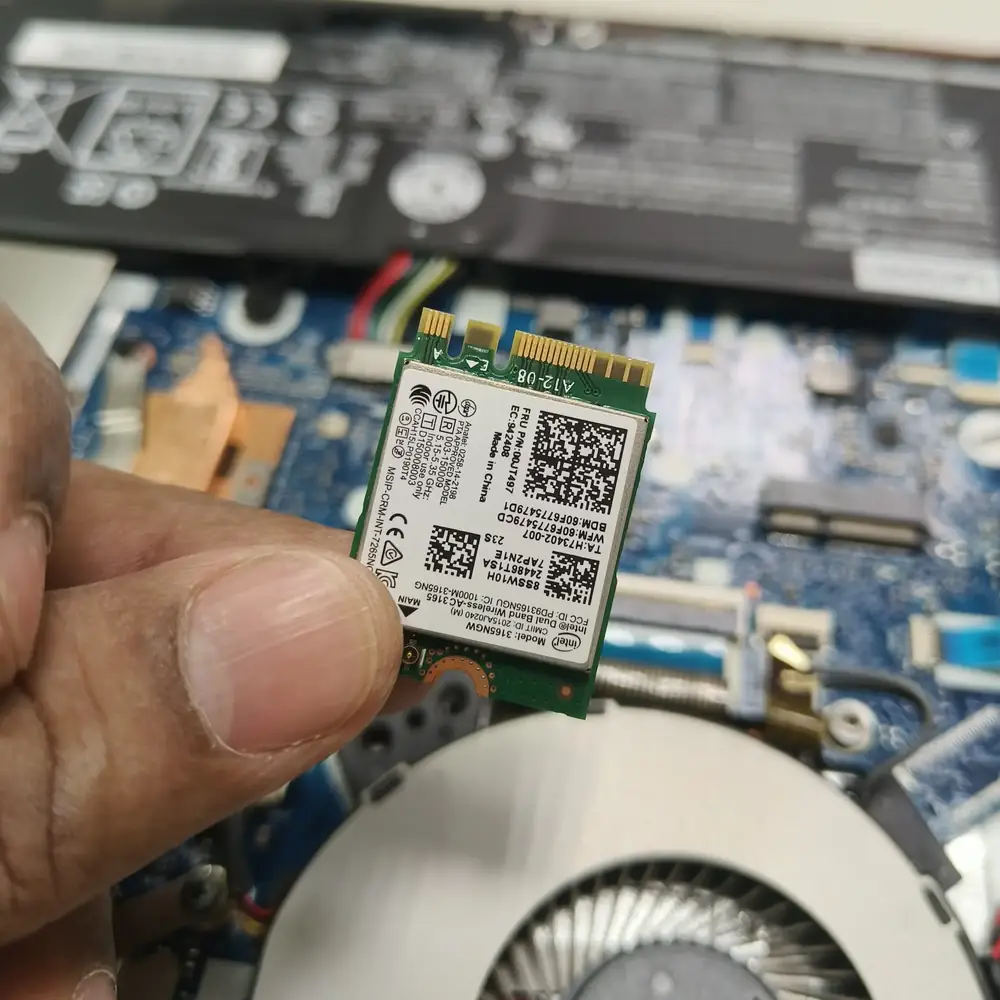
Table of Contents
- First: Identify What Is Actually Disconnecting
- Step 1: Test the Laptop on Another Network
- Step 2: Run Windows 11 Network Diagnostics
- Step 3: Check the Wi-Fi Driver
- Step 4: Check Wi-Fi Power Management and Sleep/Wake Behavior
- Step 5: Test the Router, Wi-Fi Band and Signal
- Step 6: Temporarily Remove VPN, Proxy and Network Filters
- Step 7: Use Network Commands Only After the Basic Tests
- Step 8: Leave Network Reset Until the End
- When Wi-Fi Disconnects Point to Hardware
- Frequently Asked Questions
- The Bottom Line
Windows 11 Wi-Fi that drops every few minutes can be caused by the adapter, driver, power management, router, band selection, interference, VPN software or Windows itself. Diagnose the exact layer before resetting everything.
If Windows 11 connects to Wi-Fi normally and then drops the connection repeatedly, do not start by reinstalling Windows or changing ten network settings at once. A repeatable disconnect pattern can come from the wireless adapter, its driver, power-management behavior, the access point or router, radio interference, VPN or security software, a damaged antenna path, or a broader Windows networking fault. The goal is to isolate the layer that is actually failing.
KCROC diagnostic principle
Before changing anything, answer one question: does the laptop lose Wi-Fi completely, or does the Wi-Fi icon remain connected while only internet access disappears? Those are different fault paths.
First: Identify What Is Actually Disconnecting
When the problem occurs, look at the Windows network status and note what changed. If Wi-Fi itself disappears or shows disconnected, the wireless adapter, driver, signal or access point deserves attention. If Wi-Fi still says connected but websites stop loading, move your investigation toward the router, DNS, VPN, proxy or internet connection. If every device on the same network drops at the same moment, the laptop may not be the root cause at all.
| Feature | What you see | Most useful next check | What it can indicate |
|---|---|---|---|
| Wi-Fi icon changes to disconnected | Check adapter, driver, signal and another network | Wireless link or adapter problem | |
| Wi-Fi stays connected but websites stop loading | Test another device, DNS, VPN and gateway access | Internet path, DNS, VPN or router issue | |
| Only this laptop disconnects | Test the same laptop on another Wi-Fi network | Laptop adapter, driver, antenna or Windows configuration | |
| All devices disconnect together | Check router/modem and ISP status | Router, access point, interference or ISP problem |
Step 1: Test the Laptop on Another Network
The quickest isolation test is to connect the same laptop to a different network, such as a phone hotspot or another trusted Wi-Fi connection. If the laptop stays stable there, the original router, access point, band or local interference becomes more likely. If it disconnects everywhere, focus on the laptop, its wireless adapter, driver, Windows networking or hardware.
Step 2: Run Windows 11 Network Diagnostics
Windows 11 includes automated network diagnostics in the Get Help app. Run the Network and Internet troubleshooter before making advanced changes. Also check Settings → Windows Update and install available updates, then restart the PC. These are low-risk steps and give you a cleaner baseline for deeper testing.
Step 3: Check the Wi-Fi Driver
An unstable or mismatched wireless driver can produce repeated disconnects, especially after a Windows update, driver update or laptop sleep/wake cycle. Open Device Manager, expand Network adapters, identify the wireless adapter, and check whether Windows reports an error. Compare the behavior after a normal restart and after updating the driver from Windows Update or the laptop/adapter manufacturer's current driver package.
Do not update drivers at random
If the machine is currently stable on one driver, download the correct driver for the exact adapter and Windows version. Avoid driver-updater utilities that replace several unrelated devices at once.
Step 4: Check Wi-Fi Power Management and Sleep/Wake Behavior
If disconnects happen mainly after sleep, lid close/open, battery operation, or periods of inactivity, power management becomes an important clue. Compare the behavior on AC power and battery, and inspect the adapter's power-management settings in Device Manager. A problem that appears only after sleep or only on battery is much more specific than a random disconnect.
Step 5: Test the Router, Wi-Fi Band and Signal
If the laptop is stable on other networks, investigate the original access point. Test the laptop closer to the router, try another available Wi-Fi band, and see whether other devices on the same band also disconnect. Heavy interference, weak signal, an overloaded access point, or a router firmware issue can create a pattern that looks like a Windows fault.
Step 6: Temporarily Remove VPN, Proxy and Network Filters
VPN clients, security suites, virtual switches and other network-filtering software can change how traffic is handled. Temporarily test without nonessential VPN or proxy software, then reconnect and compare the result. If the disconnect disappears, add the software back one component at a time instead of resetting the whole network stack.
Step 7: Use Network Commands Only After the Basic Tests
For persistent software-side problems, an elevated Command Prompt can be used to renew the IP configuration and reset common networking components. A controlled sequence is more useful than running a long list of commands from a random troubleshooting video. Record the original symptoms before the reset so you can tell whether the change actually helped.
- Open Command Prompt as administrator.
- Renew the IP configuration and clear the DNS resolver cache.
- If the problem persists, reset the Winsock catalog and TCP/IP stack using Windows' built-in commands.
- Restart the PC and test the same network again.
- Do not keep stacking more resets if the symptom is unchanged; move the diagnosis toward the adapter, router or hardware.
Step 8: Leave Network Reset Until the End
Microsoft describes Network reset as a last-step option because it removes installed network adapters and resets their settings to defaults. It can fix stubborn configuration problems, but it can also require you to set up VPN clients or virtual networking software again. Use it after the simpler tests above, not as the first click.
When Wi-Fi Disconnects Point to Hardware
- The laptop disconnects from multiple unrelated Wi-Fi networks while nearby devices remain stable.
- The wireless adapter repeatedly disappears from Device Manager.
- Signal quality is abnormally weak at close range compared with another device.
- The problem started after liquid exposure, a drop, hinge damage or motherboard work.
- The laptop becomes stable only when an external USB Wi-Fi adapter is used.
- Wi-Fi and Bluetooth fail together or disappear after physical movement of the display assembly.
When to stop tweaking Windows
If the same laptop fails on several known-good networks, keeps losing the adapter, or shows evidence of antenna or board damage, software resets are unlikely to be the complete fix. That is the point for hardware diagnosis.
Frequently Asked Questions
Why does my Windows 11 Wi-Fi keep disconnecting every few minutes?
Why does Wi-Fi disconnect only when my laptop sleeps?
Should I use Network Reset first?
How do I know if the Wi-Fi card is failing?
Can overheating cause Wi-Fi to disconnect?
The Bottom Line
Do not treat every Wi-Fi disconnect as a Windows problem. First determine whether the laptop loses the wireless link, the router path, or only internet access. Then isolate the laptop from the network, check the adapter and driver, test power/sleep behavior, investigate the access point, and use resets only when the evidence points there. If the fault follows the laptop across known-good networks, it is time to consider wireless hardware, antenna or motherboard diagnosis.
Windows, Network or Storage Problem?
Persistent Windows, Wi-Fi, SSD or update problems can come from software, drivers, configuration or hardware. KCROC can diagnose the actual cause before repair.