
Windows 11 Gaming Stutter & FPS Drops: Complete Fix Guide for 2026
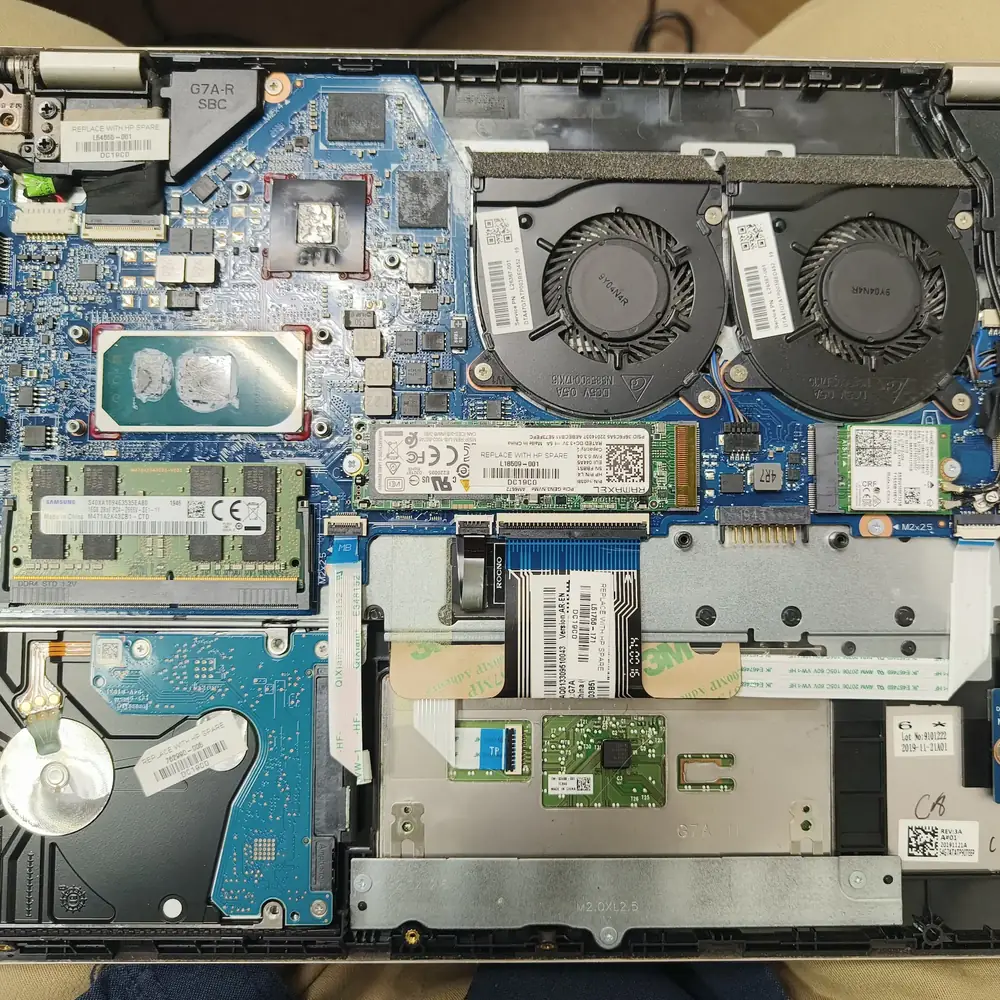
Table of Contents
- The Four Questions to Answer Before Changing Anything
- 1. Measure Frame-Time, Not Only Average FPS
- 2. Test Game Bar and Other Overlays as Variables
- 3. Check Whether the GPU Is Actually the Bottleneck
- 4. Check CPU Pressure, Background Work and Memory
- 5. Investigate DPC/ISR Driver Activity When Hitches Look Like Latency Spikes
- 6. Check for Shader Compilation Stutter
- 7. Check Windows Graphics Settings Before Registry Tweaks
- 8. Check for Thermal Throttling and Power Limits
- 9. Use A/B Testing Instead of a Giant “Optimization” Checklist
- When the Problem Is Probably Not Game Bar
- When a Software Problem Becomes a Hardware Problem
- Kuwait-Specific Note: Heat Changes the Baseline
- Frequently Asked Questions
- Bottom Line
Frame-time spikes, shader compilation, Game Bar, DPC latency, drivers, CPU/GPU limits and thermal throttling explained — with a diagnosis-first method for fixing gaming stutter without blindly applying registry tweaks.
If a Windows 11 game reports 100+ FPS but still feels jerky, the first question should not be which registry tweak to apply. The useful question is whether frames are arriving consistently. Average FPS describes the amount of rendered work over time; it does not fully describe the spacing between individual frames. A short burst of slow frames can make gameplay feel uneven even when the average number looks healthy.
KCROC diagnostic principle
Treat stutter as an evidence problem. Reproduce the same scene, observe the same workload, change one variable, and compare the result. Do not assume GameBarPresenceWriter.exe, Game Bar, Windows 11, the GPU or the registry is the cause simply because one of them is visible during the symptom.
The Four Questions to Answer Before Changing Anything
- Does the stutter happen in every game or only one title?
- Does it happen immediately, or only after several minutes of sustained load?
- Does the problem appear after opening Game Bar, an overlay, a launcher, or recording software?
- Is the symptom a rendering hitch, input delay, network lag, or a complete system freeze?
Those answers quickly separate several common branches. One-game-only problems often point toward the game engine, shaders, settings or a driver profile. Stutter that grows as the laptop gets hotter points toward thermal or power behavior. A hitch that appears when an overlay opens is worth testing as an overlay variable. A whole-system pause that affects the desktop as well as the game suggests a broader Windows, storage, memory, driver or hardware problem.
1. Measure Frame-Time, Not Only Average FPS
At 60 FPS, one ideal frame takes about 16.7 ms. At 120 FPS it is about 8.3 ms, and at 144 FPS about 6.9 ms. The important idea is consistency: if most frames arrive near the expected interval but a few frames suddenly take much longer, you can feel those spikes as hitching. A headline FPS value does not reveal that pattern by itself.
| Feature | Target FPS | Ideal frame-time | Why a spike matters |
|---|---|---|---|
| 60 FPS | 16.7 ms | A 50–100 ms frame can create a clearly visible hitch | |
| 120 FPS | 8.3 ms | One much longer frame can break an otherwise fast cadence | |
| 144 FPS | 6.9 ms | Long outlier frames stand out because normal frames are short | |
| 240 FPS | 4.2 ms | Very short normal frames make timing spikes easier to notice |
| Feature | Pattern | What it suggests | First useful test |
|---|---|---|---|
| High average FPS + visible hitch | Uneven frame delivery | Use the game's frame-time or performance graph if available and reproduce the same scene | |
| FPS drops as temperatures rise | Thermal or power limit | Log CPU/GPU temperatures and clock behavior over the same session | |
| Only one game hitches | Game, shader, driver-profile or compatibility issue | Compare a second game and the same game after a clean configuration change | |
| Desktop and game freeze together | Broader system or driver problem | Check storage, memory, event timing and driver behavior | |
| Hitch occurs when overlay appears | Overlay or capture interaction is plausible | Disable one overlay and repeat the same test |
2. Test Game Bar and Other Overlays as Variables
Xbox Game Bar is only one overlay. Steam, Discord, NVIDIA, AMD, MSI utilities, capture software and motherboard utilities can all add their own hooks or background activity. That means disabling Game Bar does not prove that all overlays are disabled, and seeing GameBarPresenceWriter.exe does not prove it caused the stutter.
Microsoft documents Game Bar and related Windows gaming settings, including Game Bar shortcuts and Game DVR-related controls. Microsoft Learn — Windows 11 settings reference
For recording and broadcasting, Microsoft documents the AllowGameDVR policy and its 0/1 behavior. Microsoft Learn — AllowGameDVR policy
Do not stack overlay changes
Disable or change one overlay at a time. If you turn off Game Bar, Steam Overlay, Discord, GPU recording, RGB utilities and several Windows services at once, you lose the ability to identify which change actually mattered.
3. Check Whether the GPU Is Actually the Bottleneck
If GPU utilization is consistently near its practical limit while the game is running normally, a lower FPS result may simply mean the workload is GPU-bound. That is not the same as stutter. A GPU-bound game can be smooth. The useful test is to compare the symptom at a different resolution or graphics preset while watching whether frame-time consistency changes.
- Reproduce the same scene and note the approximate GPU utilization and clock behavior.
- Lower one GPU-heavy setting or resolution step and repeat the same route or benchmark.
- If the frame rate changes but the hitch pattern remains, the problem may not be raw GPU load.
- If crashes or visual artifacts appear, stop treating the issue as a simple performance setting and investigate GPU, VRAM, power and thermal stability.
4. Check CPU Pressure, Background Work and Memory
A game can stutter when a CPU thread becomes the limiting factor even though total CPU utilization does not look close to 100%. Modern games can be sensitive to one or a few busy threads, while other cores remain underused. Background applications can also compete for CPU time, memory bandwidth and storage I/O.
If memory usage stays very high during the same stutter, check whether closing a heavy background application changes the symptom. If the disk becomes busy at exactly the same time, investigate paging, shader-cache activity, updates or another I/O-heavy process rather than assuming the storage drive is failing.
Microsoft's general Windows performance guidance recommends identifying which resource is actually under pressure instead of applying generic optimizers. Microsoft Support — Tips to improve PC performance in Windows
5. Investigate DPC/ISR Driver Activity When Hitches Look Like Latency Spikes
Windows device drivers handle hardware interrupts and can defer some work to Deferred Procedure Calls (DPCs). Microsoft explains that DPCs are used to postpone interrupt-related processing after an interrupt service routine returns. Microsoft Support source
When troubleshooting severe, repeatable latency spikes, kernel tracing can measure DPC and ISR execution time. Microsoft's technical example explains how DPC/ISR tracing can be used to analyze driver behavior and shows how the report identifies DPC and ISR utilization. Microsoft Learn — Measuring DPC/ISR time
Advanced path
DPC/ISR analysis is an advanced diagnostic branch. Do not conclude that a driver is defective just because a latency tool names it. Correlate the timing spike with the actual gaming hitch and check whether a controlled driver or device change alters the symptom.
6. Check for Shader Compilation Stutter
Some games compile shaders or pipeline states during loading or gameplay. Microsoft documents a Direct3D 12 pipeline-state cache sample specifically because caching compiled pipeline state can avoid expensive shader compilation on later runs and can reduce rendering glitches associated with driver shader compilation. Microsoft Learn — Direct3D 12 pipeline-state cache sample
Shader-related hitches often have a recognizable pattern: a game is smooth after an initial period, or particular locations, effects or materials trigger a short hitch the first time they appear. A driver update can also change shader caches or cause some content to compile again. Do not automatically delete every shader cache as a generic fix; first determine whether the hitch pattern is consistent with shader compilation.
7. Check Windows Graphics Settings Before Registry Tweaks
Windows 11 exposes per-app graphics preferences and an Optimizations for windowed games setting. Microsoft says this feature applies to compatible DirectX 10 and DirectX 11 games in windowed and borderless-windowed modes and can reduce frame latency on supported configurations. Microsoft Support — Optimizations for windowed games in Windows 11
Treat such settings as controlled experiments, not universal FPS boosts. Change the setting for one affected game, restart the game, and compare the same scenario. A configuration that helps one title can be neutral or unhelpful for another.
8. Check for Thermal Throttling and Power Limits
A gaming laptop or compact Windows system can feel perfect for the first few minutes and become less consistent after sustained heat builds. Compare the beginning and later part of the same session. If CPU/GPU temperature rises while clock speeds or performance fall, the thermal path becomes a stronger suspect than Game Bar or a single Windows registry value.
Inspect vents, fans, heatsinks and the system's physical condition. Kuwait's high ambient temperatures can reduce thermal headroom further, especially when dust or degraded thermal interfaces are already limiting cooling. For KCROC, this is an important local diagnostic branch because a gaming laptop that stutters only after it gets hot should be tested as a cooling problem before it is treated as a Windows-tweak problem.
- Fast when cold, slow when hot → investigate thermals first.
- Fan behavior changes abruptly with performance loss → investigate the cooling and power profile.
- Crashes or artifacts accompany the heat → investigate GPU/VRAM/power stability, not only Windows settings.
- The symptom is unchanged by temperature → return to software, driver, frame-time or game-specific branches.
9. Use A/B Testing Instead of a Giant “Optimization” Checklist
A controlled gaming-stutter test
Baseline
Record the game, scene, settings, approximate FPS and when the hitch occurs.
One change
Change only one setting or disable one background component.
Repeat
Run the same scene for the same amount of time.
Compare
Look for a repeatable difference in the hitch pattern, not a one-off feeling.
Rollback
Restore the original setting when the test does not support the hypothesis.
This method is slower than copying a 30-tweak optimization list, but it produces information you can use. It also keeps future troubleshooting cleaner because you know which configuration actually changed.
When the Problem Is Probably Not Game Bar
| Feature | Observed pattern | More useful branch |
|---|---|---|
| Stutter only after 20–30 minutes | Thermals, power limits, VRAM/RAM pressure, sustained-load behavior | |
| Stutter in one game after an update | Game-specific bug, driver profile, shader compilation or settings | |
| Stutter across many games and the desktop | Driver, storage, memory, background software or hardware stability | |
| Hitch exactly when overlay/capture opens | Overlay or capture A/B test | |
| Crashes + artifacts + stutter | GPU, VRAM, power or thermal diagnostics | |
| No measurable change after Game Bar is disabled | Move on; do not keep modifying Game Bar internals without evidence |
When a Software Problem Becomes a Hardware Problem
Persistent stutter can become a hardware diagnosis when it is accompanied by overheating, abnormal fan behavior, GPU artifacts, crashes under load, unstable clocks, storage errors, memory failures or power instability. A Windows registry tweak cannot repair a failing VRAM chip, blocked heatsink, weak fan, unstable motherboard power rail or damaged storage device.
For a gaming laptop or PC, the practical sequence is to prove the behavior, identify the subsystem, and then test the physical cause. That approach can prevent unnecessary Windows reinstalls and unnecessary part replacement.
Kuwait-Specific Note: Heat Changes the Baseline
Ambient temperature is part of the test environment. A machine that behaves normally in a cool room can have less thermal margin in Kuwait's hotter months. The useful evidence is not a generic temperature number alone; it is the relationship between temperature, clock speed, fan behavior and performance during the same workload.
Still stuttering after software testing?
If gaming performance drops as temperatures rise, the laptop or PC may need physical inspection rather than another Windows tweak. KCROC can test thermals, fans, heatsinks, storage, RAM, GPU/VRAM stability and motherboard power behavior before recommending a repair.
If the system is overheating or throttling, cooling service may matter more than another Windows optimization. If memory or storage is actually the bottleneck, an upgrade may be appropriate. The correct intervention follows the measured cause.
Frequently Asked Questions
Why does my game stutter when FPS is high?
Does GameBarPresenceWriter.exe cause gaming stutter?
Should I disable every Windows service to stop stutter?
Why does stutter get worse after the laptop heats up?
Can DPC latency cause gaming problems?
Can shader compilation cause a hitch?
Should I delete the shader cache?
Can V-Sync or VRR fix gaming stutter?
Should I reinstall Windows to fix gaming stutter?
When should I bring a gaming PC or laptop for diagnosis?
Bottom Line
The most useful gaming optimization is often better diagnosis. Start with frame-time behavior, then separate Game Bar and other overlays, CPU/GPU limits, memory and storage pressure, driver latency, shader compilation, Windows graphics settings and thermal behavior. Use A/B testing and roll back changes that do not prove the hypothesis.
KCROC's GameBarPresenceWriter guide is one specialized branch of this larger troubleshooting model. When that branch does not explain the symptom, move to the evidence that does rather than forcing every stutter problem into a Windows-tweak explanation.
Gaming PC or Laptop Stuttering?
Persistent stutter, overheating, crashes, frame-time spikes or performance drops can come from software, drivers, cooling or hardware. KCROC can diagnose the actual cause before repair.