
SSD Not Detected in Windows 11: Complete Diagnosis & Fix Guide
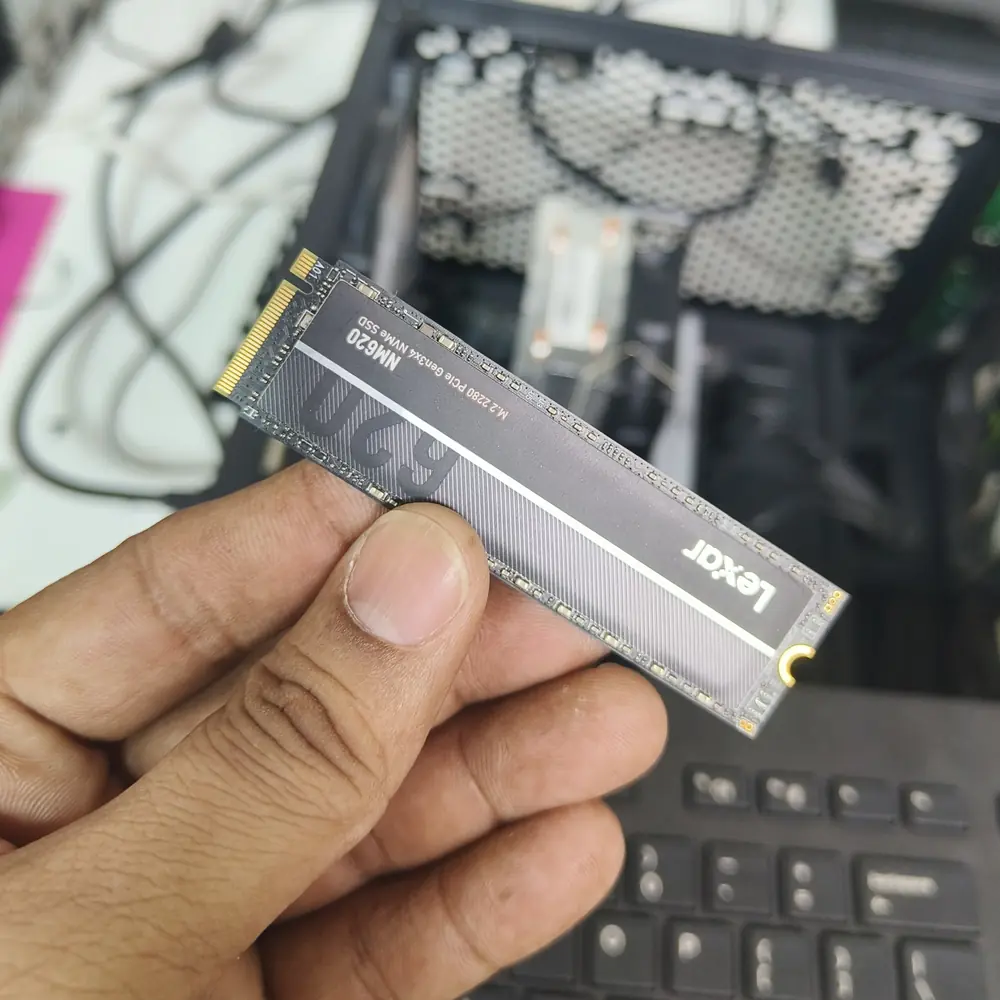
Table of Contents
- Step 1: Decide Which Kind of 'Not Detected' You Have
- Step 2: Check BIOS/UEFI Before Windows
- Step 3: Check Physical Installation and Compatibility
- Step 4: Open Disk Management
- Step 5: Understand Unallocated, Offline and Unknown States
- Step 6: Check Device Manager
- Step 7: Check for Firmware and Windows Updates
- Step 8: If the SSD Suddenly Disappeared, Treat It Differently
- Step 9: Test the SSD in Another Compatible System
- What Not to Do
- When an SSD May Actually Be Failing
- Frequently Asked Questions
- The Bottom Line
An SSD that does not appear in Windows can be a simple drive-letter issue, an uninitialized new disk, a disabled controller, an incompatibility, or a failing drive. Learn which checks are safe before touching data.
The safest way to troubleshoot an SSD that Windows 11 cannot see is to work from firmware to Windows and from non-destructive checks to deeper hardware testing. Microsoft documents Disk Management as the built-in place to initialize new disks, create volumes, change drive letters and manage partitions. But those operations are not appropriate on every missing drive—especially one that already contains important data.
Data-safety rule
Do not initialize, format, delete partitions or run destructive repair steps on a drive with important data until you know what is on it and whether recovery may be required.
Step 1: Decide Which Kind of 'Not Detected' You Have
| Feature | What you see | Most likely path | What to do next |
|---|---|---|---|
| SSD appears in BIOS/UEFI but not File Explorer | Windows storage configuration | Open Disk Management and inspect the disk/volume | |
| SSD appears in Disk Management as unallocated | New/blank drive or missing partition | Only create a volume if the drive is known to be blank | |
| SSD appears without a drive letter | Volume is present but not mounted with a letter | Assess the volume, then assign a letter if appropriate | |
| SSD is absent from BIOS/UEFI and Windows | Connection, compatibility, firmware or hardware | Check slot, power, seating and hardware behavior |
Step 2: Check BIOS/UEFI Before Windows
Restart the computer and enter its BIOS/UEFI storage information. The exact menu name varies by manufacturer. The key question is whether the motherboard firmware sees the SSD at all. If it is missing there, Windows cannot be expected to detect it, so do not spend an hour changing drive letters or running Windows repair commands.
Step 3: Check Physical Installation and Compatibility
For a removable M.2 or 2.5-inch SSD, power off the system and verify that the drive is seated correctly. On M.2 systems, confirm that the slot supports the type of device installed; some systems differentiate between NVMe PCIe storage and SATA M.2 devices. In desktops, also verify the required power/data connection for SATA drives. Never probe powered hardware with the system running.
Step 4: Open Disk Management
In Windows 11, right-click Start and open Disk Management, or press Windows + R and run diskmgmt.msc. Check whether the SSD is listed, whether it is Online or Offline, whether it has partitions, and whether the volume has a drive letter. Do not assume a disk without a letter is defective.
Step 5: Understand Unallocated, Offline and Unknown States
A brand-new blank SSD can legitimately appear as unallocated and need initialization and a volume before it is usable in File Explorer. An existing data disk appearing as unallocated is a completely different situation. Offline or unknown states can also point toward configuration, connectivity or storage-controller problems. Always identify whether the disk is new or contains existing data before taking action.
Step 6: Check Device Manager
If the SSD or storage controller is behaving abnormally, inspect Device Manager for storage controllers and disk devices with warning icons. Driver or controller issues can prevent Windows from presenting the device correctly even when the hardware itself is visible to firmware.
Step 7: Check for Firmware and Windows Updates
Storage compatibility can depend on motherboard firmware, controller drivers and Windows updates. Apply normal Windows updates when the system is otherwise stable. For a newly installed SSD on a laptop or motherboard with known firmware compatibility requirements, use the manufacturer's current firmware and documentation rather than generic driver utilities.
Step 8: If the SSD Suddenly Disappeared, Treat It Differently
A drive that worked yesterday and vanishes today deserves more caution than a new empty SSD. Unexpected disappearance can be caused by a loose connection, controller failure, firmware problems, overheating, power instability or a failing drive. If valuable data is involved, minimize writes and avoid repeated formatting or initialization attempts.
Step 9: Test the SSD in Another Compatible System
A second compatible computer or a known-good adapter can help separate a drive fault from a motherboard slot, controller or cable problem. The test must use compatible hardware; not every enclosure or adapter supports every M.2 type. If the drive works elsewhere, investigate the original system's slot, controller, firmware or power path.
What Not to Do
- Do not initialize a disk containing important data just because Windows asks you to.
- Do not format an existing partition to make File Explorer show the drive.
- Do not repeatedly reseat hardware while the system is powered.
- Do not install multiple storage-driver packages from random websites.
- Do not assume that a missing drive letter means the SSD itself has failed.
When an SSD May Actually Be Failing
- The SSD disappears intermittently from BIOS/UEFI.
- The drive works briefly and then drops under load.
- Windows logs repeated storage/controller errors.
- The same drive fails across known-good compatible systems.
- The system reports SMART or health warnings, read/write errors or corruption.
- A previously healthy drive suddenly becomes inaccessible with no software explanation.
Data first, repair second
When an SSD contains important files and suddenly disappears, preservation takes priority over 'making Windows see it.' Stop destructive changes and move to professional storage diagnosis or recovery assessment.
Frequently Asked Questions
Why is my new SSD not showing in File Explorer?
Why is my SSD visible in BIOS but not Windows?
Why did my SSD suddenly disappear?
Can I initialize an SSD that contains files?
When should I replace the SSD?
The Bottom Line
Start with BIOS/UEFI, then Disk Management, then Device Manager and compatibility. Treat a brand-new blank SSD differently from an existing drive full of data. The safest troubleshooting path is the one that proves where the SSD disappears without destroying the information you are trying to recover.
Windows, Network or Storage Problem?
Persistent Windows, Wi-Fi, SSD or update problems can come from software, drivers, configuration or hardware. KCROC can diagnose the actual cause before repair.