
Universal Laptop Troubleshooting Guide
Why Is My Laptop So Hot?
A practical, platform-independent way to find out whether a hot laptop is behaving normally or showing signs of restricted airflow, excessive workload, dust, fan trouble, thermal throttling, power-management behaviour or another cooling fault.
Windows • macOS • Linux • ChromeOSIntel • AMD • Apple siliconGaming • work • everyday useUpdated September 2026
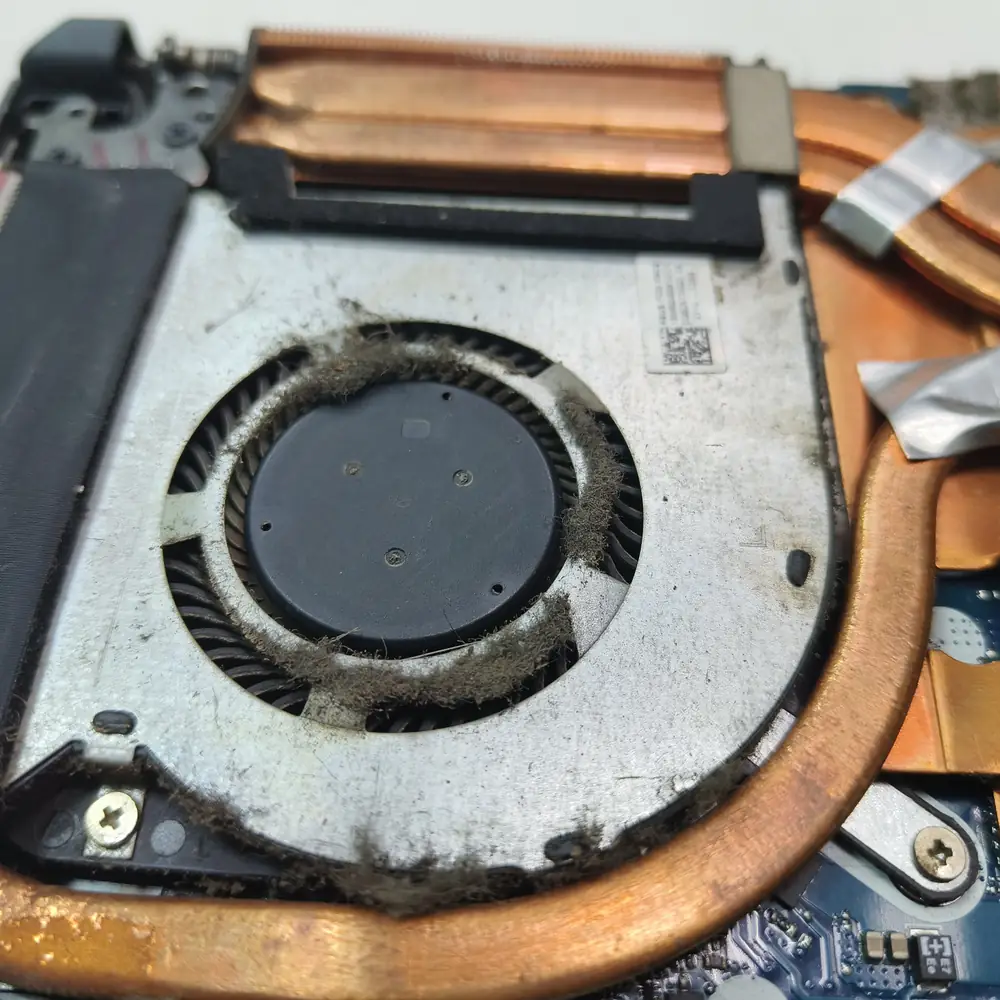
Quick answer: why is my laptop so hot?
A laptop can become hot because of normal CPU/GPU boost behaviour, sustained workload, restricted airflow, dust, a failing fan, background software, charging or power-management behaviour, high ambient temperature, or a cooling-system fault. Heat alone does not prove overheating. The useful clues are what the laptop is doing, which sensor is hot, whether clocks or performance change, and whether instability or shutdowns occur.
| What you notice | Check first |
|---|---|
| Hot + loud fan | Check CPU/GPU usage, vents and fan response |
| Hot + slow | Compare temperature, clocks, utilization and performance |
| Hot + gaming stutter | Record temperature, clocks, utilization and frame-time over the same session |
| Hot at idle | Check resource usage first; then investigate cooling if load stays low |
| Hot while charging | Compare the same workload on AC and battery |
| Hot + shutdown/restart | Stop repeated stress tests and investigate the cooling/power path |
First: hot does not automatically mean overheating
Laptop processors can intentionally increase power and clock speed during demanding work, and thermal-management systems can then adjust power, frequency and fan behaviour. There is no universal “safe laptop temperature” number that applies to every model. The useful question is whether the system stays within its documented limits and whether heat is accompanied by throttling, persistent performance loss, instability or shutdowns.
Always interpret a temperature reading in the context of the exact CPU/GPU, laptop design, workload, ambient conditions and manufacturer specifications.
Interactive triage
What should you check first?
Select the closest description. This is a starting point for diagnosis, not a machine-specific temperature verdict.
1. Main symptom
2. What workload?
3. Cooling environment
Start with the symptom, not the part
“Hot” is a symptom. The same symptom can come from normal boost behaviour, software load, blocked airflow, a failed fan, a cooling-assembly problem or a power-management issue. Diagnose the behaviour before buying a part.
Hot + loud fan
Check whether CPU/GPU load is actually high. If load is low, investigate background activity, airflow and fan control.
Hot + slow
Compare temperature and clock speed while the slowdown occurs. Sustained clock reduction under thermal stress is a useful throttling clue.
Hot + gaming stutter
Measure temperature, GPU/CPU utilization, clocks and frame-time behaviour across the same gaming session.
Hot + shutdown
Repeated shutdowns deserve hardware and thermal investigation rather than repeated stress testing.
Hot at idle
Look for background processes, updates, synchronization or an abnormal cooling condition.
Hot only while charging
Compare the same workload on AC and battery because laptops may change power and performance behaviour when plugged in.
Symptoms → possible causes → first checks
Use this as a diagnostic starting point, not a substitute for model-specific testing.
| Symptom | Possible causes | First checks |
|---|---|---|
| Hot + loud fan | High workload, background activity, restricted airflow or fan-control behaviour | Check CPU/GPU usage, vents and fan response |
| Hot + slow | Thermal throttling, power limiting, background load or another performance fault | Compare temperature, clocks, utilization and performance |
| Hot + gaming stutter | CPU/GPU thermal or power limiting, airflow restriction or workload change | Record temperature, clocks, utilization and frame-time over the same session |
| Hot at idle | Background process, update/indexing/sync activity or cooling problem | Check resource usage first; then investigate cooling if load stays low |
| Hot while charging | Charging heat plus workload, AC power profile or battery/charger issue | Compare the same workload on AC and battery |
| Hot + shutdown/restart | Thermal protection, power fault or another hardware problem | Stop repeated stress tests and investigate the cooling/power path |
| Hot after cleaning | Fan/heatsink issue, disturbed thermal interface, incorrect reassembly or a different workload | Repeat a controlled before/after test and inspect the cooling assembly |
| One area unusually hot | Localized component, battery, VRM or cooling-path problem | Stop if accompanied by swelling, smell, smoke or physical damage |
The major causes of laptop heat
High workload or boost behaviour
Modern CPUs and GPUs can raise power, clocks and fan speed during demanding work. Heat by itself does not prove a fault.
Restricted airflow
A soft surface, blocked intake/exhaust, dock placement or an obstructed chassis can reduce the cooling system’s ability to move heat away.
Dust or a blocked heatsink
Dust accumulation can restrict airflow through the fins. The effect depends on the laptop design, environment and how much debris has accumulated.
Fan or cooling hardware fault
Grinding, clicking, intermittent fan operation, abnormal fan behaviour or a fan that does not respond to load can point to a hardware problem.
Thermal interface or heatsink-contact problem
Thermal paste or another thermal interface can degrade or be disturbed, but replacing it should follow diagnosis rather than being the default answer to every hot laptop.
Power, firmware or control behaviour
BIOS/firmware, OEM performance modes and platform power-management systems can change fan behaviour, power limits and sustained performance.
Background software activity
Updates, indexing, browsers, synchronization, malware or a runaway process can keep a system busy when the user expects it to be idle.
Ambient temperature
A warmer room reduces the cooling system’s temperature headroom. The laptop still needs to be evaluated against its own design and manufacturer guidance.
What temperature is too hot for a laptop?
There is no single temperature number that applies to every laptop. Processor and GPU limits vary by model, while laptop manufacturers also control power targets, fan curves and chassis cooling differently. A short boost near a documented limit is not automatically equivalent to a sustained thermal fault.
For diagnosis, record the exact component and sensor, workload, temperature trend, clock speed, utilization and performance. A repeatable relationship between rising temperature and falling clocks or performance is more informative than a generic “90°C is bad” or “100°C is fine” rule.
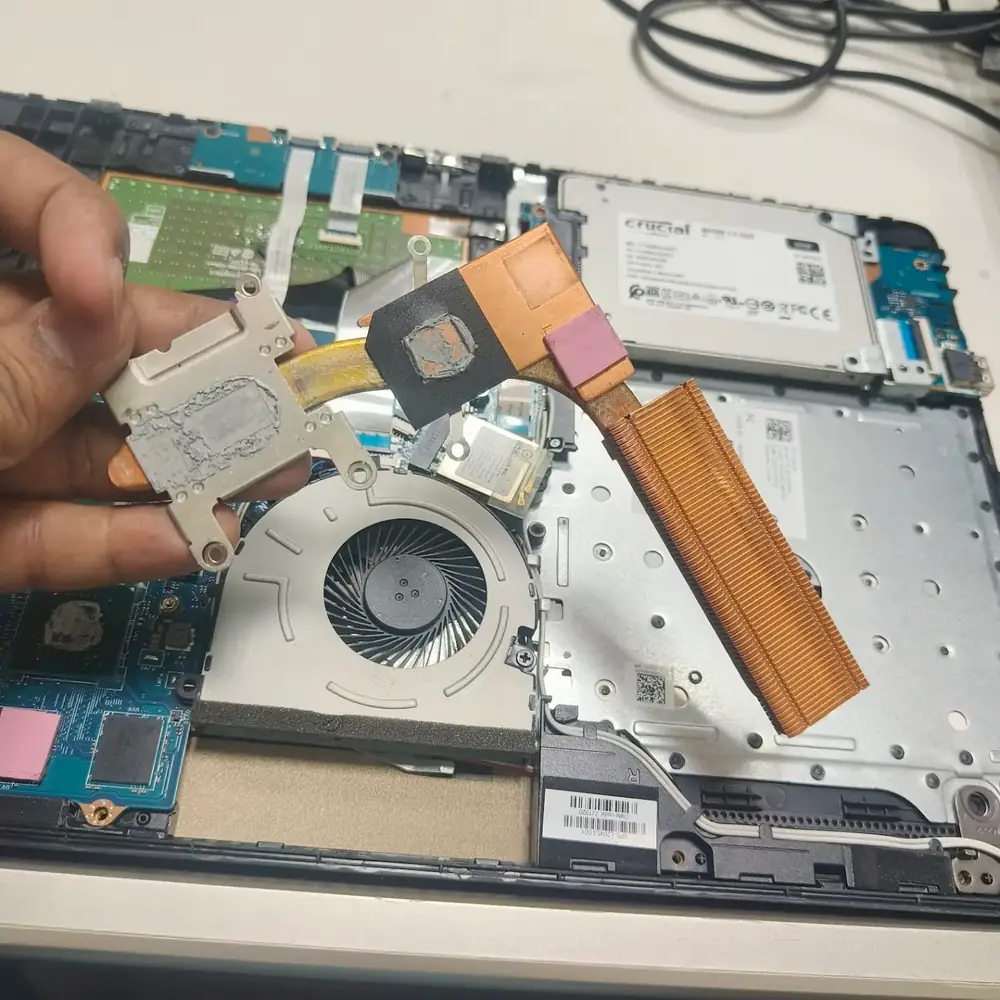
Thermal-interface condition is one possible cause, but it should be assessed after airflow, workload and fan behaviour are considered.
A better thermal question
- 1. What component and sensor are you measuring?
- 2. What workload was running?
- 3. How long did the temperature stay elevated?
- 4. Did clocks, power or performance change?
- 5. Does the behaviour match the exact manufacturer's specifications?
Which laptop temperature are you actually seeing?
Monitoring software can expose several different sensors. They are not interchangeable, so a number should always be interpreted with its sensor name and the component it represents.
| Measurement | What it represents | Diagnostic note |
|---|---|---|
| CPU package/core | Processor sensor reading | Interpret with CPU utilization, clock speed, workload and the processor documentation |
| GPU temperature | Primary graphics-processor sensor | Use the exact GPU/system specification rather than a generic chart |
| GPU hotspot/junction | Localized maximum GPU sensor on supported hardware | Do not compare directly with the GPU core reading |
| SSD temperature | Storage-device sensor | A storage thermal issue can cause its own throttling even when CPU/GPU temperatures look normal |
| Battery temperature | Battery-management sensor | Treat unusual heat with charging changes, swelling or chassis deformation as a safety concern |
| Chassis/surface temperature | Physical laptop enclosure | It is not equivalent to an internal CPU or GPU sensor |
How to diagnose overheating without guessing
1. Reproduce the symptom.
Note what you were doing, how long it took to appear and whether the problem is repeatable.
2. Measure workload.
Use the operating system’s resource monitor or a manufacturer-supported utility to see whether CPU/GPU activity matches the heat.
3. Measure temperature and clocks together.
A single peak number is less informative than the thermal trend alongside frequency, utilization and performance.
4. Compare against the exact machine.
Check the laptop or processor manufacturer’s specifications instead of applying a generic internet temperature chart.
5. Test airflow.
Use a stable, hard surface and make sure every intake and exhaust opening is unobstructed.
6. Check for throttling.
If clocks or power fall as temperature rises and performance drops at the same time, thermal management may be limiting the system.
7. Change one variable at a time.
Otherwise you cannot tell whether airflow, software load, power mode or another change actually affected the result.
8. Record the before/after result.
A repeatable comparison is much more useful than “it feels cooler now.”
Windows, macOS, Linux and ChromeOS
Windows: Task Manager can show CPU, GPU and other resource activity. Use it to establish whether unexpected workload is accompanying the heat.
macOS: Activity Monitor provides a way to investigate CPU activity and processes. Apple also recommends stable surfaces and unobstructed ventilation for Mac laptops.
Linux: Use the monitoring tools appropriate to your distribution and hardware to correlate workload, clocks and temperatures. Sensor names and available controls vary by hardware.
ChromeOS: Start with workload, ventilation and manufacturer guidance. The same diagnostic principle applies even though the available low-level controls differ from Windows or Linux.
Intel, AMD and Apple silicon
Intel: thermal limits and throttling behaviour vary by processor and OEM laptop design. Intel specifically advises laptop users to refer to the system manufacturer for platform-specific thermal behaviour.
AMD: operating temperature depends on the cooler, airflow, ambient temperature, user settings and workload. AMD likewise advises evaluating CPU temperature in the context of the complete system.
Apple silicon: Mac laptops use platform-level thermal management and sensors. The exact monitoring and cooling behaviour is controlled differently from conventional Windows PCs.
The rule is the same across platforms: use the exact machine’s specifications and observed behaviour rather than a one-size-fits-all temperature threshold.
Common situations: idle, charging and gaming
Hot while idle
Check CPU/GPU activity, updates, indexing, synchronization, browser processes and other background work. If utilization remains low while heat and fan activity stay abnormal, investigate airflow, sensors and the cooling system.
Hot while charging
Charging can add heat while AC power can also change performance behaviour. Compare the same workload on battery and AC. If heat is localized around the battery, charging port or chassis, especially with swelling or deformation, stop using the machine and seek inspection.
Hot while gaming
Sustained CPU/GPU load can make gaming laptops hot and loud. Investigate when FPS or frame-time behaviour deteriorates after warm-up, clocks fall with rising temperature, airflow is restricted, or instability/shutdowns occur.
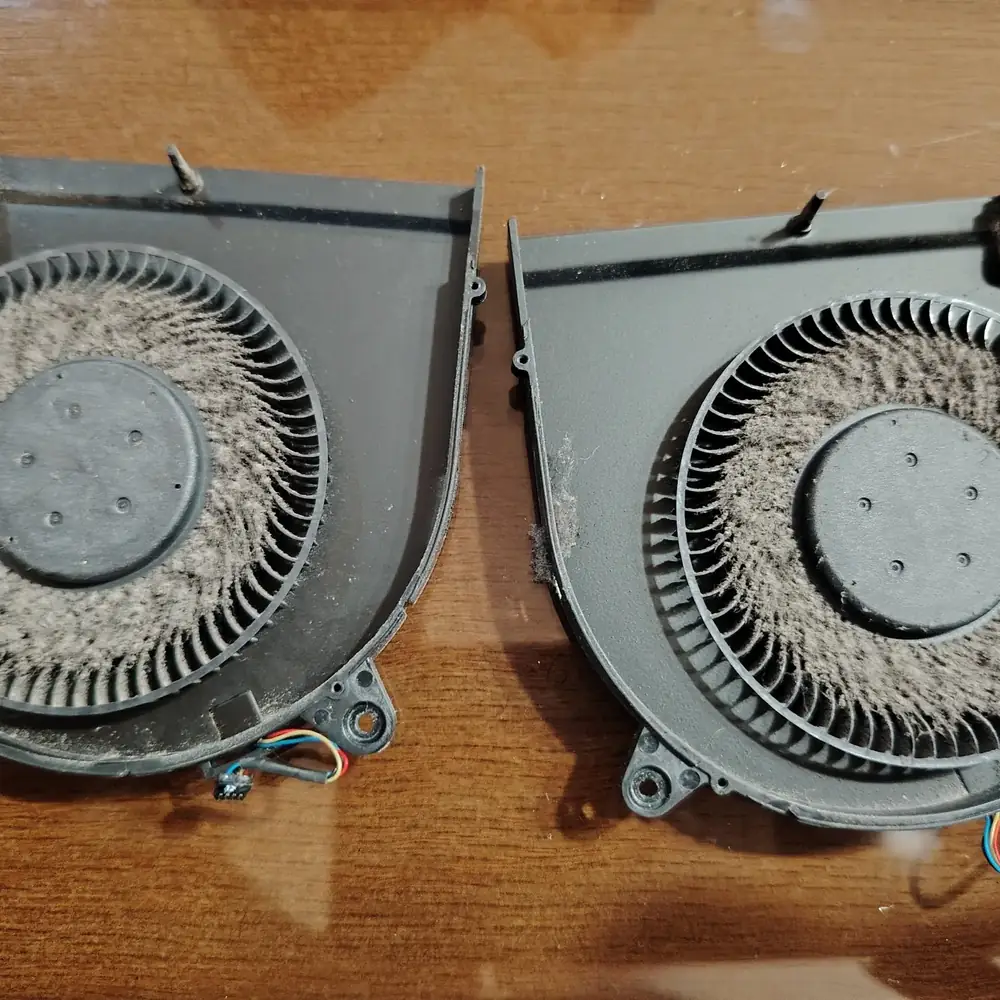
Restricted airflow can increase fan noise and sustained temperatures. External airflow checks are the safest first step.
Why is my laptop fan always running?
A constantly audible fan does not automatically mean the laptop is overheating. The fan may be responding correctly to CPU/GPU workload, a performance profile, high ambient temperature or background activity. If the fan runs hard during light work, first identify the workload; then check airflow and fan behaviour before assuming the fan itself has failed.
If gaming heat is your main problem, continue to the Windows gaming guide where relevant, or use the Dell overheating guide for model-family-specific checks.
Safe checks to try first
These checks are deliberately low-risk and do not require opening the laptop.
If heat is accompanied by swelling, charging changes or chassis deformation, see the laptop battery warning-signs guide rather than treating it as ordinary cooling maintenance.
Move the laptop to a hard, stable surface.
Clear visible intake and exhaust obstructions.
Close unnecessary high-CPU/GPU applications.
Install pending operating-system and manufacturer updates.
Use the manufacturer’s normal or recommended thermal/performance profile.
Compare the same workload before and after each change.
When to stop experimenting
The laptop repeatedly shuts down or restarts under load.
The fan grinds, clicks, fails to spin or behaves erratically.
The chassis becomes unusually hot in one localized area.
Performance collapses after the machine warms up and does not recover normally.
External airflow checks make little or no difference.
There is swelling, liquid exposure, burning smell, smoke or other physical damage.
Things not to do blindly
Do not replace thermal paste simply because a temperature looks high.
Do not block vents with cushions, blankets or accessories.
Do not repeatedly stress-test a machine that is already shutting down.
Do not change BIOS power or voltage settings without understanding the model-specific consequences.
Do not open a laptop if you are not prepared for model-specific connectors, battery safety and cooling hardware.
Do not treat a generic “90°C is bad” or “100°C is fine” chart as a universal rule.
Why generic temperature charts can mislead
Processor thermal limits are model-specific, and laptop manufacturers can set platform power, cooling and acoustic behaviour differently. A temperature that is expected during a short boost is not automatically equivalent to a sustained thermal fault. Look at the complete pattern: workload → temperature → clock/power behaviour → performance → stability.
Intel documents that thermal limits vary by processor and that thermal protection can reduce power/frequency or initiate shutdown. AMD likewise notes that operating temperature depends on cooling, airflow, ambient temperature, settings and workload. Apple documents that Mac laptops can become warm during normal use and recommends unobstructed ventilation.
Laptop overheating FAQ
Why is my laptop so hot even though the fan is running?
The fan can be operating normally while airflow is restricted, workload is high, the heatsink is obstructed, or the cooling system is not transferring heat efficiently. Check workload, airflow, temperature behaviour and performance together rather than judging the fan alone.
What temperature is too hot for a laptop?
There is no single temperature number that applies to every laptop. CPU limits vary by processor and system design, and normal behaviour depends on workload, power settings and ambient conditions. Use the exact processor or laptop manufacturer specifications and look for sustained throttling, abnormal performance loss, shutdowns or other symptoms.
Is 90°C or 100°C automatically dangerous for a laptop?
Not necessarily. A sensor reading near a processor’s documented limit can occur during demanding work, and modern processors use thermal-management mechanisms. The correct interpretation depends on the exact component, workload and system design. A repeated performance problem or shutdown is more useful evidence of a cooling issue than a universal temperature rule.
Can dust make a laptop overheat?
Yes. Dust can restrict airflow through the cooling path. If cleaning the external vents does not change the behaviour, the internal fan, heatsink and cooling assembly may need inspection.
Why does my laptop get hot while gaming?
Gaming can place sustained load on both the CPU and GPU, so higher temperatures and fan noise can be normal. Investigate when heat is accompanied by persistent throttling, major performance degradation, repeated stutter after warm-up, instability or shutdowns.
Can overheating cause stuttering or FPS drops?
Yes. Thermal management can reduce power or clock speed when a component approaches its thermal limits. If stutter becomes worse after several minutes of sustained load, compare temperature, clocks, utilization and frame-time behaviour over the same period.
Should I replace thermal paste because my laptop is hot?
Not automatically. Airflow restriction, dust, fan failure, workload, power settings, firmware behaviour and other hardware faults can produce similar symptoms. Diagnose the cooling path first and replace thermal interface material only when the evidence supports it.
Why is my laptop hot when it is doing almost nothing?
Check for unexpected CPU/GPU activity, updates, synchronization, browser processes or other background work. If utilization is genuinely low but temperatures and fan activity remain abnormal, investigate airflow, sensors and the cooling system.
Can a hot room make my laptop run hotter?
Yes. Cooling systems reject heat into the surrounding air, so higher ambient temperature reduces the available temperature headroom. The effect varies by laptop and workload.
Does this guide apply to MacBook, Windows, Linux and Chromebook laptops?
The diagnostic principles apply across laptop platforms: establish workload, check airflow, observe temperature and performance together, identify throttling or instability, and compare behaviour with the manufacturer’s specifications. The exact monitoring tools and thermal controls differ by operating system and model.
Can a laptop shut down because of overheating?
Yes. Thermal protection can reduce performance and, if temperature cannot be controlled, a system may shut down. Repeated thermal shutdowns should be treated as a fault symptom and investigated rather than repeatedly worked around.
About this guide
This guide was written and technically reviewed by Imran Natiq, Founder & Lead Technician at KCROC. It is designed as a platform-independent troubleshooting reference: manufacturer specifications and model-specific service procedures take precedence over generic temperature charts.
Last reviewed September 30, 2026. Significant future technical changes should be reflected in the review date and structured data.
Need a model-specific diagnosis?
If the universal checks point to a hardware cooling problem, the next step is to identify the exact laptop model, reproduce the symptom, inspect the fan and heatsink, and test the cooling path before replacing parts.
Internal repair pathways
Continue with a more specific path
Use the universal guide first, then move to a brand, symptom or repair-specific page when you have stronger evidence.
Dell laptop overheating guideModel-family-specific troubleshooting and repair considerations for Dell laptops.Explore this path Laptop battery warning signsUse this when heat is accompanied by swelling, charging changes or other battery symptoms.Explore this path Windows gaming / Game Bar guideUseful when heat and gaming stutter appear alongside Windows background activity.Explore this path Laptop overheating service in KuwaitLocal diagnostic and repair path for customers who need bench inspection.Explore this path
Technical references
This guide intentionally avoids a universal “safe temperature” number. Thermal limits and behaviour are platform- and model-dependent.