
10 Gaming PC Mistakes That Are Quietly Killing Your Performance (2026)
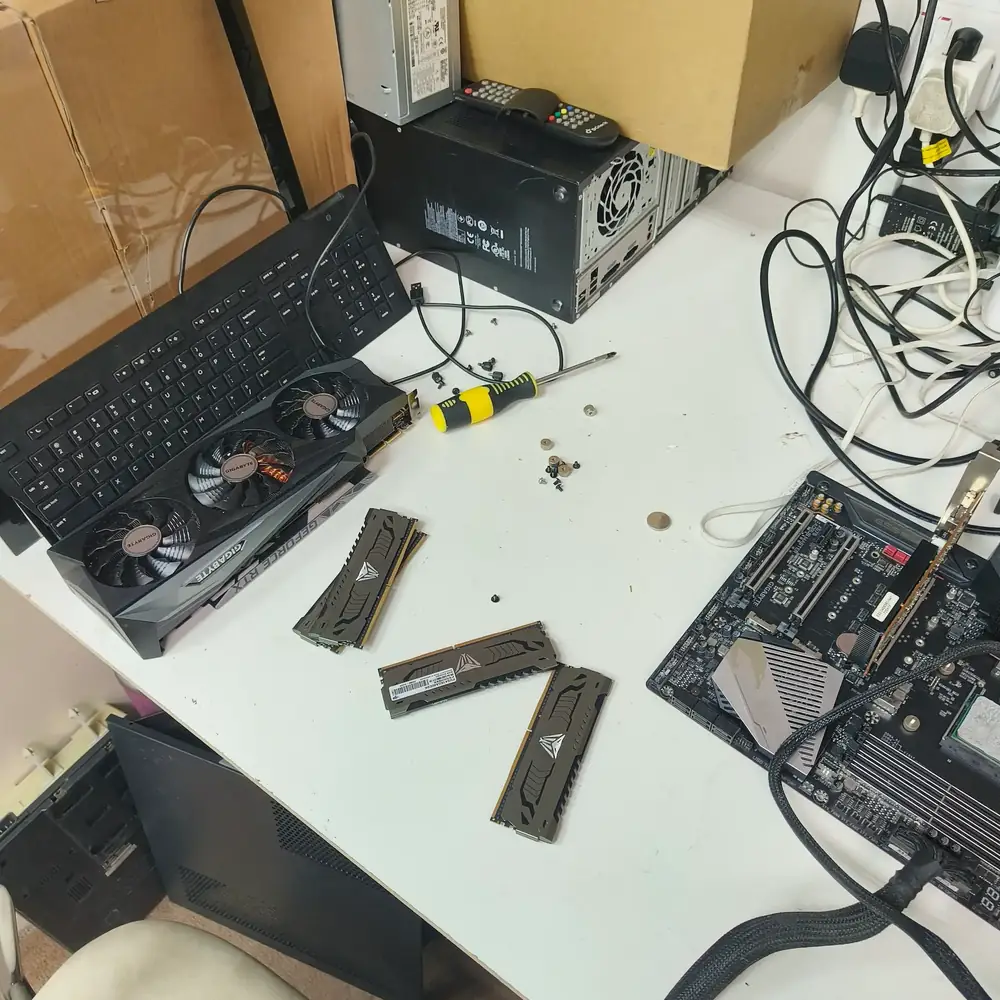
That RTX 4080 shouldn't be stuttering. Most performance loss in gaming PCs isn't the hardware itself — it's a handful of setup and maintenance mistakes that get worse in Kuwait's climate.
On This Page
- 1. Letting Dust Choke Your Airflow
- 2. Never Replacing Thermal Paste
- 3. Getting Case Airflow Direction Wrong
- 4. Skipping BIOS Updates and Leaving XMP/EXPO Off
- 5. Bottlenecking a Powerful GPU with a Weak CPU or Slow Storage
- 6. Using a Weak or Aging Power Supply
- 7. Ignoring Graphics Driver Updates — Or Never Cleaning Old Ones Out
- 8. Overclocking Without Monitoring Temperatures
- 9. Placing the PC Somewhere It Can't Breathe
- 10. Never Reseating or Rechecking Components After a Move
- A Quick Health Check Before You Blame the Hardware
- Frequently Asked Questions
- The Bottom Line
A brand-new GPU that stutters. A CPU that throttles mid-match. A PC that ran perfectly for six months and now randomly restarts. Most of the time, none of this is a defective part — it's one of a handful of avoidable mistakes stacking up quietly in the background. We see the same patterns on the repair bench week after week, and almost all of them are fixable in under an hour.
Did You Know?
Kuwait's summer ambient temperatures routinely exceed 45°C, and fine desert dust is small enough to work through standard case mesh filters. A gaming PC here can accumulate in six months the dust buildup a similar PC in a temperate climate takes two years to reach.
How to use this checklist
This article covers broad setup and performance mistakes. For a full desktop cooling diagnosis—including airflow, fans, coolers and thermal interfaces—see our dedicated gaming-PC overheating guide instead of repeating the same cooling procedure here.
1. Letting Dust Choke Your Airflow
Dust buildup is one possible performance and cooling problem. It can restrict airflow through heatsink fins and filters, forcing fans to work harder. The practical check is to inspect the actual cooling path rather than assume that every temperature problem is caused by dust.
A proper clean isn't just wiping the outside of the case. It means pulling the GPU, removing fan shrouds where possible, and blowing compressed air through radiator fins from the clean side out, not just from the front. For many dusty or floor-level setups in Kuwait, inspecting filters and cooling every 3–6 months is a practical starting point. Clean when buildup or symptoms appear; no interval can guarantee that thermal throttling will be prevented.
2. Never Replacing Thermal Paste
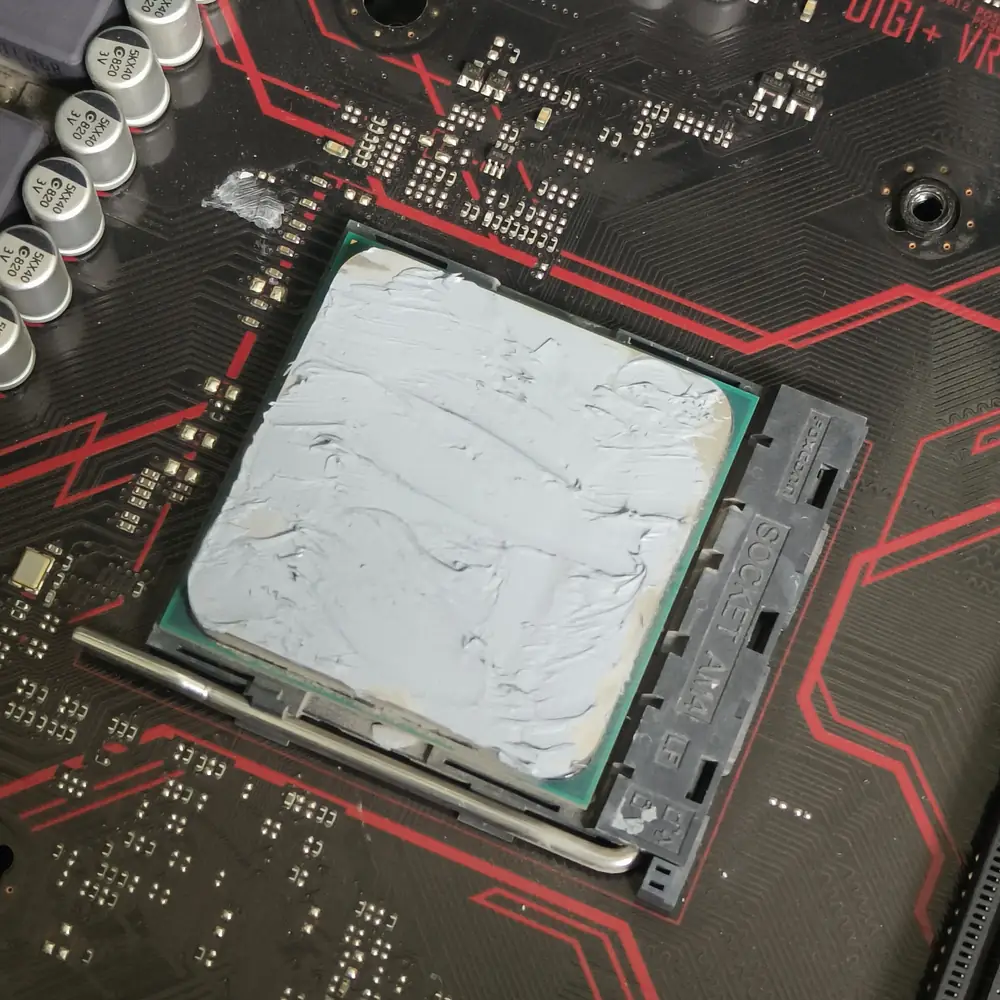
Factory-applied thermal paste can remain effective for years, but its condition depends on the laptop or PC design, workload, thermal material, mounting pressure and service history. Degraded or poorly applied material can contribute to higher temperatures, but it should be considered alongside dust, airflow, fan condition and cooler contact rather than assumed from age alone.
Performance Tip
If your CPU or GPU temperatures have increased over time, dried thermal paste is one possible cause. Dust buildup, restricted airflow, fan condition, cooler mounting, software load and ambient temperature should also be checked before deciding on a repaste. A repaste can improve temperatures when the existing thermal interface is degraded or poorly applied, but the result varies by system. Measure before and after rather than treating a temperature drop as guaranteed.
3. Getting Case Airflow Direction Wrong
Fan direction matters more than fan count. A case with too many exhaust fans and not enough intake creates negative pressure, which pulls dusty air in through every gap, seam, and unfiltered opening in the case instead of through the filtered front intake. The PC still 'has fans' — it just breathes dirty air from the wrong places.
| Feature | Positive Pressure | Negative Pressure |
|---|---|---|
| Where dust enters | Filtered intake only | Every unfiltered gap and seam |
| Internal dust buildup | Slow, mostly on filters | Fast, coats every component |
| Best setup | More/stronger intake than exhaust | More exhaust than intake |
| Recommended for Kuwait | Yes | Not recommended |
The fix is usually just re-checking fan orientation (arrows on the fan frame show airflow direction) and making sure total intake CFM is slightly higher than total exhaust CFM. This alone can cut long-term dust accumulation dramatically without spending a single Dinar.
4. Skipping BIOS Updates and Leaving XMP/EXPO Off
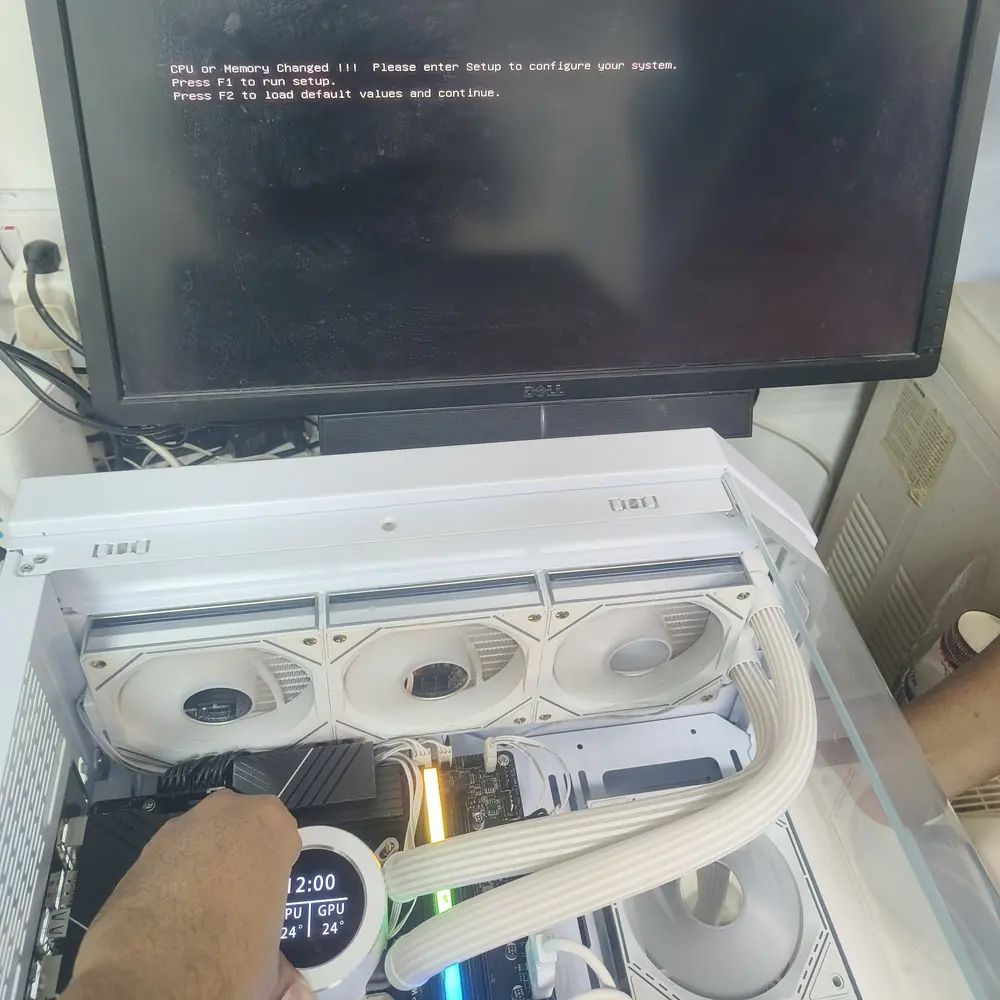
New RAM kits are sold with an advertised speed — say 6000MHz — but out of the box, most motherboards run that same RAM at a conservative default like 4800MHz until you manually enable XMP (Intel) or EXPO (AMD) in the BIOS. That's not a minor detail: on modern platforms, especially AMD's Ryzen, RAM speed has a direct, measurable impact on gaming frame rates.
Info
Outdated BIOS and chipset firmware can also cause compatibility issues with newer CPUs, RAM kits, and even GPUs — showing up as random reboots or a PC that won't boot with new parts installed. A BIOS update is often the actual fix, not a hardware swap.
5. Bottlenecking a Powerful GPU with a Weak CPU or Slow Storage
It's common to see a high-end GPU paired with an older or budget CPU, or with a single stick of RAM running in single-channel mode. The GPU sits underutilized, frame rates plateau well below what the card is capable of, and the owner assumes the GPU is faulty when it's actually starved of work by the rest of the system.
A quick way to check: monitor GPU usage during gameplay with a tool like MSI Afterburner or the Windows Task Manager Performance tab. If it's consistently sitting well below 90-95% while your frame rate is lower than expected, something else in the system — CPU, RAM configuration, or even storage — is holding it back.
6. Using a Weak or Aging Power Supply
The power supply is the one component people are most tempted to cut costs on, and it's the one that causes the most unpredictable symptoms when it's underpowered or degrading — random shutdowns under load, GPU artifacting that looks like a graphics card fault, and reboots specifically during demanding scenes or benchmarks.
Warning
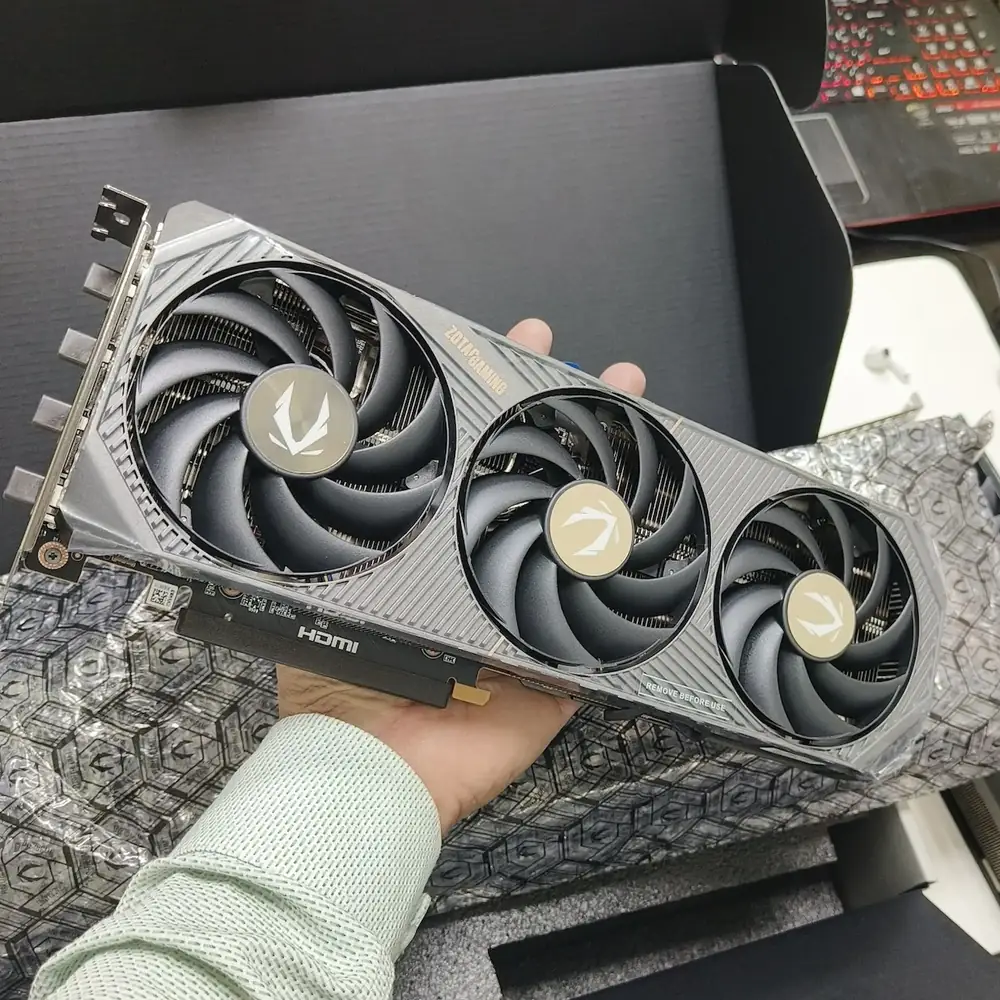
If you upgrade your GPU without checking your PSU's rated wattage and available PCIe power connectors, you can end up with intermittent crashes that look exactly like a bad graphics card. Always check PSU headroom before, not after, a GPU upgrade.
7. Ignoring Graphics Driver Updates — Or Never Cleaning Old Ones Out
Running outdated GPU drivers means missing out on game-specific performance optimizations that NVIDIA and AMD ship regularly. The opposite mistake is just as common: installing a new driver directly over a corrupted old one without a clean uninstall, which can cause stuttering, crashes, or display flickering that has nothing to do with the hardware itself.
Most 'my GPU is defective' complaints we investigate turn out to be a driver conflict, a thermal issue, or a PSU problem — not the graphics card.
8. Overclocking Without Monitoring Temperatures
Pushing a CPU or GPU beyond factory clocks can genuinely improve performance, but only if cooling keeps up. Overclocking on a cooler that was already borderline adequate at stock speeds — or on a PC with the dust and airflow problems above — pushes temperatures past safe limits, shortens component lifespan, and often causes crashes that look random but trace back to thermal limits under sustained load.
Expert Advice
If you overclock, monitor temperatures during an actual gaming session, not just a quick benchmark — sustained load over 30-60 minutes reveals thermal problems that a 2-minute stress test can miss entirely.
9. Placing the PC Somewhere It Can't Breathe
Where the PC physically sits matters more than most people expect. A tower pushed flush against a wall, tucked inside a closed desk cabinet, sitting on thick carpet, or positioned in direct sunlight through a window all restrict intake airflow or add extra ambient heat the cooling system now has to fight against — on top of Kuwait's already-high indoor and outdoor temperatures during summer.
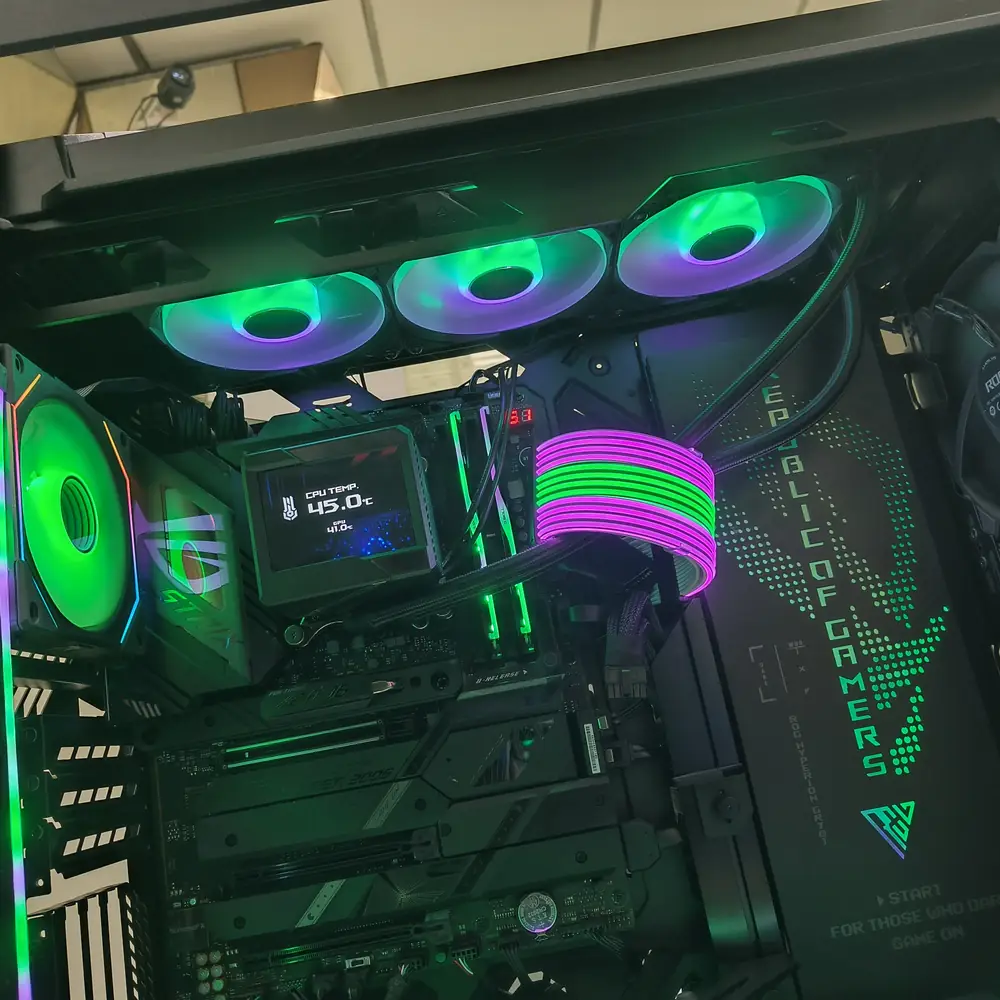
Leaving at least 10-15cm of clearance around intake and exhaust panels, avoiding enclosed cabinets without ventilation, and keeping the case out of direct sun solves this at zero cost — it's purely a placement decision.
10. Never Reseating or Rechecking Components After a Move
PCs that have been transported, shipped, or even just bumped during cleaning can develop loose RAM sticks, a partially seated GPU, or loosened cooler mounting pressure — all of which cause intermittent issues (no display, random crashes, worse temperatures) that look far more serious than they are. This is especially relevant if you've had your PC picked up and dropped off for a repair or cleaning without checking it afterward.
Pro Recommendation
After any move, transport, or major cleaning, boot the PC and check Task Manager or a monitoring tool for expected RAM capacity and GPU detection before assuming anything is faulty. A reseat takes two minutes and rules out the most common post-move issue.
A Quick Health Check Before You Blame the Hardware
Diagnose Before You Upgrade
Check temperatures under sustained load
Not just idle — run a real 30-minute gaming session and watch CPU/GPU temps.
Confirm XMP/EXPO is enabled
Check BIOS — RAM often silently runs below its advertised speed.
Inspect and clean dust buildup
Radiators, heatsinks, and fan blades — not just the case exterior.
Check GPU usage %
Below 90-95% during gameplay points to a CPU or RAM bottleneck.
Verify PSU wattage and connectors
Especially after any GPU upgrade.
Update GPU drivers with a clean install
Use a clean-install option, not just an update-over-update.
Reseat RAM and GPU if recently moved
Rules out the most common post-transport issue.
Frequently Asked Questions
Why is my gaming PC suddenly performing worse?
How often should I clean a gaming PC in Kuwait?
Does XMP actually make a difference for gaming?
How do I know if my PSU is causing problems?
Is overclocking safe for a gaming PC?
Should I upgrade my GPU if it feels slow?
The Bottom Line
Most gaming PC performance problems trace back to a small, predictable list: dust, dried thermal paste, airflow direction, disabled XMP, an underpowered PSU, and outdated drivers. None of these require a new build to fix. If you've worked through this list and your PC still throttles, crashes, or underperforms for its specs, that's the point where a proper diagnostic — the kind we run on every Gaming PC Repair job — separates a genuine hardware fault from a setup issue.
Is Your Laptop Running Slow?
If your laptop freezes, slows down during multitasking, or struggles with everyday apps, our technicians can diagnose whether it's RAM, storage, overheating, or a hardware fault — for free.