
Keep Your Gaming PC Cool
in Kuwait's Heat
Professional cooling solutions designed for extreme climates. Protect your investment from overheating and thermal throttling.
Climate vs. Gaming PCs
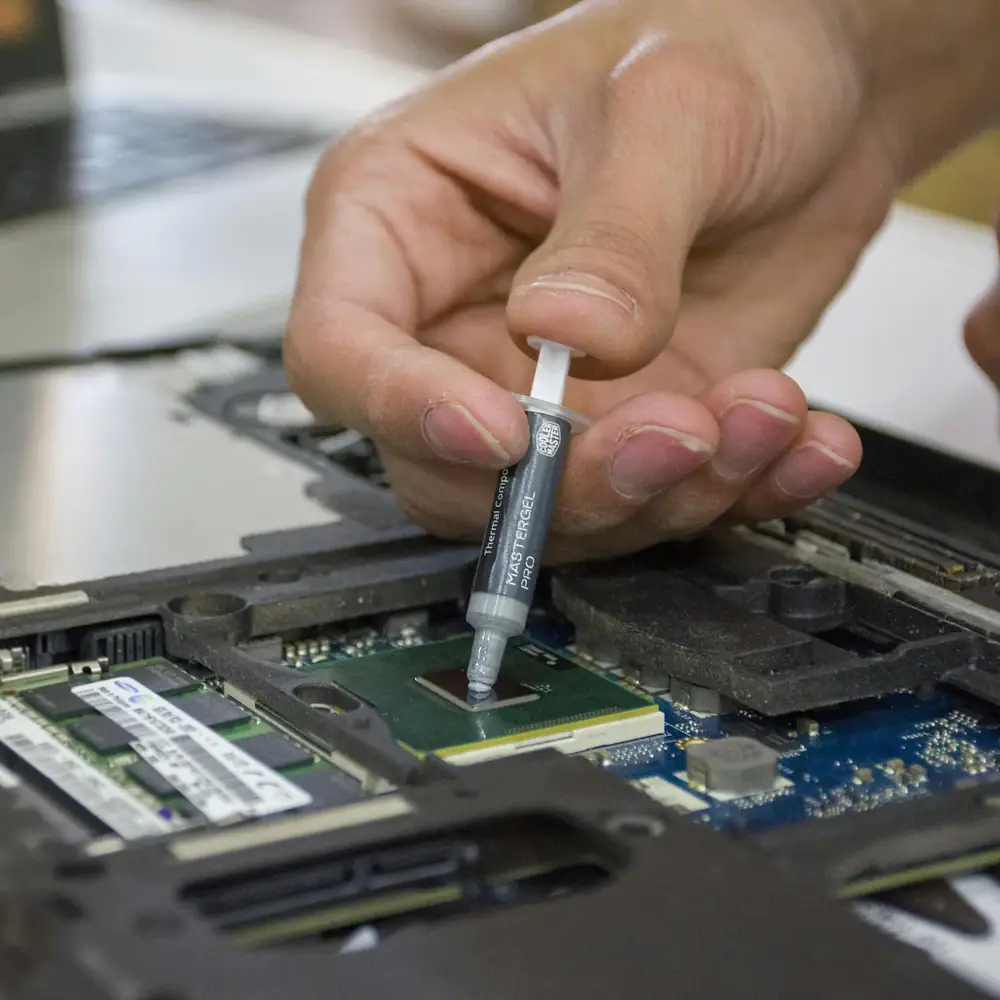
Extreme Heat
Scorching summer temperatures push gaming PCs to their thermal limits, causing overheating.
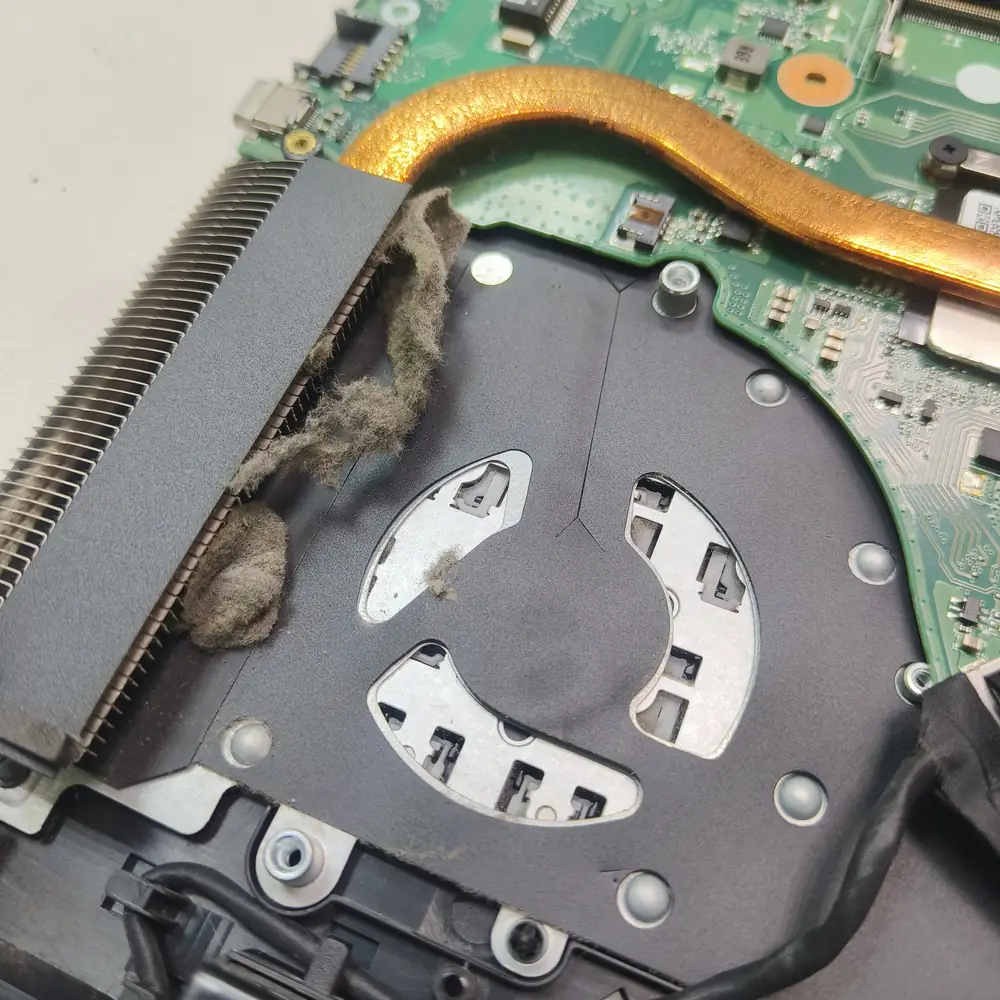
Desert Dust
Fine sand infiltrates cooling systems, clogging fans and reducing airflow efficiency.
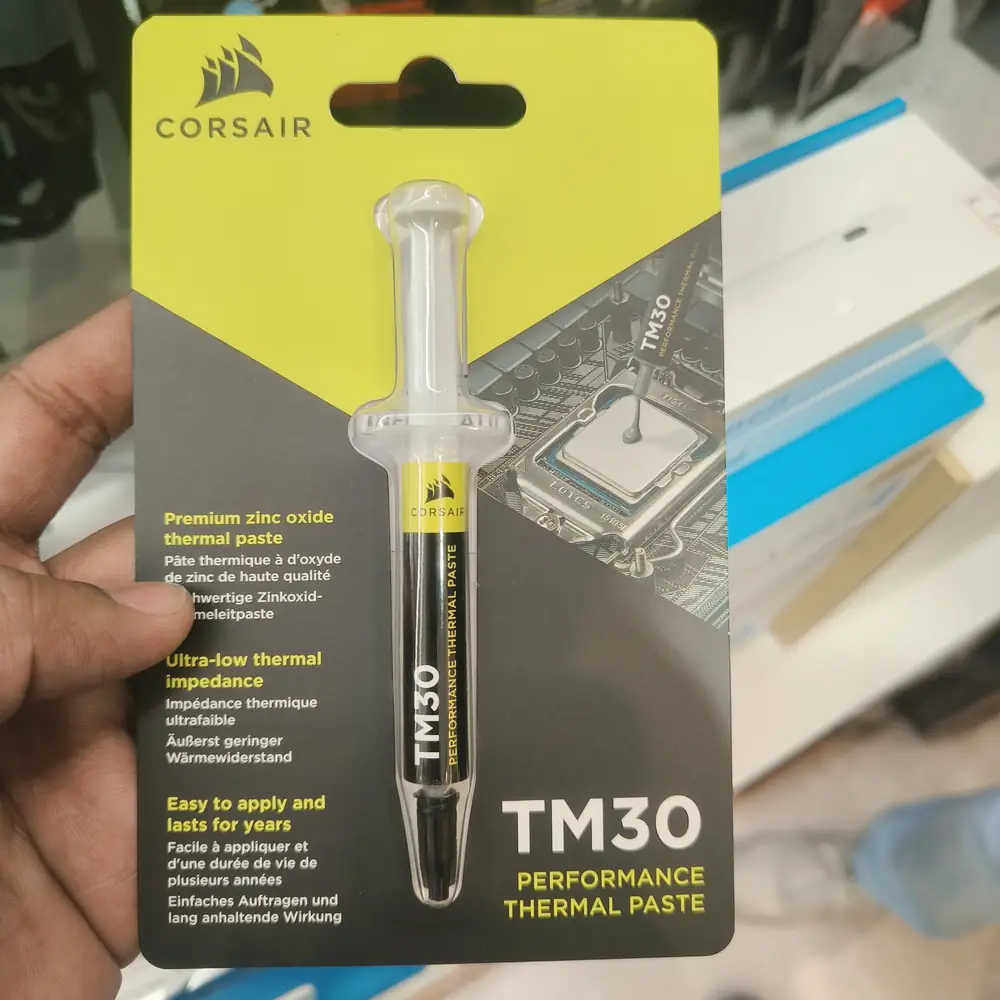
Humidity Shifts
Coastal humidity combined with AC usage accelerates thermal paste degradation.
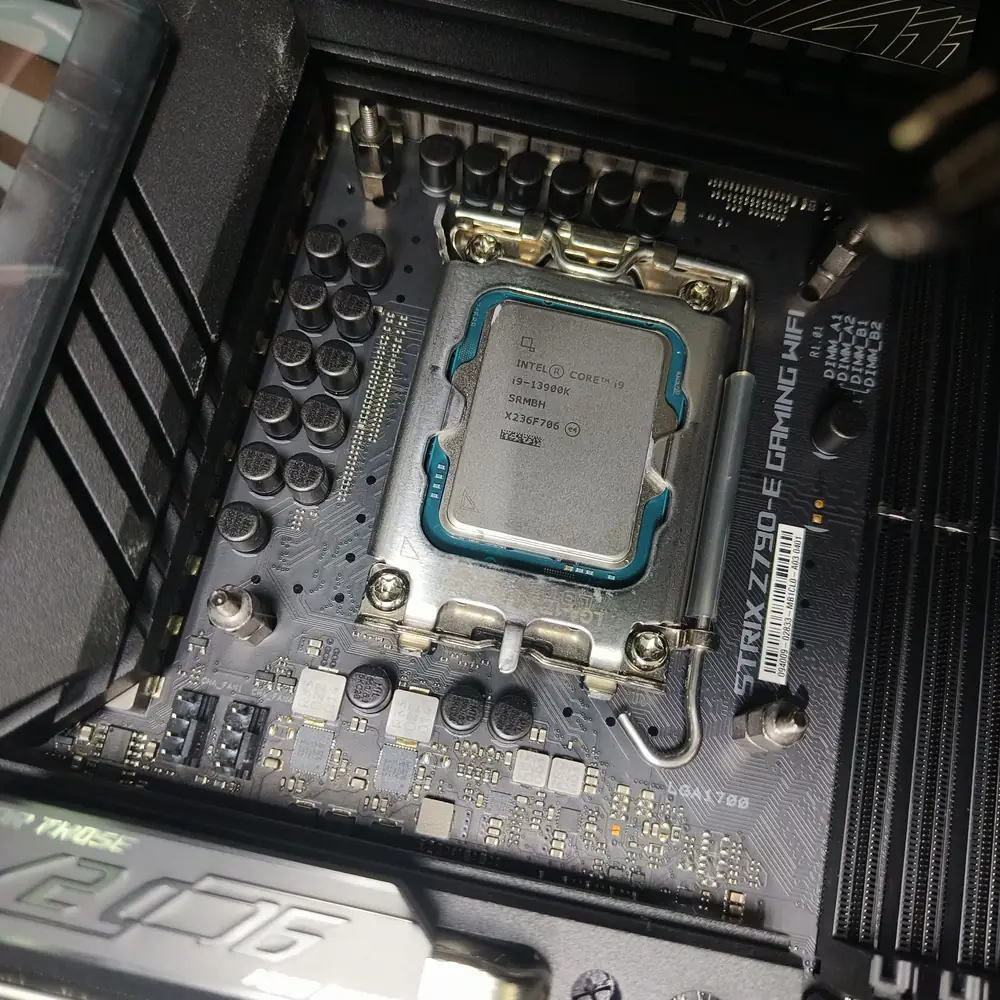
Component Stress
Constant thermal cycling stresses components, increasing motherboard failure rates.
Critical Thresholds
Temperature Safety Zones
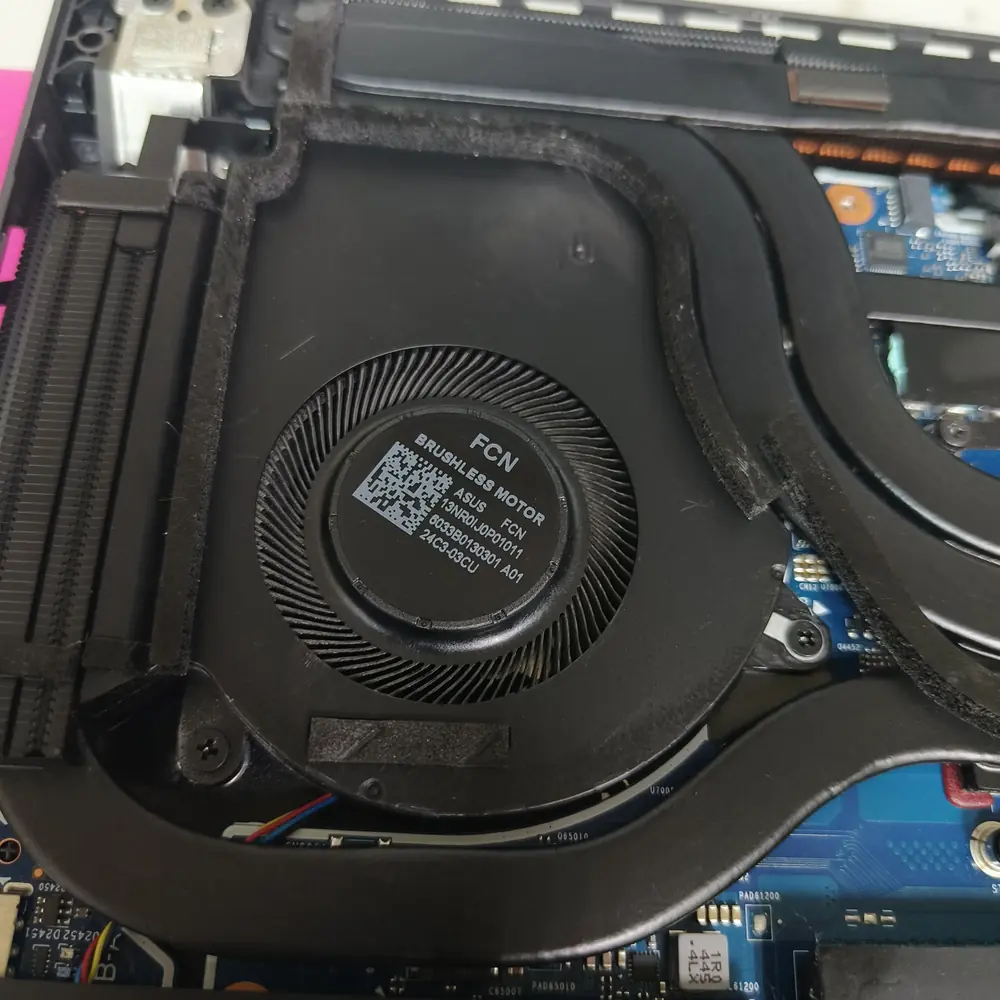
CPU
Use the exact CPU specification and watch sustained temperature, clocks and performance
GPU
GPU temperature and hotspot behavior vary by model, cooler and power target
RAM
Do not apply a universal RAM temperature cutoff; use the module/platform specification
SSD/NVMe
NVMe temperature limits and throttling behavior vary by drive model
Cooling Services
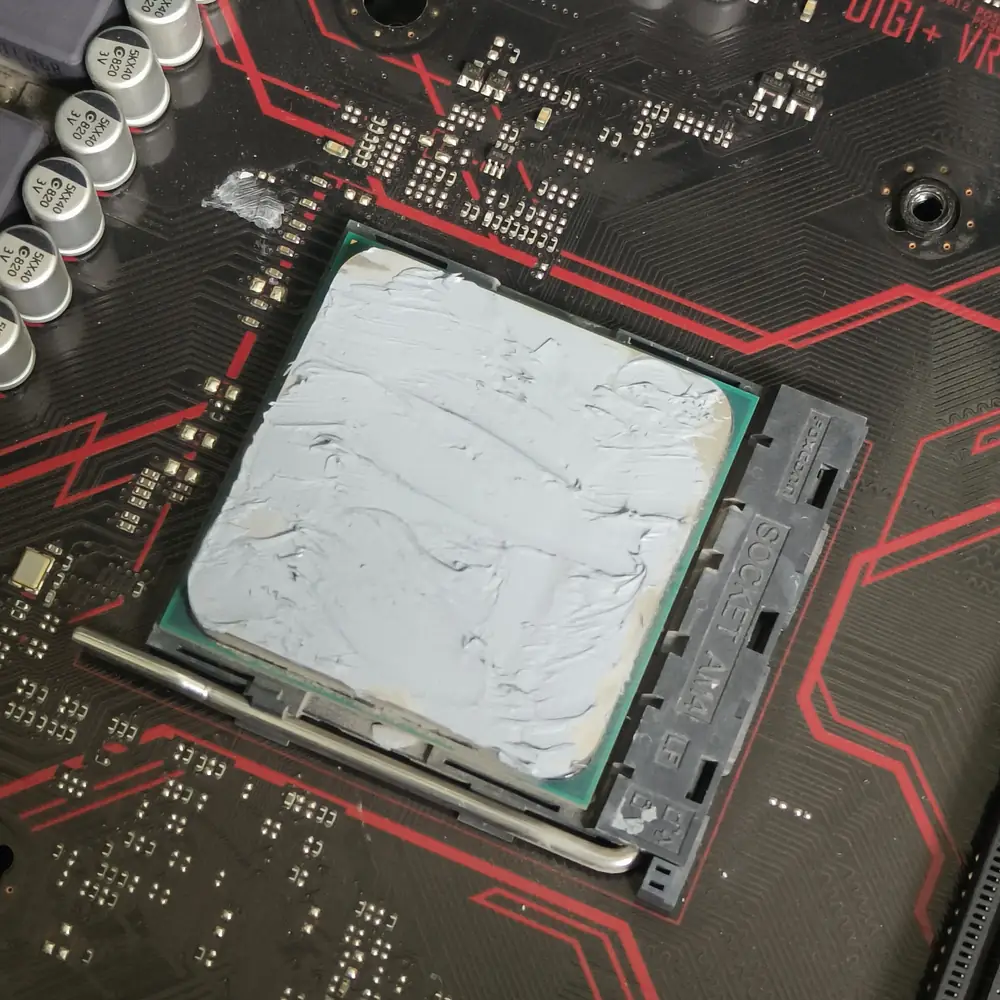
Premium Paste Replacement
- Arctic MX-5 / Kryonaut
- Measure before/after temperatures
- CPU & GPU service
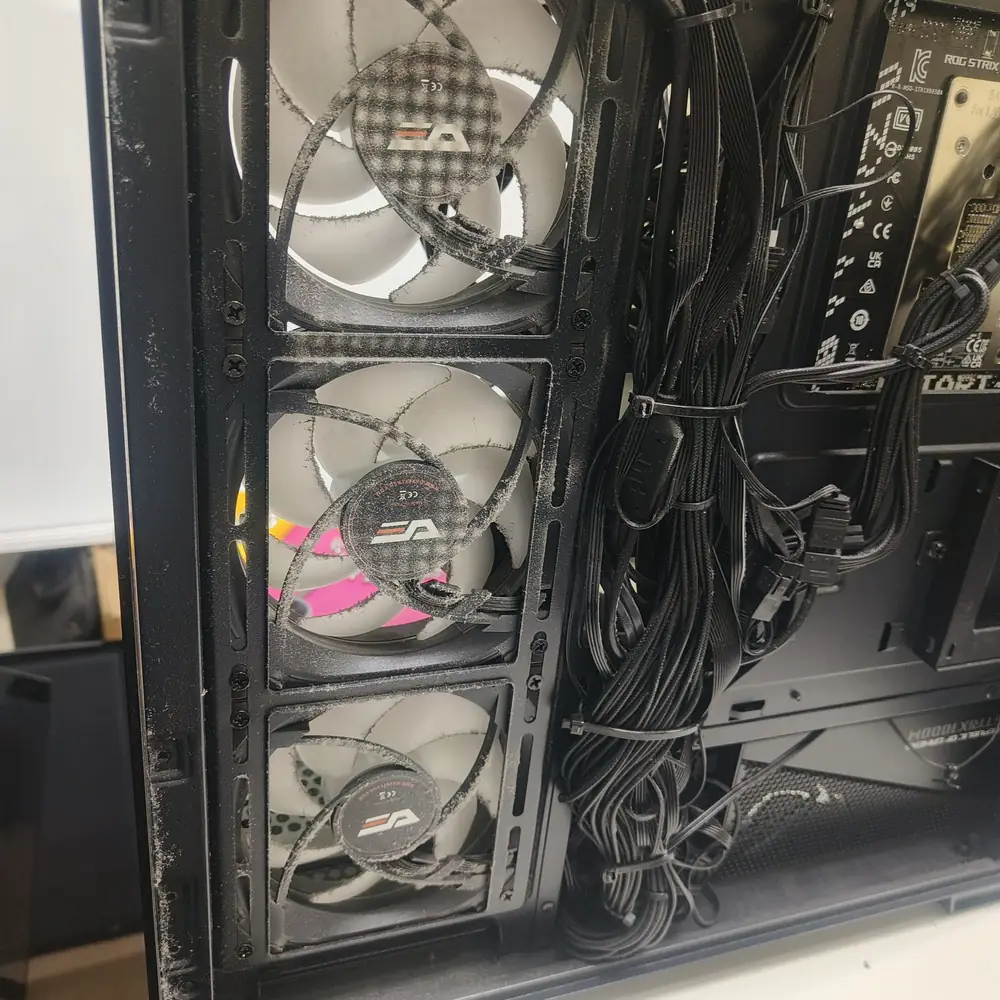
Airflow Optimization
- High-airflow fans
- Pressure balancing
- Cable management
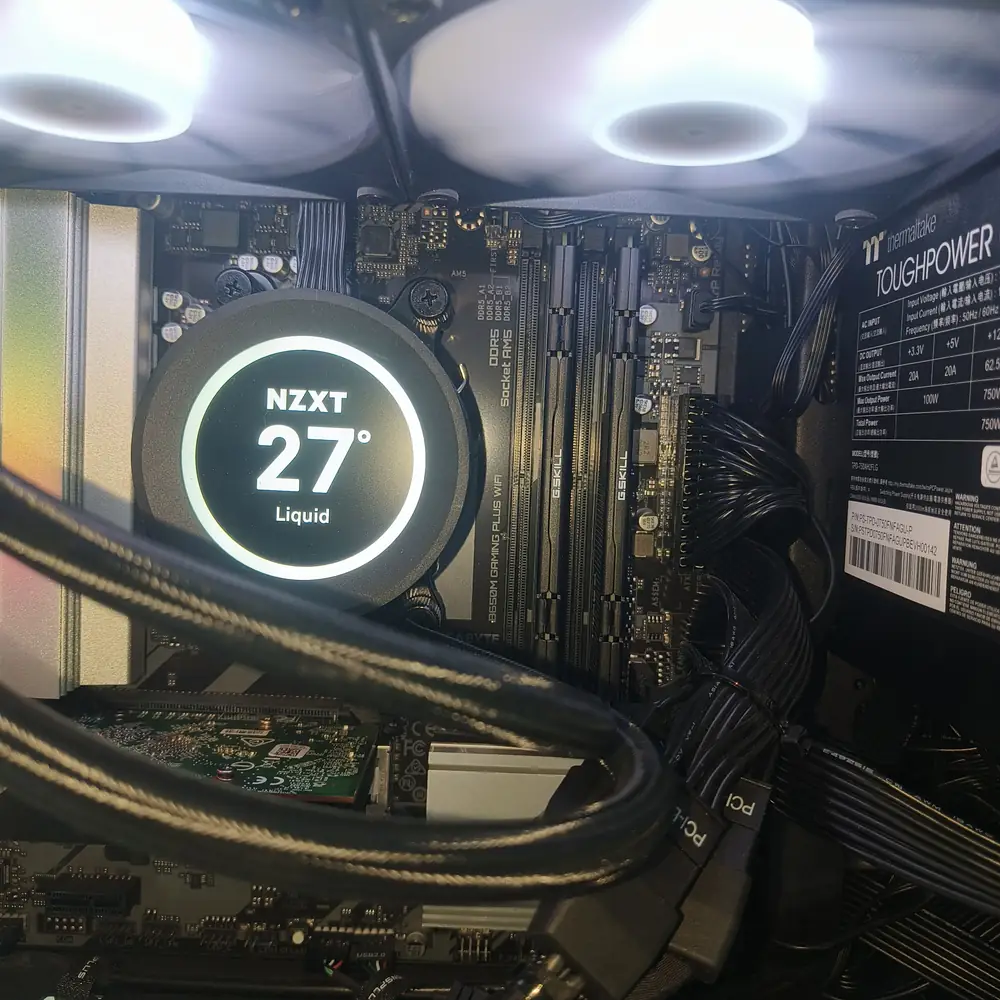
CPU Cooler Upgrade
- Noctua / be quiet!
- Verify cooler capacity and mounting
- Whisper-quiet
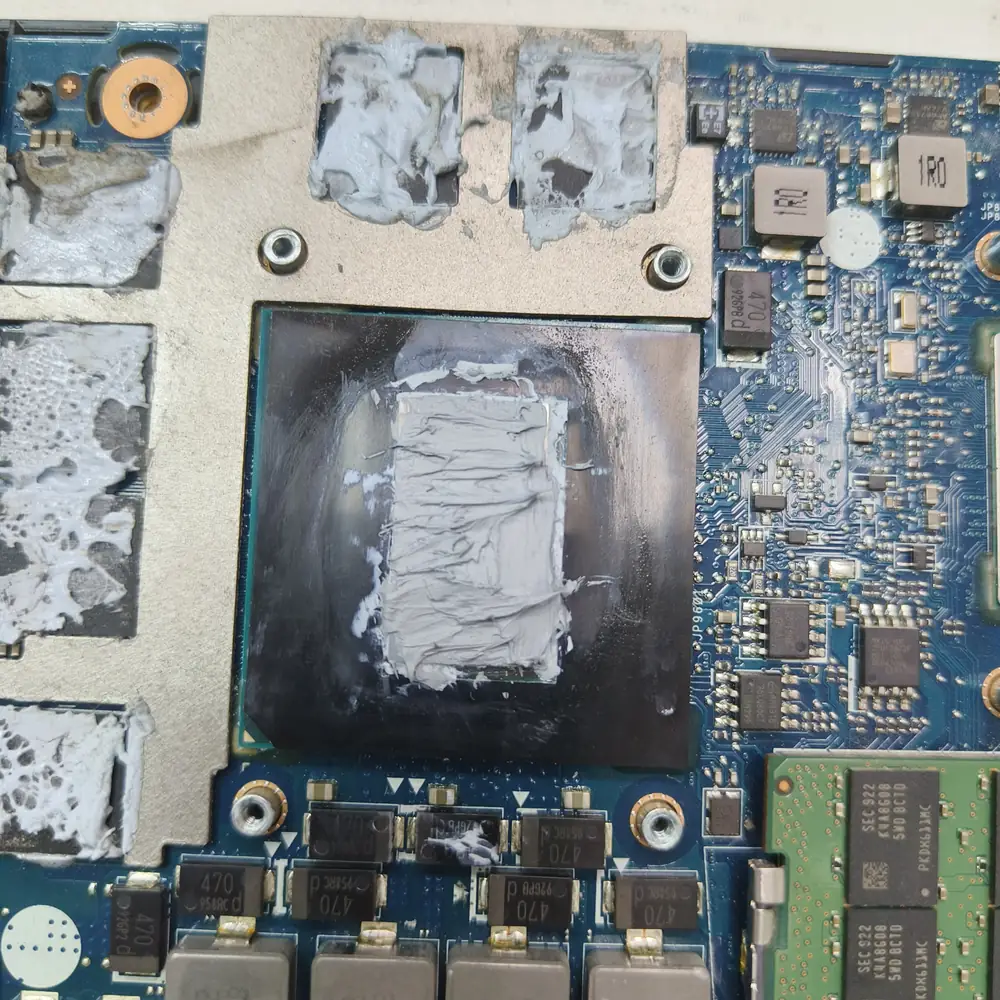
GPU Thermal Service
- Die paste replacement
- VRAM pad upgrade
- Hotspot reduction
Keep It Cool
Monthly Filter Clean
Remove dust filters every 2-4 weeks.
Quarterly Deep Clean
Full internal component cleaning.
Condition-Based Paste Service
Replace thermal interface material when inspection/testing supports it.
Temp Monitoring
Track loads with MSI Afterburner.
ASUS ROG
MSI Gaming
Alienware
Custom Builds
Gaming cooling: related repair paths
Persistent thermal or performance symptoms may point beyond routine cleaning. Use the matching repair destination.
How to Diagnose a Gaming PC That Runs Too Hot
Start with measurements and observations. Do not replace thermal paste, fans or the cooler simply because a temperature number looks high.
1. Reproduce the symptom
Record CPU/GPU temperature, utilization, clock speed and frame-rate or frame-time behavior during the same workload.
2. Check airflow
Inspect front/intake restrictions, dust filters, exhaust paths and fan direction. A case can have working fans and still have poor airflow.
3. Check the cooling hardware
Verify fan operation, cooler mounting, heatsink contact and, for AIO systems, pump/radiator behavior where applicable.
4. Check software and power behavior
Background load, power limits, fan curves and driver/software conditions can change heat output without a hardware failure.
5. Service only the measured cause
Cleaning, fan replacement, airflow changes, cooler work or thermal-interface replacement should follow the evidence from testing.
6. Escalate when unstable
Repeated shutdowns, abnormal electrical smells, failed fans, severe performance collapse or suspected component damage warrant professional diagnosis.
Protect Your Gaming Investment
Contact us for professional cooling solutions. Free pick & drop across all Kuwait governorates.