
You Don’t Need Max Graphics Settings for Great PC Gaming Visuals
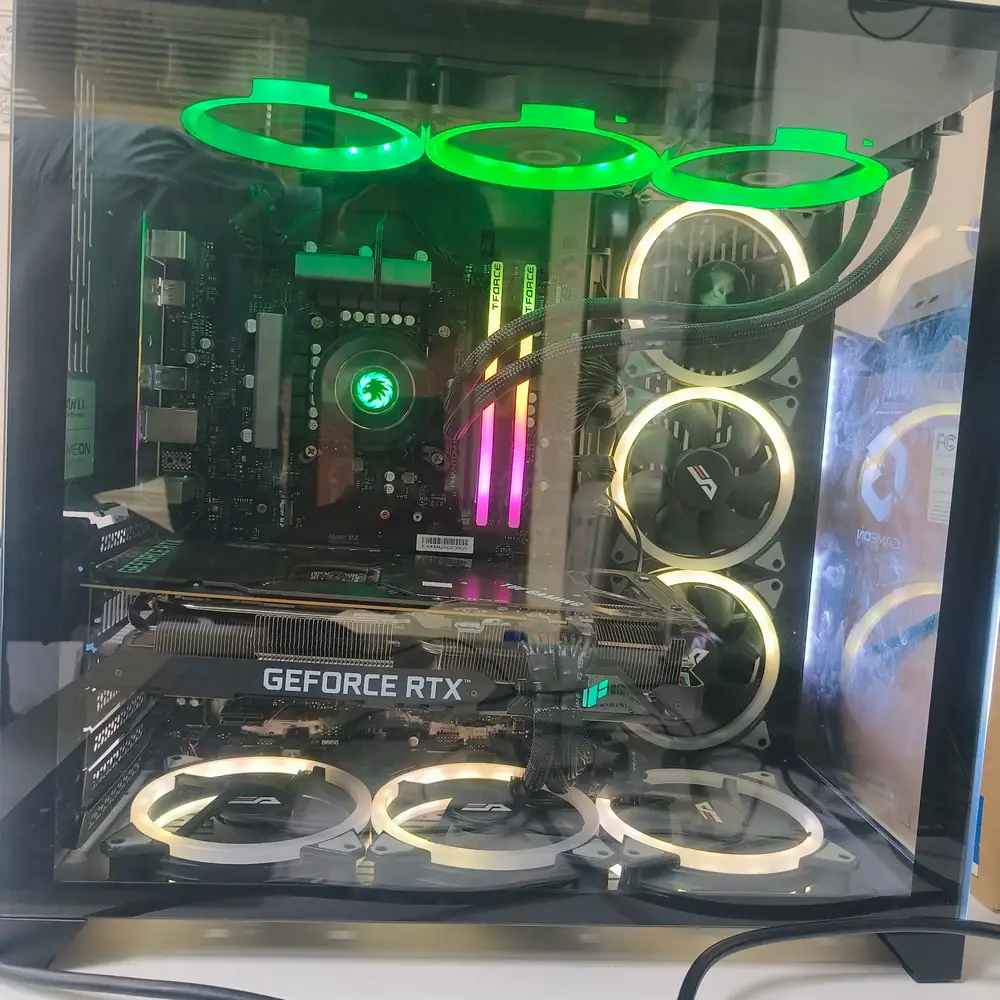
You do not need to run every PC graphics setting at Ultra. Prioritize the settings that noticeably improve image quality without wasting GPU performance.
On This Page
A common PC gaming mistake is assuming that every graphics setting needs to be pushed to Ultra for a game to look great. It doesn’t. Some settings provide a noticeable improvement in image quality while having a relatively small effect on performance. Other settings can consume a lot more GPU power for an improvement that is difficult to notice during normal gameplay. The trick is knowing which settings are worth keeping high.
1. Set Anisotropic Filtering to 16×
Anisotropic Filtering, often called AF, improves the clarity of textures viewed at an angle or farther away from the player. You can notice it on surfaces such as roads, floors, walls and terrain that stretch toward the distance. Without sufficient texture filtering, these surfaces can appear blurry as they extend away from the camera.
On modern gaming hardware, Anisotropic Filtering generally has a relatively small performance cost, while the visual improvement can be easy to notice. AMD's current documentation says Anisotropic Filtering has a small FPS cost and offers levels up to 16×: External source
Our starting point
16× Anisotropic Filtering, then reduce it only if a particular game or GPU workload shows a meaningful performance benefit from doing so.
Where to find it
On NVIDIA systems, driver-level graphics settings are available through the NVIDIA App and NVIDIA Control Panel, depending on the setting and driver version. NVIDIA's current app exposes legacy driver settings such as Anisotropic Filtering under its Graphics workflow: External source
On AMD systems, open AMD Software: Adrenalin Edition and look under the Gaming or Graphics settings for Anisotropic Filtering. For individual games, using the game's own setting is usually the simplest option.
2. Keep Texture Quality High — as long as your VRAM can handle it
Texture Quality is one of the settings that is often misunderstood. Increasing texture quality does not automatically mean a huge FPS reduction. The bigger question is whether your graphics card has enough VRAM to hold the higher-quality textures comfortably.
When there is enough VRAM available, High or Ultra textures can provide a significant improvement in surface detail without being nearly as expensive as some other graphics settings. The problem begins when a game needs more video memory than the GPU can comfortably provide.
That can lead to texture streaming problems, stuttering and inconsistent frame delivery as the system has to move data between different types of memory. So rather than automatically choosing Low or Medium textures to gain FPS, check your GPU's VRAM usage first.
A good rule
Keep textures as high as your GPU's VRAM comfortably allows.
3. Don’t be afraid of SSAO
Screen-Space Ambient Occlusion (SSAO) adds subtle shading where objects meet surfaces or where geometry creates small areas of shadow. It can make a scene feel more grounded.
Without ambient occlusion, objects can sometimes look as though they are floating slightly above the environment. With it enabled, contact areas around objects can have more visual depth.
SSAO is usually a much better candidate for keeping enabled than some of the heavier lighting, shadow or ray-tracing options. The exact performance cost varies significantly between games and implementations, so there is no universal FPS number that applies to every PC.
Our starting point
Use SSAO or the game's equivalent ambient-occlusion setting, then reduce it only if you actually need the performance.
4. Use image sharpening when your game looks soft
Modern games frequently use technologies such as TAA or resolution scaling to produce smoother images and better performance. The downside is that the final image can sometimes look slightly soft. A moderate sharpening filter can bring some of that definition back.
NVIDIA provides image scaling and sharpening controls in its graphics ecosystem, while AMD offers Radeon Image Sharpening (RIS). AMD describes RIS as a sharpening technology designed to restore clarity to game visuals with very little performance impact: External source
A useful approach is to start with a relatively low sharpening value and increase it gradually. Around 20–30% is a reasonable starting point, but the ideal value depends on the game, resolution, anti-aliasing method and monitor.
More sharpening is not always better
Too much sharpening can create halos around objects and make fine details look artificial. Judge it in motion at your normal resolution rather than from a paused screenshot.
The better way to optimize your graphics settings
You don't have to choose between beautiful graphics and good FPS. Instead, prioritize the settings that give you the most visible improvement for their performance cost.
| Feature | Setting | Starting point |
|---|---|---|
| Anisotropic Filtering | 16× | |
| Texture Quality | High/Ultra when VRAM allows | |
| Ambient Occlusion / SSAO | Enabled or High | |
| Image Sharpening | Moderate | |
| Heavy shadows, reflections and ray tracing | Reduce these first when you need more FPS |
The exact balance will depend on your GPU, CPU, resolution and the game itself.
When graphics settings are not the real problem
If a game still struggles after sensible graphics tuning, the problem may not be a graphics-setting problem at all. Thermal throttling, outdated drivers, insufficient RAM, VRAM limitations, storage issues or hardware faults can also cause poor gaming performance.
That's where proper PC diagnosis matters. KCROC troubleshoots gaming PCs from software and performance problems through to cooling, GPU, motherboard and component-level faults: Gaming PC & GPU Repair Kuwait
Need help with an underperforming gaming PC?
KCROC can diagnose the actual problem instead of simply telling you to turn the graphics down. Use the gaming PC repair page when overheating, stuttering, crashing or unexplained performance loss continues after sensible tuning.
Official references
- AMD — Customize Graphics Settings with AMD Software: Adrenalin Edition: https://www.amd.com/en/resources/support-articles/faqs/DH3-012.html
- AMD — Radeon Image Sharpening: https://www.amd.com/en/products/software/adrenalin/radeon-image-sharpening.html
- NVIDIA — NVIDIA App graphics and legacy driver settings: https://www.nvidia.com/en-us/geforce/news/nvidia-app-global-dlss-overrides-rtx-40-series-smooth-motion/
- NVIDIA — NVIDIA App overview and Graphics settings: https://www.nvidia.com/en-us/geforce/news/nvidia-app-download-and-features/
Is Your Laptop Running Slow?
If your laptop freezes, slows down during multitasking, or struggles with everyday apps, our technicians can diagnose whether it's RAM, storage, overheating, or a hardware fault — for free.