
10 Reasons Why People Are Dumping Windows 11 (2026)
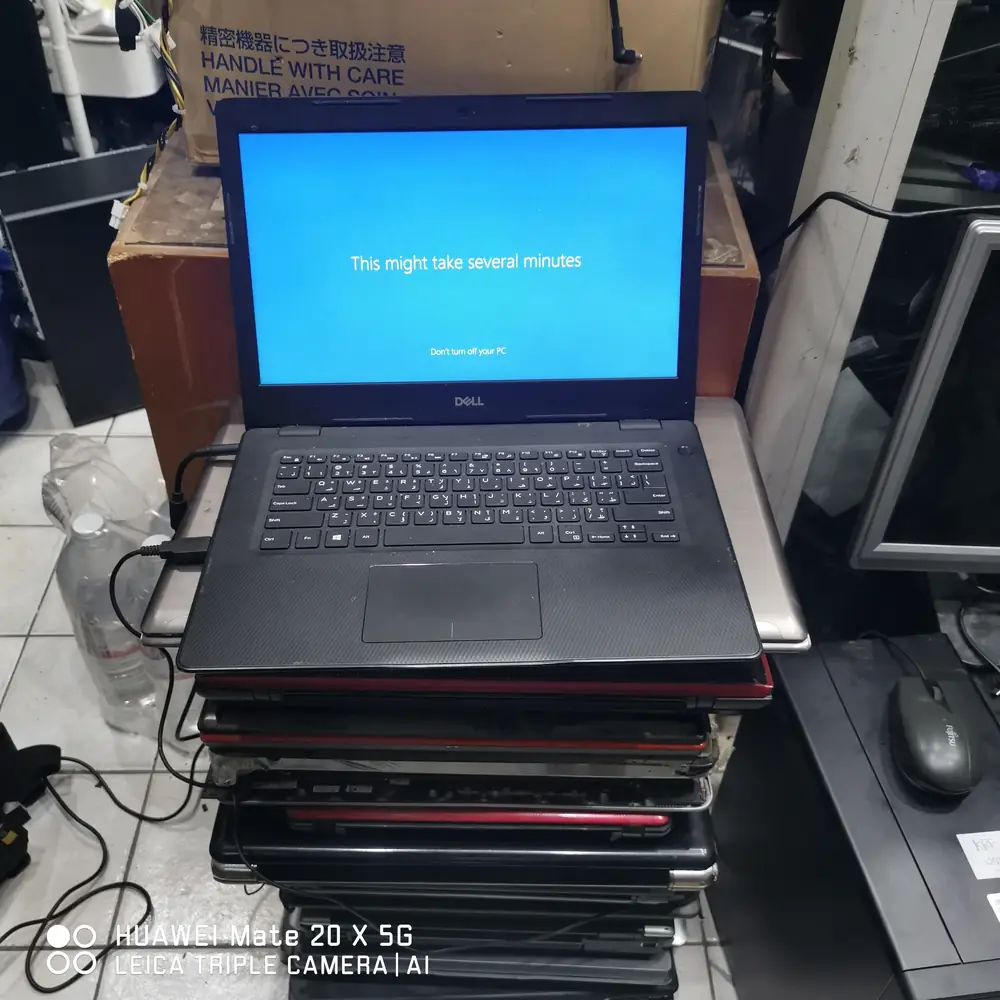
Windows 11 isn't secretly terrible — but a growing number of users are frustrated enough to look elsewhere. Here's what's actually driving that, and what's often mistaken for a Windows problem.
On This Page
- 1. Hardware Requirements Leave Otherwise-Fine PCs Behind
- 2. Performance Complaints That Aren't Always About Windows 11
- 3. The Push Toward a Microsoft Account and the Cloud
- 4. Recommendations, Prompts, and Promoted Apps
- 5. Update Fatigue
- 6. A Redesigned Start Menu and Interface
- 7. Privacy and Telemetry Concerns
- 8. Copilot and AI, Whether You Asked For It or Not
- 9. Windows 10 Nostalgia Meets a Real Deadline
- 10. Linux Has Gotten Genuinely Usable — With Real Caveats
- So, Should You Actually Leave Windows 11?
- Windows 11 vs Windows 10 vs Linux at a Glance
- Windows 11 Problems Look Different on an Older Laptop in Kuwait
- What We See at the Repair Bench
- Before You Dump Windows 11: A Quick Checklist
- Frequently Asked Questions
- The Bottom Line
Windows 11 has become Microsoft's dominant desktop platform, but not every user is happy about how it got there. The dissatisfaction isn't coming from one place — it's hardware requirements, interface changes, Microsoft account integration, update behavior, privacy, and an AI push that arrived whether people asked for it or not, all landing around the same time.
None of that makes Windows 11 a bad operating system. On modern hardware, for most people, it runs fine. But the reasons some users are frustrated enough to consider Windows 10, unsupported workarounds, or Linux are specific and legitimate rather than internet noise, and they deserve a straight answer instead of either extreme — "everyone hates it" or "there's nothing to see here."
Did You Know?
Windows 10 mainstream support ended on October 14, 2025. Microsoft's consumer Extended Security Updates (ESU) program, originally set to expire in October 2026, was quietly extended through October 12, 2027 — so staying on Windows 10 a while longer is possible, but it isn't a permanent option.
1. Hardware Requirements Leave Otherwise-Fine PCs Behind
This is where most people's frustration starts. Windows 11 requires TPM 2.0 (a security chip that stores encryption keys), Secure Boot support, and a CPU from Microsoft's approved processor list — broadly 8th-generation Intel Core or newer and 2nd-generation AMD Ryzen or newer, with a small number of specific exceptions on both sides. A laptop can have a perfectly capable CPU, plenty of RAM, and a fast SSD, and still get flagged as unsupported simply because it's a generation or two too old, or because TPM was never enabled in the BIOS.
TPM 2.0 support usually isn't the real blocker it appears to be. Microsoft's own guidance notes that most PCs sold in the last several years can meet the TPM 2.0 requirement through a firmware-based TPM built into the processor — Intel PTT or AMD fTPM — which is frequently switched off by default in the BIOS/UEFI rather than genuinely absent. The CPU generation cutoff is the harder wall: Microsoft maintains a specific approved-processor list rather than a simple generation-number rule, and it's the requirement that genuinely excludes hardware that still has years of useful life left in it.
Warning
It's technically possible to bypass Windows 11's hardware checks and install it on unsupported PCs, but Microsoft is explicit that these devices aren't guaranteed to receive updates and won't be covered by warranty claims related to Windows 11 issues. Treat it as a workaround with real trade-offs, not a supported installation method.
2. Performance Complaints That Aren't Always About Windows 11
Windows 11 performance varies considerably by hardware and configuration — there's no verified benchmark showing it's simply "heavier" than Windows 10 across the board. On a supported, modern PC it typically runs very well. On older machines, what usually changes the experience is everything running alongside the OS: background services, startup applications, browser tabs, limited RAM, thermal paste that dried out years ago, and drivers that were never updated for the new OS.
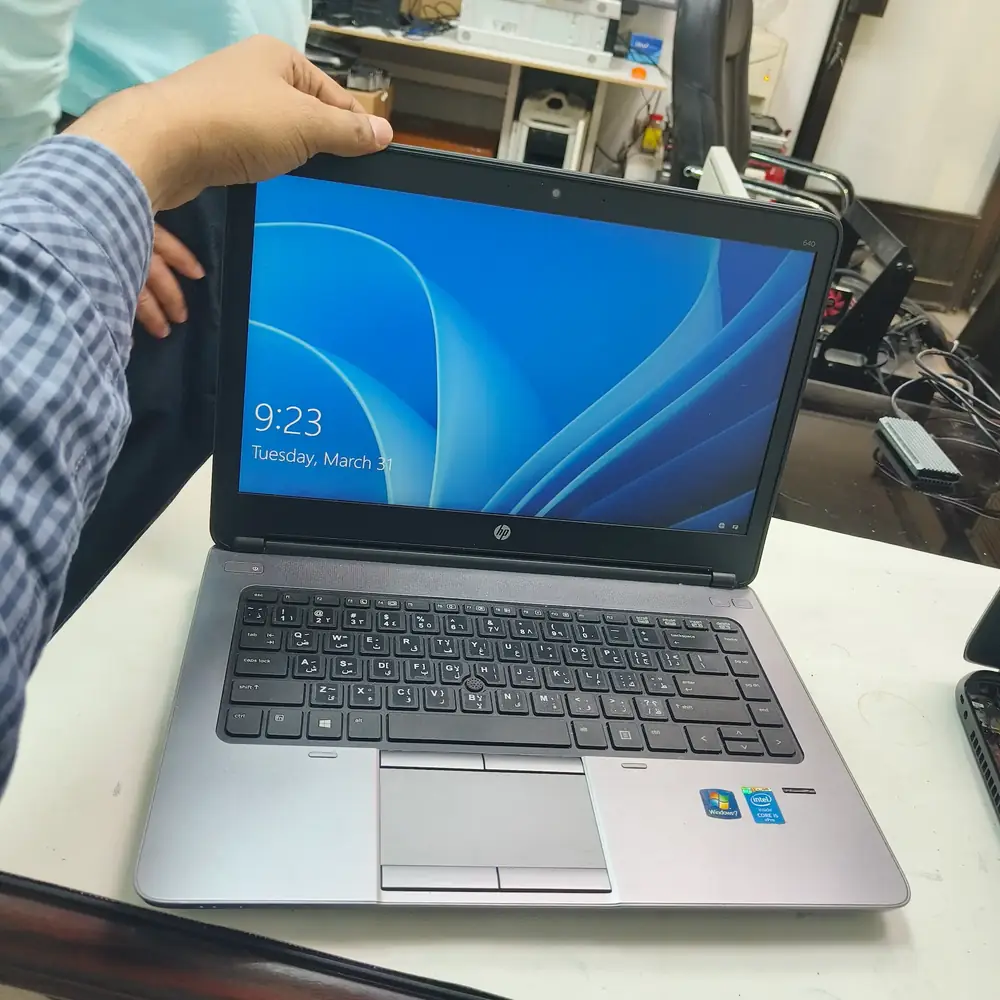
When a customer tells us a laptop "got slow after Windows 11," the actual cause is very often one of: a failing or nearly-full hard drive (not an SSD), 8GB of RAM struggling under modern multitasking, thermal throttling from dust-clogged fans, leftover startup bloatware, or malware that arrived independently of any OS update. The upgrade is frequently the moment the problem became visible, not the cause of it.
Performance Tip
Before blaming Windows 11 for a slowdown, check Task Manager's Startup tab for unnecessary apps, confirm the drive is an SSD rather than a spinning hard drive, and check CPU temperatures under load. Those three checks catch the majority of "my PC got slow" complaints we see.
3. The Push Toward a Microsoft Account and the Cloud
Windows 11 Home — and Windows 11 Pro when set up for personal, non-business use — requires a Microsoft account and an internet connection to complete setup, per Microsoft's own published specifications. There's no offline local-account option presented during the standard out-of-box experience, though a local account can still be created after setup, or via workarounds during it. Business and organization deployments that join a domain or Microsoft Entra ID follow a different setup path. For users who've always preferred a machine that doesn't depend on a cloud login, this is a meaningful shift, not a cosmetic one.
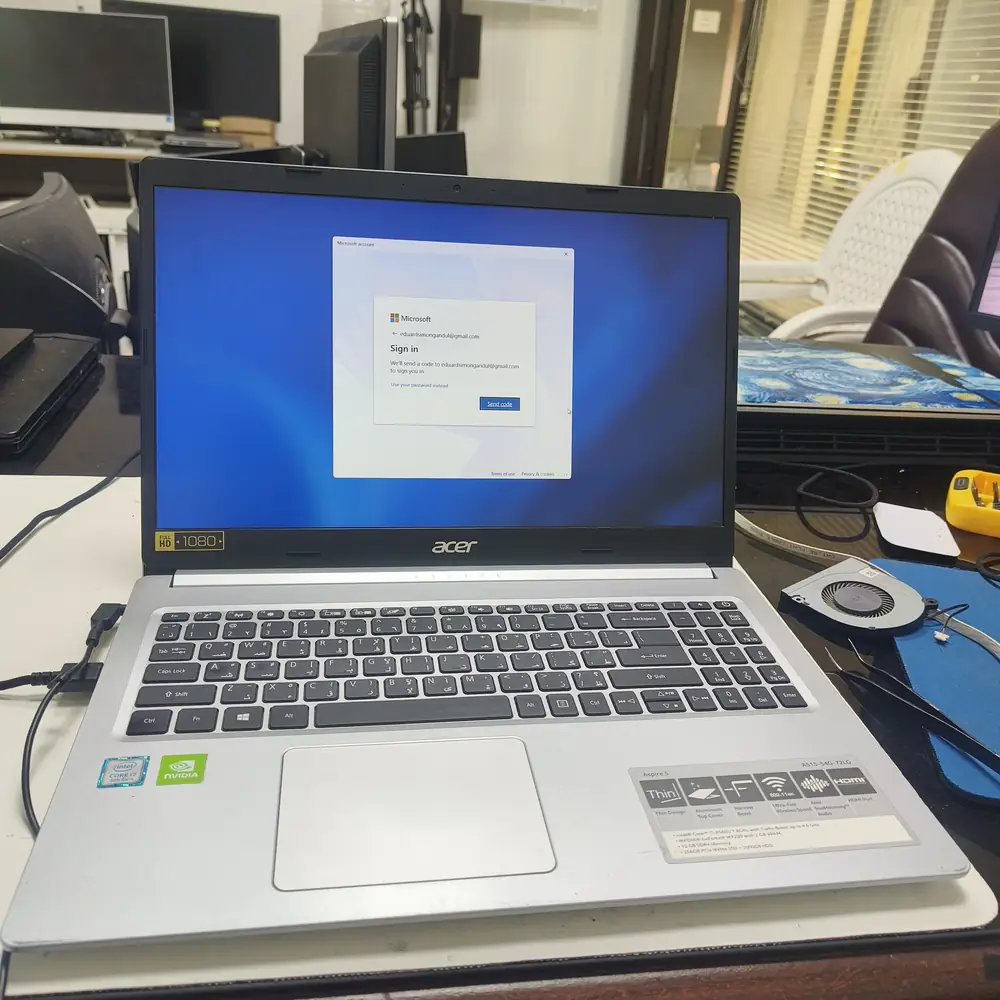
There's a real upside here: settings sync across devices, BitLocker recovery keys are backed up automatically, and losing a laptop doesn't mean losing access to purchased apps or files stored in OneDrive. The downside is just as real for a different kind of user — dependency on Microsoft's servers to sign in, OneDrive folders that quietly redirect Documents and Desktop to cloud storage, and less of the "this is just my computer, offline, under my control" feeling that longtime Windows users grew up with.
4. Recommendations, Prompts, and Promoted Apps
It's worth being precise here rather than calling everything an "ad." Some of what irritates users is a genuine promotion — Microsoft 365 subscription prompts, suggested apps in the Start menu. Some of it is a system notification doing its job, like a reminder that OneDrive backup isn't enabled. And some of it is Edge suggesting itself as the default browser more insistently than users would like. They're different things, but they land in the same place emotionally: a sense that the OS is selling to you instead of quietly getting out of the way.
5. Update Fatigue
Feature updates, forced restarts at inconvenient moments, and the occasional update that introduces a new bug instead of fixing one are longstanding Windows complaints that didn't start with Windows 11 — but they haven't gone away either. For a business relying on a machine staying online, or a gamer mid-session, an unscheduled restart is a legitimate annoyance, not a trivial one.
None of that is an argument for disabling security updates — that trade genuinely isn't worth it. It's an argument for using the controls Windows already gives you: setting active hours so restarts don't happen mid-workday, and pausing updates for a defined window when timing matters.
What Changed in 2026
After sustained user criticism through late 2025 and into 2026, Microsoft's Windows leadership published a public commitment to scale back how aggressively Copilot appears across Windows, and to give users more control over when updates install, including a longer update-pause option. Some of these changes were still rolling out through 2026.
6. A Redesigned Start Menu and Interface
The centered taskbar, the simplified right-click context menu, and a Start menu that dropped the live-tile layout in favor of pinned icons and recommendations are the most visible changes from Windows 10 — and interface preference is genuinely subjective. Some users find the new layout cleaner. Others lost workflows they'd built over a decade: taskbar positions, jump lists, and a right-click menu that used to show everything in one list instead of a truncated one behind "Show more options."
This was one of the most-requested fixes in the 2026 feedback cycle. A movable taskbar reached the Windows Insider Beta channel in August 2026 and is expected to roll out more broadly with the version 26H2 update later in the year — a rare case of a platform partially reversing a redesign after hearing enough of the same complaint for long enough.
7. Privacy and Telemetry Concerns
Windows collects diagnostic and usage-related data, and connected Microsoft account services can process information tied to those specific features — privacy-conscious users may reasonably want more control over what leaves their computer. It's worth separating what's documented from the more dramatic version of this complaint: Microsoft's own privacy documentation describes this as diagnostic telemetry and app usage patterns, not general-purpose reading of personal file contents or activity monitoring. Depending on account and privacy settings, some of that data can also be tied to features like personalized ads and Start menu recommendations.
Some of this is required for the OS to function and receive security updates; some of it — advertising ID, tailored experiences, some diagnostic detail — is adjustable in Settings > Privacy & Security. It takes a few minutes to review and tighten, and most users have never opened that menu once. For context on how we handle customer data during a repair, our own Privacy & Security approach is built specifically around never opening personal files during hardware work.
8. Copilot and AI, Whether You Asked For It or Not
Copilot's expansion into Notepad, Paint, Photos, the Snipping Tool, and the taskbar was, for a segment of users, the tipping point — not because AI is inherently bad, but because it showed up inside tools people expected to stay simple. Not every Windows 11 PC even runs Copilot's on-device features the same way; several of the newer AI capabilities are reserved for "Copilot+ PC" hardware with a dedicated NPU, so the experience isn't uniform across the Windows 11 install base to begin with.
Microsoft has acknowledged the backlash directly. Through 2026, the company has been pulling Copilot prompts and branding out of some of the apps that drew the sharpest criticism — Notepad, Snipping Tool, Photos, and Widgets among them — while stopping short of removing AI features from Windows altogether. If AI in your OS isn't something you want, the current answer is closer to "turn off what you can, and expect the footprint to shrink a bit further" than "there's no way to avoid it."
Windows 11 isn't automatically the wrong choice, and Windows 10 isn't automatically the safe one anymore either. The right answer depends on your hardware, not on which side of the debate feels more satisfying.
9. Windows 10 Nostalgia Meets a Real Deadline
A lot of "I just want to stay on Windows 10" sentiment is genuine: it was familiar, broadly compatible, and lighter-touch on interface changes. But the practical picture has shifted. Microsoft ended mainstream support for Windows 10 on October 14, 2025 — no more free security patches through the standard channel. The consumer Extended Security Updates program was originally a one-year bridge to October 2026, and Microsoft has since extended it through October 12, 2027 for enrolled devices.
What This Actually Means
ESU only delivers critical and important security patches — no new features, no general technical support, no non-security fixes. A Windows 10 PC on ESU is protected against known vulnerabilities being patched, but it is not being actively developed. Treat ESU as a runway to plan a move, not a long-term destination.
If your hardware genuinely can't run Windows 11 and you're not ready to replace it, ESU is a reasonable bridge for the next year or two. If your hardware can run Windows 11 and you're avoiding it purely out of preference, that's a different calculation — one where the security clock is the deciding factor, not nostalgia.
10. Linux Has Gotten Genuinely Usable — With Real Caveats
Modern desktop Linux distributions — Linux Mint, Ubuntu, Fedora, and Pop!_OS among them — have closed a lot of the usability gap that used to make Linux a hobbyist-only choice. Installation is friendlier, hardware driver support is broader out of the box, and for older machines specifically, a lightweight Linux install can genuinely outperform a Windows 11 install that's fighting for resources on 4-8GB of RAM.
The trade-offs are real, not theoretical. Games with kernel-level anti-cheat (many competitive multiplayer titles) often don't run reliably on Linux even through compatibility layers. Adobe's Creative Cloud suite has no native Linux version. Business-critical software tied to specific Windows drivers — accounting tools, proprietary hardware utilities, certain banking or government portals — can be a hard blocker rather than a minor inconvenience. Linux is an excellent fit for browsing, office work, development, and reviving older hardware; it's a poor fit if your daily workflow depends on Windows-only software you can't replace.
So, Should You Actually Leave Windows 11?
It depends on what's actually driving the frustration — a genuine technical mismatch, or a temporary annoyance that a settings change or a repair would fix. Here's a practical way to sort that out.
Quick Decision Guide
Keep Windows 11 if…
your hardware is modern, you rely on Windows-only software, you game with anti-cheat titles, or day-to-day performance is fine once background clutter is cleared.
Consider an alternative if…
you strongly dislike cloud/account requirements, your workflow is genuinely Linux-friendly, your hardware is nearing the end of its supported life, or privacy control matters more to you than convenience.
Don't switch operating systems just because…
the interface looks different, one update caused a temporary bug, or your PC is simply slow — a slow PC usually needs diagnosis and repair, not a new OS.
Windows 11 vs Windows 10 vs Linux at a Glance
| Feature | Windows 11 | Windows 10 | Linux |
|---|---|---|---|
| Modern hardware support | Best — actively developed | Runs, but frozen feature-wise | Good, improving fast |
| Older PC support (pre-2018 CPU) | Blocked without a workaround | Fully supported until ESU ends | Often the best-performing option |
| Security updates | Ongoing | ESU only, through Oct 2027 | Ongoing (distro-dependent) |
| Gaming (anti-cheat titles) | Full support | Full support | Inconsistent |
| Privacy / local control | Adjustable, cloud-leaning by default | More local by default | Highest control |
| Software compatibility | Full Windows ecosystem | Full Windows ecosystem | Gaps: Adobe, some proprietary tools |
Windows 11 Problems Look Different on an Older Laptop in Kuwait
A lot of what gets blamed on Windows 11 in Kuwait specifically traces back to the environment more than the OS. Summer ambient temperatures routinely pass 45°C, and fine desert dust works its way into cooling systems faster than in cooler, drier climates. A laptop moving between an air-conditioned room and a hot car or bag several times a day also puts real thermal stress on components that a temperate-climate laptop never experiences.
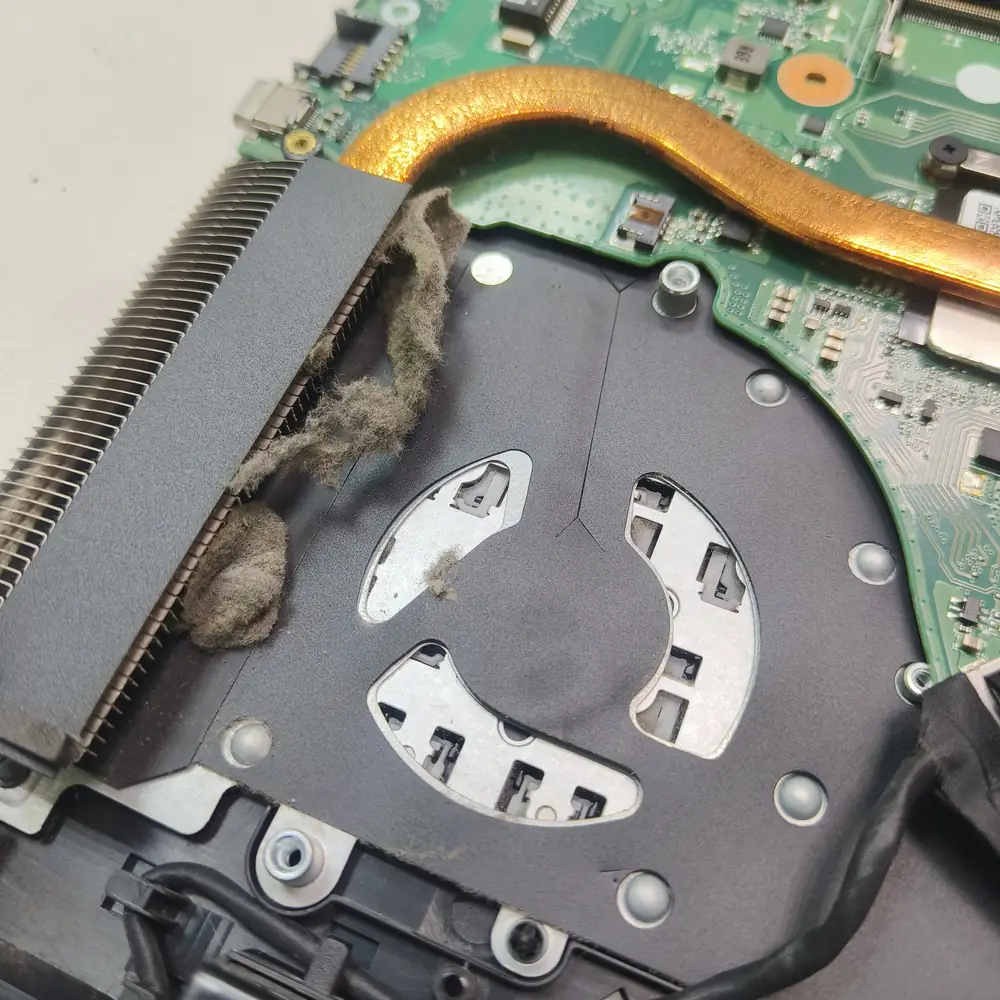
"Windows 11 made my laptop slow" in a Kuwait repair context is frequently one of: thermal throttling from a dust-choked heatsink, a battery degraded faster than spec by sustained heat exposure, an aging SSD nearing the end of its write endurance, or startup software that accumulated over years of use. These are hardware and maintenance issues that happen to become noticeable around the same time as a Windows update — not caused by it.
What We See at the Repair Bench
From a repair perspective, the pattern is consistent: a customer arrives convinced Windows is the problem, and the actual fault is something we can point to on a thermal camera or a SMART drive report. Overheating from old, dried thermal paste is the single most common culprit behind "my laptop got slow." Insufficient RAM for modern multitasking is close behind. A bloated Windows install with years of accumulated startup apps and browser extensions is another regular finding — and occasionally, malware or adware that has nothing to do with any OS update at all.
Expert Advice
If your laptop feels wrong after any Windows update, run a hardware check before you touch the OS: temperatures under load, drive health, and how much RAM is actually free during normal use. Reinstalling or downgrading Windows without checking these first is a common way to spend hours solving the wrong problem.
Before You Dump Windows 11: A Quick Checklist
Diagnose Before You Decide
Check drive health and free space
A nearly-full or failing drive mimics an OS slowdown almost perfectly.
Check RAM usage under normal multitasking
Open Task Manager during a typical session, not right after a fresh restart.
Check CPU and GPU temperatures under load
High idle temps or throttling point to cooling, not the OS.
Review startup applications
Years of accumulated startup apps quietly slow down every boot.
Confirm Windows Update and driver status
A pending driver update can explain instability that looks like an OS bug.
Run a malware/security scan
Adware and unwanted background processes are more common than people expect.
Test in Safe Mode
If the problem disappears in Safe Mode, it's a driver or third-party app, not Windows itself.
Back up your files regardless
Do this before any OS change — upgrade, downgrade, or switch.
List your Windows-only software
Know what you'd lose before committing to Linux or any alternative.
Frequently Asked Questions
Why are people leaving Windows 11?
Is Windows 11 actually worse than Windows 10?
Is Windows 11 slower on old laptops?
Can I still use Windows 10?
Should I switch from Windows 11 to Linux?
Is Windows 11 good for gaming?
Why does Windows 11 require TPM 2.0?
Can Windows 11 run on unsupported hardware?
Does Windows 11 collect personal data?
Should I replace my laptop because of Windows 11?
The Bottom Line
Windows 11 isn't automatically a bad choice, and it isn't the villain in every slow-laptop story either. For most modern PCs, it's simply the current version of Windows, doing what Windows has always done. But the frustration driving people to search for alternatives is real: hardware requirements that exclude capable machines, a cloud-first setup experience, AI features nobody asked to have inside Notepad, and update behavior that's only recently starting to improve.
The right move depends on your hardware, your software needs, your privacy preferences, and your budget — not on which side of the online debate sounds more convincing. And the answer isn't always "buy a new computer." Often it's "diagnose the one you have." If your Windows 11 PC is slow, unstable, overheating, or refusing to update properly, a proper hardware diagnostic — the kind we run before any Laptop Repair Kuwait or Motherboard Repair Kuwait job — usually finds the real cause faster than a full OS switch or a new machine would.
Is Your Laptop Running Slow?
If your laptop freezes, slows down during multitasking, or struggles with everyday apps, our technicians can diagnose whether it's RAM, storage, overheating, or a hardware fault — for free.