
Windows 11 100% Disk Usage: Causes & Solutions
Seeing 100% Disk Usage in Windows 11 does not automatically mean your drive is full or dead. Learn how to identify the process, separate software from hardware causes, and know when an SSD upgrade or professional diagnosis makes sense.
On This Page
- What Does 100% Disk Usage Actually Mean?
- The Most Common Causes of 100% Disk Usage in Windows 11
- Step 1: Find Out Which Process Is Using the Disk
- Step 2: Check Your Free Storage Space
- Step 3: Check Whether Windows Update or Indexing Is Busy
- Step 4: Check Startup Apps and Background Activity
- Step 5: Check RAM Pressure and Paging
- Step 6: Determine Whether You Have an HDD or an SSD
- Warning Signs That the HDD May Be Failing
- Can an SSD Upgrade Fix 100% Disk Usage?
- What About an SSD Showing 100% Usage?
- Step 7: Check Windows System Health
- Step 8: Optimize the Drive Correctly
- Step 9: Check for Unwanted Software or Malware
- Kuwait-Specific Factors: Heat, Dust and Aging Laptops
- When Should You Stop Troubleshooting and Get a Professional Diagnosis?
- How KCROC Approaches a 100% Disk Usage Complaint
- Related KCROC Resources
- Frequently Asked Questions
- Technical References
Seeing 100% Disk Usage in Windows 11 can make a laptop feel almost unusable: File Explorer hangs, Chrome takes ages to open, apps stop responding and the whole desktop may appear frozen. The important point is that 100% in Task Manager describes disk activity, not the amount of storage capacity that has been filled. Microsoft also recommends using Task Manager and Windows' built-in storage and performance tools to identify high resource usage rather than assuming one cause.
KCROC diagnostic principle
Do not treat 100% Disk Usage as proof that the hard drive needs to be replaced. Identify the workload first, then compare disk activity with transfer speed, response time, CPU usage, memory pressure, free space and the device's storage type and health.
What Does 100% Disk Usage Actually Mean?
In Task Manager, the Disk percentage describes active time: how continuously Windows is asking the storage device to perform read, write or related I/O work. A drive can therefore show 100% active time while transferring relatively little data, especially when a slow HDD is handling many small random requests. Conversely, an SSD can also briefly reach 100% active time during a legitimate heavy workload.
| Feature | What you see | What it tells you | What to check |
|---|---|---|---|
| Disk 100% in Task Manager | The device is fully busy during the sampled period | Which process is generating I/O and how the drive responds | Processes, response time, read/write speed, storage type and health |
| C: drive nearly full | Storage capacity is running low | Whether low free space is contributing to poor performance or update problems | Settings → System → Storage and Cleanup recommendations |
| Disk 100% + very low transfer speed on an HDD | A mechanical drive may be spending much of its time seeking small requests | Whether the HDD is an old performance bottleneck or showing health problems | Drive health, response time, workload and upgrade suitability |
| Disk 100% during a large copy or update | The drive may simply be handling a sustained workload | Whether activity falls after the task completes | Process, transfer speed and behavior after the workload ends |
The Most Common Causes of 100% Disk Usage in Windows 11
There is no single Windows 11 switch that fixes every 100% disk case. The following causes should be considered from easiest and safest to deeper hardware diagnosis.
- Windows Update downloading, installing or cleaning up updates.
- Windows Search indexing after changes to files or applications.
- Microsoft Defender or another security tool scanning files.
- A large application, browser workload, game launcher or file operation generating sustained I/O.
- Too many startup or background applications competing for storage access.
- Very low free space on the Windows system drive.
- High memory pressure causing frequent paging to disk.
- An aging mechanical HDD that struggles with small random reads and writes.
- SSD firmware, driver, controller or health problems.
- Windows system-file corruption or a broader software fault.
- Unwanted software or malware creating abnormal background activity.
- A deeper storage, motherboard or power problem that needs hardware testing.
Step 1: Find Out Which Process Is Using the Disk
Start with Task Manager before changing any system settings. Press Ctrl + Shift + Esc, open Processes, and click the Disk column so the highest current disk users appear at the top. Watch the list for a few minutes instead of reacting to one instant snapshot.
- Open Task Manager with Ctrl + Shift + Esc.
- On Processes, sort by Disk usage.
- Note the process or Windows component that repeatedly rises to the top.
- Open the Performance tab and look at the Disk graph while the slowdown is happening.
- Check whether the problem disappears once the background operation completes.
- If the disk remains at 100% with unusually poor responsiveness during simple tasks, continue with the storage and memory checks below.
A useful pattern to record
Write down the top disk-using process, Memory percentage, Disk active time, approximate read/write speed, and what you were doing when the slowdown happened. A repeatable pattern is far more useful than a screenshot with no context.
Step 2: Check Your Free Storage Space
A Windows system drive that is running very low on free space can contribute to poor performance and can interfere with updates. In Windows 11, open Settings → System → Storage to see how space is being used. Microsoft also provides Storage Sense and Cleanup recommendations for removing unnecessary temporary files and reclaiming space.
- Open Settings → System → Storage.
- Check the available space on the Windows drive, normally C:.
- Review Temporary files and Cleanup recommendations before deleting anything important.
- Remove unused applications and unnecessary large files where appropriate.
- Recheck performance after freeing meaningful space.
Do not delete folders you do not recognize
Avoid manually deleting Windows, Program Files, user-profile system folders or unfamiliar AppData contents just because they are large. Use Windows Storage tools or a technician-assisted cleanup when the contents are unclear.
Step 3: Check Whether Windows Update or Indexing Is Busy
Windows can legitimately generate heavy storage activity while installing updates, processing files or indexing new content. A temporary 100% reading that settles after the task finishes is different from a system that remains at 100% during light everyday use.
Check Settings → Windows Update for pending work and give a recently updated system time to finish post-update processing. If the machine remains unusably slow long after the activity should have settled, continue diagnosing rather than repeatedly restarting or disabling services.
Do not blindly disable SysMain or Windows Search
Older troubleshooting lists often recommend disabling Windows services as a first step. That can hide the symptom without identifying the real bottleneck. Measure first; change a service only when the evidence points to it and you understand the side effects.
Step 4: Check Startup Apps and Background Activity
A busy Windows installation can launch many programs at startup: cloud sync clients, update agents, launchers, utilities and vendor software. These applications can create a burst of disk activity immediately after login and can keep the drive busy while the desktop is becoming responsive.
Open Task Manager → Startup apps and review programs you genuinely do not need to launch automatically. Disabling an unnecessary startup program is different from disabling a Windows service because it is easier to reverse and the effect is easier to observe.
Step 5: Check RAM Pressure and Paging
Disk activity can be a consequence of insufficient memory rather than a storage failure. When available RAM is tight, Windows can move memory pages between RAM and the page file on storage. On a system with limited memory and many browser tabs or applications open, this can create a pattern of high disk activity combined with high or nearly full Memory usage.
In Task Manager, compare Memory usage with Disk activity while the slowdown happens. If memory is consistently under pressure and disk activity rises whenever you switch applications, the storage device may be working as a symptom of a RAM limitation.
For a deeper look at Windows 11 memory requirements and upgrade decisions, see our guide: Is 8GB RAM Enough for Windows 11 in 2026?
Step 6: Determine Whether You Have an HDD or an SSD
This distinction matters. Mechanical hard drives have moving parts and are especially sensitive to random-access workloads. A healthy HDD can still feel slow under modern Windows 11 multitasking, while an aging or unhealthy HDD can produce extreme responsiveness problems. SSDs are much faster for random access, but they can also become busy because of software workload, low free space, health issues or controller problems.
| Feature | More consistent with an HDD bottleneck | More concerning on an SSD |
|---|---|---|
| Boot and app launches | Minutes of delay, especially on older systems | Repeated severe delay despite an otherwise healthy configuration |
| Disk active time | 100% with low transfer speed during simple tasks | 100% during specific workloads or with abnormal responsiveness |
| Sound | Clicking, grinding or repeated seek noise is a major warning sign | SSDs normally have no mechanical seek noise |
| Workload dependency | Small random operations can overwhelm the drive | Heavy transfers, paging, updates or health/controller issues can still saturate activity |
| Next step | Check health and consider an SSD upgrade if the drive is healthy enough to migrate | Check health, firmware/driver behavior and the wider storage path before replacing parts |
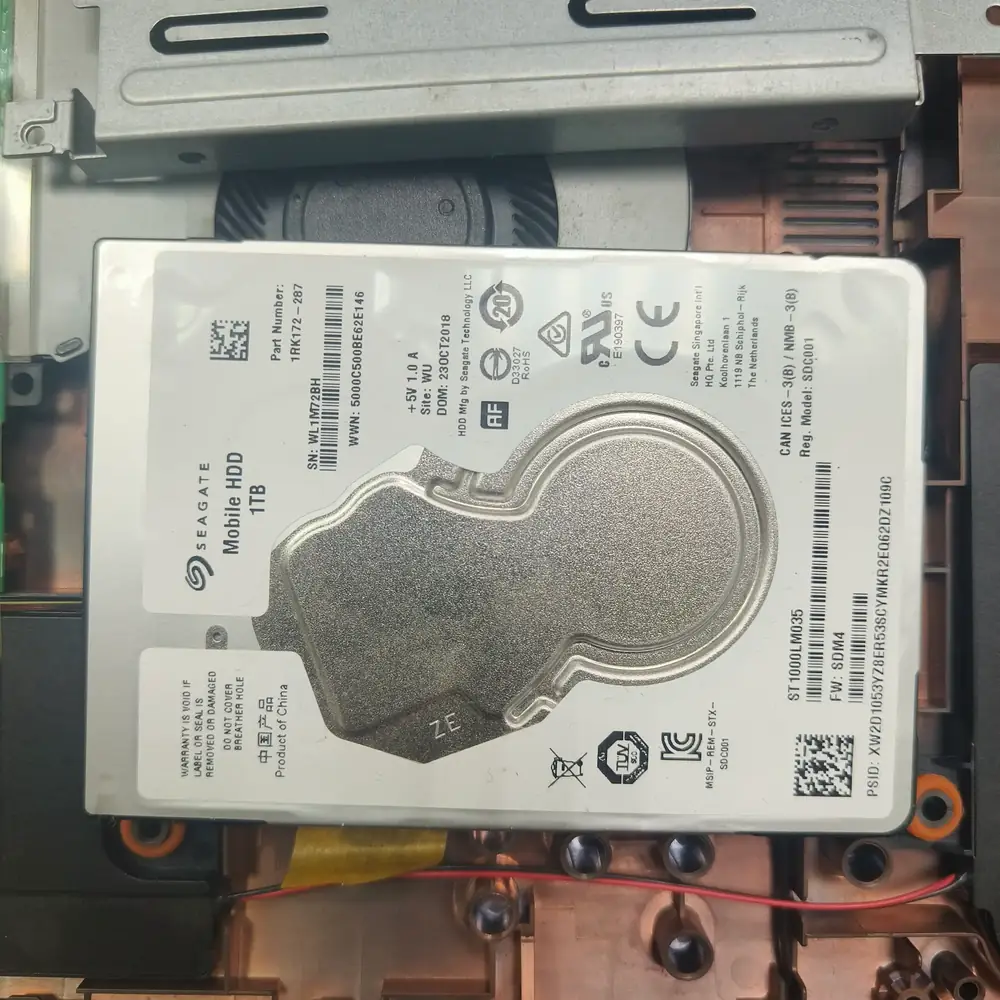
Warning Signs That the HDD May Be Failing
High disk usage alone does not prove an HDD is failing. More useful warning signs are a combination of poor response time, unusual drive noises, repeated freezes while accessing files, unexplained read errors, disappearing volumes or a noticeable deterioration compared with the machine's previous behavior.
- The system freezes whenever files or applications are opened.
- The HDD makes repeated clicking, grinding or unusual mechanical noises.
- Read/write operations become extremely slow even during light workloads.
- Windows reports repeated disk or file-system errors.
- The drive intermittently disappears or becomes unavailable.
- Performance has deteriorated sharply compared with the same workload previously.
Suspected drive failure changes the priority
When a drive may be physically failing, do not repeatedly stress-test it or keep experimenting with aggressive repair tools. Protect important files first and get the hardware assessed. A technician can determine whether the storage device itself, its connection, or another subsystem is responsible.
Can an SSD Upgrade Fix 100% Disk Usage?
Yes, when the existing mechanical drive is the performance bottleneck. An SSD can dramatically improve storage latency and everyday responsiveness compared with an older HDD. But an SSD is not a universal cure: if Task Manager shows a particular application, Windows component, malware, RAM pressure or another fault causing the disk activity, changing the drive without diagnosing the cause may not solve the problem.
Before an SSD upgrade, check the laptop's supported interface and form factor, maximum capacity, existing drive health and migration suitability. Some laptops use SATA, some use M.2 NVMe and some have platform-specific restrictions. KCROC's SSD & RAM Upgrade Kuwait service starts with compatibility and bottleneck checks rather than assuming every laptop takes the same SSD.
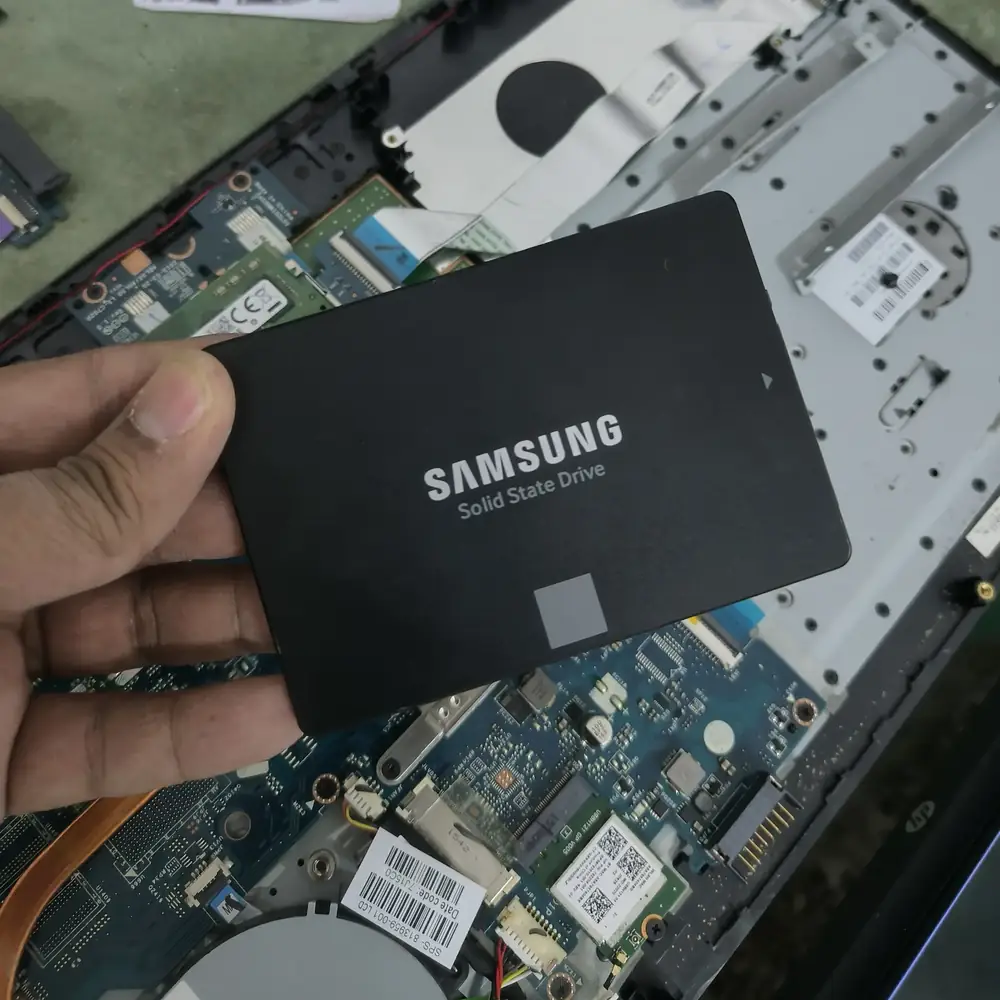
What About an SSD Showing 100% Usage?
An SSD can legitimately show 100% active time. Do not replace a healthy SSD just because the percentage reaches 100. Look at what is causing the I/O, whether transfer speed is reasonable for the workload, whether the drive repeatedly becomes unresponsive, and whether the problem appears during a specific application or continues during light use.
If a known-good SSD remains at 100% with very poor response time, unexplained errors or recurring freezes, the investigation should expand to storage health, drivers, firmware, the storage controller and the wider system rather than jumping straight to another SSD.
Step 7: Check Windows System Health
If the problem is not explained by a workload, storage capacity, RAM pressure or hardware health, Windows itself may need attention. Microsoft recommends using its built-in performance guidance and health tools to check common causes of poor performance.
For advanced troubleshooting, an administrator can use the Deployment Image Servicing and Management (DISM) and System File Checker (SFC) tools to repair Windows component or system-file problems. Run them because there is evidence of Windows corruption or related instability, not simply because the Disk column reached 100 once.
- DISM /Online /Cleanup-Image /RestoreHealth
- sfc /scannow
Command-line caution
System repair commands can take time and should be run from an elevated Command Prompt or Terminal. If the underlying storage device is suspected of failing, hardware assessment should take priority over repeatedly running software repair commands.
Step 8: Optimize the Drive Correctly
Windows 11 includes the Defragment and Optimize Drives tool. Windows treats HDDs and SSDs differently: hard drives can be defragmented, while SSDs are optimized using TRIM-related maintenance. You do not need to manually defragment an SSD like a traditional hard drive.
Open Start, search for Defragment and Optimize Drives, select the drive and review its status. Let Windows' normal scheduled optimization handle routine maintenance unless there is a specific reason to investigate it manually.
Step 9: Check for Unwanted Software or Malware
Unexpected background disk activity can come from unwanted software, browser extensions, adware or malware. Look for unfamiliar processes, persistent CPU/network activity, browser behavior you did not initiate, and programs that reappear after being closed. Use Windows Security and trusted security software rather than downloading random 'disk optimizer' tools.
Avoid fake performance cleaners
Be cautious with apps that promise to 'fix 100% disk usage' with one click. Some provide little value, while others can create new problems by modifying services, the registry or startup configuration without a clear diagnosis.
Kuwait-Specific Factors: Heat, Dust and Aging Laptops
Kuwait's hot climate does not directly cause Task Manager to display 100% Disk Usage, but it can contribute to an environment where older laptops become less tolerant of thermal problems, dust accumulation and aging components. A laptop that becomes hot and starts throttling may feel slow for a completely different reason, while dust or cooling problems can also increase background workload and fan activity.
That is why a slow Windows 11 laptop should be diagnosed as a system rather than as a single percentage. Compare storage activity with CPU, Memory, temperatures, power behavior and the exact workload that triggers the slowdown.
For persistent overheating or throttling, see KCROC's Laptop Overheating diagnostic path. For a laptop that is simply slow, compare the storage and memory evidence with our Laptop Running Extremely Slow problem page rather than assuming every slowdown needs the same repair.
When Should You Stop Troubleshooting and Get a Professional Diagnosis?
Professional diagnosis makes sense when the disk remains at 100% during basic tasks, the computer freezes repeatedly, the drive produces unusual noises, Windows shows storage errors, an SSD behaves abnormally, or the problem continues after safe software checks.
- 100% Disk Usage persists during light work with no obvious process causing it.
- The laptop freezes or becomes unresponsive when opening files or programs.
- An HDD clicks, grinds or repeatedly retries operations.
- The drive disappears intermittently or Windows reports disk/file-system errors.
- RAM usage is high and paging appears to be driving storage activity.
- The laptop is overheating at the same time and performance falls under load.
- A clean Windows environment still shows severe storage latency or instability.
- You are considering buying an SSD or RAM but are not sure which component is actually limiting performance.
How KCROC Approaches a 100% Disk Usage Complaint
KCROC's approach is to diagnose first, quote second, and repair only with approval. For a slow Windows 11 laptop, that means separating storage bottlenecks from memory pressure, thermal throttling, Windows problems and hardware faults before recommending a part.
A practical diagnostic sequence
1. Reproduce the symptom
Observe what the customer is actually experiencing rather than testing only an idle desktop.
2. Measure CPU, Memory and Disk
Use Task Manager and appropriate diagnostic tools to identify the active bottleneck.
3. Check storage type and health
Determine whether the system uses an HDD or SSD and whether the device behaves normally.
4. Check RAM pressure and paging
A memory limitation can create disk activity that looks like a storage fault.
5. Check Windows and startup activity
Rule out updates, background processes, startup applications and system-health issues.
6. Inspect thermals when relevant
Separate storage slowness from thermal throttling or overheating.
7. Recommend only the needed fix
That may be software work, an SSD/RAM upgrade, cleaning, or deeper hardware diagnosis depending on the confirmed fault.
The KCROC principle
A percentage is not a diagnosis. The useful question is not 'How do I make Disk go below 100%?' but 'Why is the system keeping the storage device busy, and is that behavior normal for this hardware and workload?'
Related KCROC Resources
For the broader laptop-slowdown problem, see Laptop Running Extremely Slow. For hardware performance upgrades, see SSD & RAM Upgrade Kuwait. For memory-specific analysis, see Is 8GB RAM Enough for Windows 11 in 2026? For a broader technician-led repair framework, see The Ultimate Guide to Laptop Repair in Kuwait (2026).
Frequently Asked Questions
Does 100% Disk Usage mean my hard drive is full?
Can Windows Update cause 100% Disk Usage?
Can low RAM cause 100% Disk Usage?
Can an SSD also show 100% Disk Usage?
Should I disable SysMain to fix 100% Disk Usage?
Will replacing an HDD with an SSD always fix 100% Disk Usage?
How do I know if my HDD may be failing?
What should I do if my Windows 11 laptop is still at 100% Disk Usage after troubleshooting?
Technical References
Official Microsoft guidance used for the Windows troubleshooting steps in this article: Microsoft Support — Tips to improve PC performance in Windows and Microsoft Support — Storage settings in Windows
Microsoft guidance for freeing storage and optimizing drives: Microsoft Support — Free up drive space in Windows and Microsoft Support — Defragment / optimize your data drives in Windows
Still seeing 100% Disk Usage?
Do not buy parts based on the Task Manager percentage alone. KCROC can test the system, identify whether the bottleneck is storage, RAM, Windows, thermals or another hardware fault, then give you the repair or upgrade options before paid work begins.
Is Your Laptop Running Slow?
If your laptop freezes, slows down during multitasking, or struggles with everyday apps, our technicians can diagnose whether it's RAM, storage, overheating, or a hardware fault — for free.