
Why Windows Asks for a BitLocker Recovery Key After a BIOS Update (and What to Do)
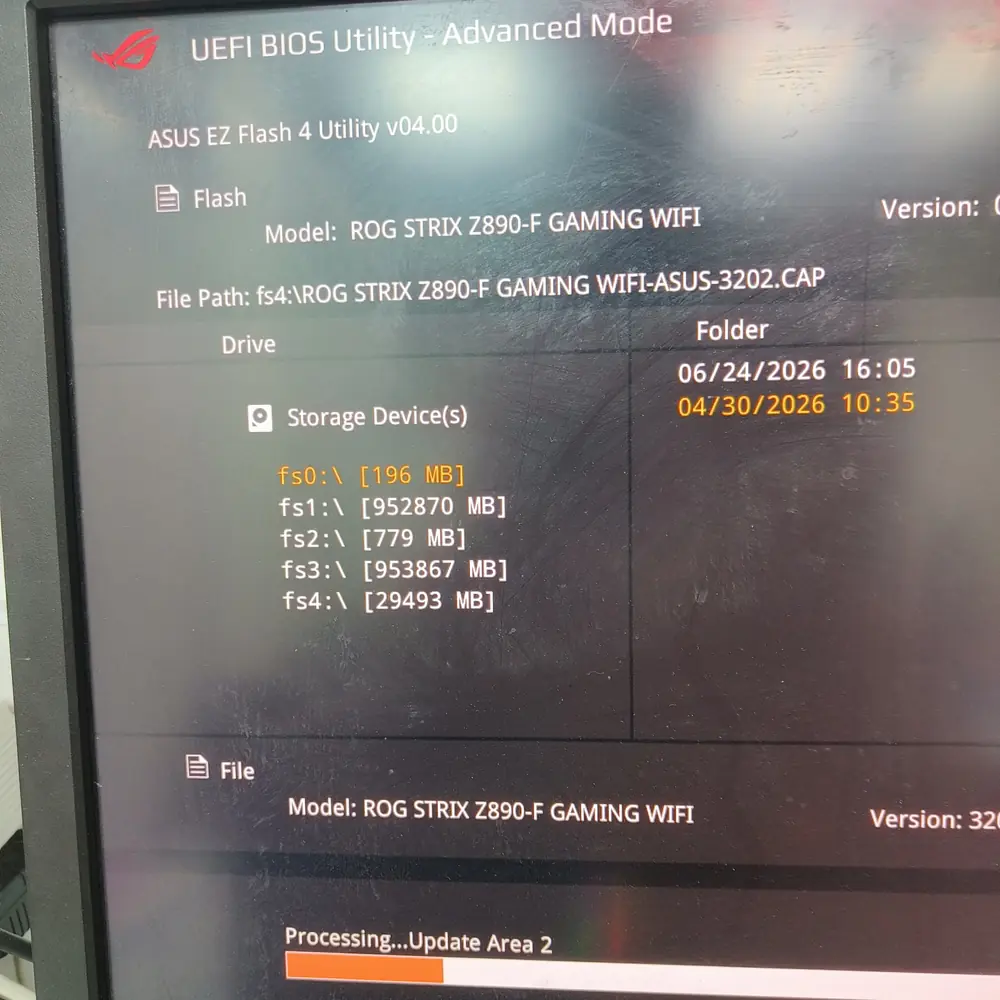
A BIOS or UEFI update can trigger a BitLocker recovery screen even when the update succeeded. Here is why it happens, where to find your key, and what not to do if you cannot.
On This Page
Do not reset, reinstall or clear the TPM yet
If you do not have the recovery key, stop before resetting the PC, reinstalling Windows or clearing the TPM. Those actions can permanently remove access to the encrypted drive. Look for the key first using the places listed below.
why-it-happens
When BitLocker is tied to the TPM, it checks the state of the boot environment each time the computer starts. A firmware update changes those measurements, so the TPM will not release the unlock key automatically and Windows asks you for the recovery key as a security check. This is expected behavior, not a malfunction.
Many modern laptops turn on BitLocker or device encryption during Windows setup, so your drive may be encrypted even if you never chose it. That is why the prompt surprises people after a routine update.
recovery-screen-vs-bricked
To reach the BitLocker recovery screen, the firmware has to initialize the hardware, pass POST and start the boot manager. A machine that shows this screen is not suffering from corrupted firmware. If instead you get a black screen, no display or a boot loop after the update, that is a different problem. See the full guide to BIOS and UEFI failure and recovery: BIOS & UEFI Recovery Guide
find-the-key
Microsoft Support cannot retrieve, provide or recreate a lost BitLocker recovery key, so the key has to come from wherever it was saved when BitLocker was turned on. Check these places:
- Your Microsoft account: sign in on another device and look for the recovery keys listed for your devices. Use the key ID shown on the recovery screen to pick the right one.
- A work or school account: if the device is managed by an organization, the key may be in that account or held by the IT department.
- A printout or a file saved to a USB drive when BitLocker was activated.
- Another person's Microsoft account: if somebody else set up the device or turned on BitLocker, the key may be stored in their account.
Note the recovery key ID on the blue screen before you start. If you have more than one key, the ID tells you which one unlocks this drive. Official steps: Microsoft Support — Find your BitLocker recovery key
after-unlocking
- Let Windows start normally and confirm your files and apps are intact.
- Restart once more. A single prompt after a firmware change is normal.
- If the prompt keeps returning, check whether the update reset Secure Boot or TPM settings in firmware setup, and restore the values your organization or Windows requires. Change one setting at a time.
- Save a fresh copy of the recovery key somewhere that is not on the same computer.
suspend-before-update
Microsoft recommends temporarily suspending BitLocker protection before computer-manufacturer firmware updates and TPM firmware updates. Suspending does not decrypt your data. It tells Windows to expect the next boot to look different, then protection resumes.
- Back up the recovery key first, in case anything goes wrong.
- Open Control Panel, then System and Security, then BitLocker Drive Encryption, and choose Suspend protection. Or open PowerShell as administrator and run: Suspend-BitLocker -MountPoint "C:" -RebootCount 0
- Install the firmware update using your manufacturer's tool, on stable AC power.
- Once the update is finished and Windows starts normally, resume protection from the same BitLocker screen, or run: Resume-BitLocker -MountPoint "C:"
A reboot count of 0 keeps protection suspended until you resume it yourself, so do not forget the last step. Official guidance: Microsoft Learn — Suspend BitLocker protection for non-Microsoft updates
key-lost
This is a data-access problem, not a firmware-repair problem. Reflashing the BIOS, swapping the motherboard firmware chip or reinstalling Windows will not bring the key back, and no repair shop can unlock a BitLocker drive without it. Before doing anything else, check every account you have ever signed in with on that device, and ask anyone who may have set it up.
When to bring the device to a technician
If the machine never reaches the recovery screen, or you see a black screen, no display or repeated restarts after the update, bring it in for diagnosis before trying more firmware files. KCROC checks whether the cause is firmware or a motherboard fault, offers free pickup and delivery across Kuwait, and works on a No Fix, No Fee basis.
faq
Why does Windows ask for a BitLocker recovery key after a BIOS update?
Does a BitLocker recovery prompt mean my BIOS update failed?
Where can I find my BitLocker recovery key?
Can Microsoft or a repair shop recover a lost BitLocker key?
Should I suspend BitLocker before updating the BIOS?
official-sources
Microsoft Support, find your BitLocker recovery key: Microsoft Support — Find your BitLocker recovery key
Microsoft Learn, suspend BitLocker protection for non-Microsoft updates: Microsoft Learn — Suspend BitLocker protection for non-Microsoft updates
Related guides: BIOS & UEFI Recovery Guide and Gaming PC BIOS Failed Update Guide
Is Your Laptop Running Slow?
If your laptop freezes, slows down during multitasking, or struggles with everyday apps, our technicians can diagnose whether it's RAM, storage, overheating, or a hardware fault — for free.