
Laptop Won't Turn On? Complete Troubleshooting Guide
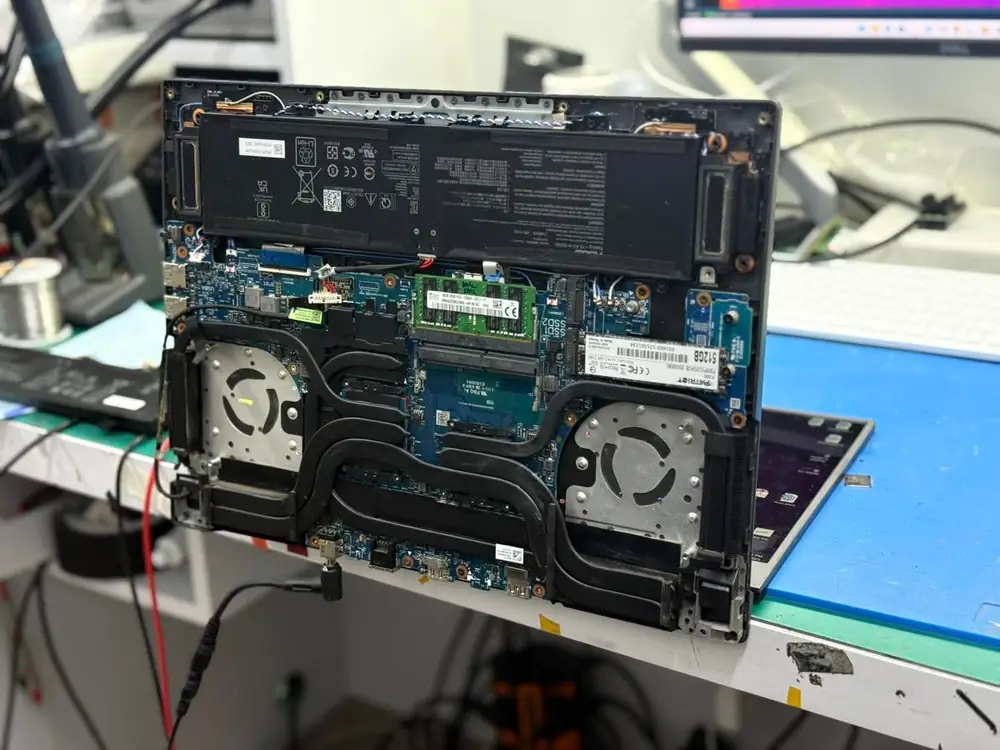
Laptop completely dead, showing no charging light, or refusing to start? Use this technician-led checklist to separate charger, battery, display, firmware and motherboard faults before paying for repair in Kuwait.
On This Page
- First: What Does 'Won't Turn On' Actually Mean?
- 1. Check the Wall Outlet and Power Source
- 2. Inspect the Charger Before Blaming the Laptop
- 3. Check the Charging Port or USB-C Port
- 4. Disconnect Accessories and Docking Devices
- 5. Perform a Safe Power Reset
- 6. Test With and Without the Battery — Only When Safe
- 7. If Lights or Fans Appear, Stop Calling It “No Power”
- 8. What a Technician Checks on a Truly Dead Laptop
- Common Causes of a Laptop That Will Not Turn On
- Kuwait-Specific Things Worth Checking
- What Not to Do
- When Is Professional Diagnosis Worth It?
- Frequently Asked Questions
- Bottom Line
A laptop that will not turn on can mean several very different things. Some machines are truly dead: no charging light, no keyboard light, no fan movement and no response to the power button. Others are receiving power but cannot complete startup, or they power on while the screen stays black.
Those symptoms should not be treated as the same fault. A bad wall outlet, damaged charger, loose DC jack, USB-C power-delivery mismatch, failed battery, corrupted firmware, shorted motherboard rail, bad RAM or display fault can all look like a laptop that 'won't turn on' from the user's point of view.
KCROC diagnostic approach
Start with the least invasive checks and classify the symptom before replacing anything. At KCROC, a true no-power case is diagnosed differently from a laptop that has lights and fan activity but no picture. That distinction prevents unnecessary parts replacement and points the technician toward the correct power, firmware, memory or display path.
Stop immediately if you see these signs
Disconnect the charger and stop troubleshooting if the laptop has liquid inside it, a swollen battery, a burning smell, visible sparking, melted plastic, or a charger/port that becomes abnormally hot. Do not repeatedly reconnect power to a machine with suspected liquid or battery damage.
First: What Does 'Won't Turn On' Actually Mean?
Before testing anything, press the power button once and watch closely. Look for a charging LED, keyboard backlight, power LED, fan movement, drive activity, startup sound, screen backlight or manufacturer logo. These details divide the problem into much more useful diagnostic categories.
| Feature | What you see | Most useful interpretation | Next direction |
|---|---|---|---|
| No lights, no fan, no response | True no-power condition | Outlet, charger, DC/USB-C input, battery, motherboard input rail | |
| Charging light appears but power button does nothing | Some input power is reaching the laptop | Power button circuit, embedded controller, battery state, motherboard | |
| Lights/fans turn on but screen is black | The laptop may be powering on | Display, RAM, BIOS/UEFI, GPU or POST failure | |
| Logo appears, then it freezes or loops | Not a true no-power fault | Boot drive, Windows, firmware or hardware initialization | |
| Only turns on with charger connected | Battery may not be supplying usable power | Battery health, connector, charging circuit |
Important distinction
If the fans or keyboard lights come on but the display stays dark, use the Laptop Turns On But Screen is Black problem path rather than treating the laptop as completely dead. If the machine starts but Windows never loads, the fault is also no longer a true no-power case.
1. Check the Wall Outlet and Power Source
Start outside the laptop. Plug another known-working device into the same wall socket or power strip. If you are using an extension lead, travel adapter, surge protector or UPS, temporarily remove it and test the charger directly from a known-good wall outlet.
This sounds basic, but it eliminates a complete section of the power path in less than a minute. It is especially useful after a room move, electrical trip, damaged extension lead or intermittent socket.
2. Inspect the Charger Before Blaming the Laptop
Look along the charger cable for crushed sections, cuts, exposed conductors, a bent connector, looseness near the brick, or a plug that only works when held at a certain angle. If the charger has an indicator LED, note whether the LED stays on when the charger is connected to the laptop.
If a charger LED turns off immediately when connected to the laptop, that can be a useful diagnostic clue. Depending on the adapter design, it may indicate an overload or short on the laptop side, although the charger itself can also be faulty. Do not repeatedly reconnect it trying to force the laptop to start.
Use the correct rating
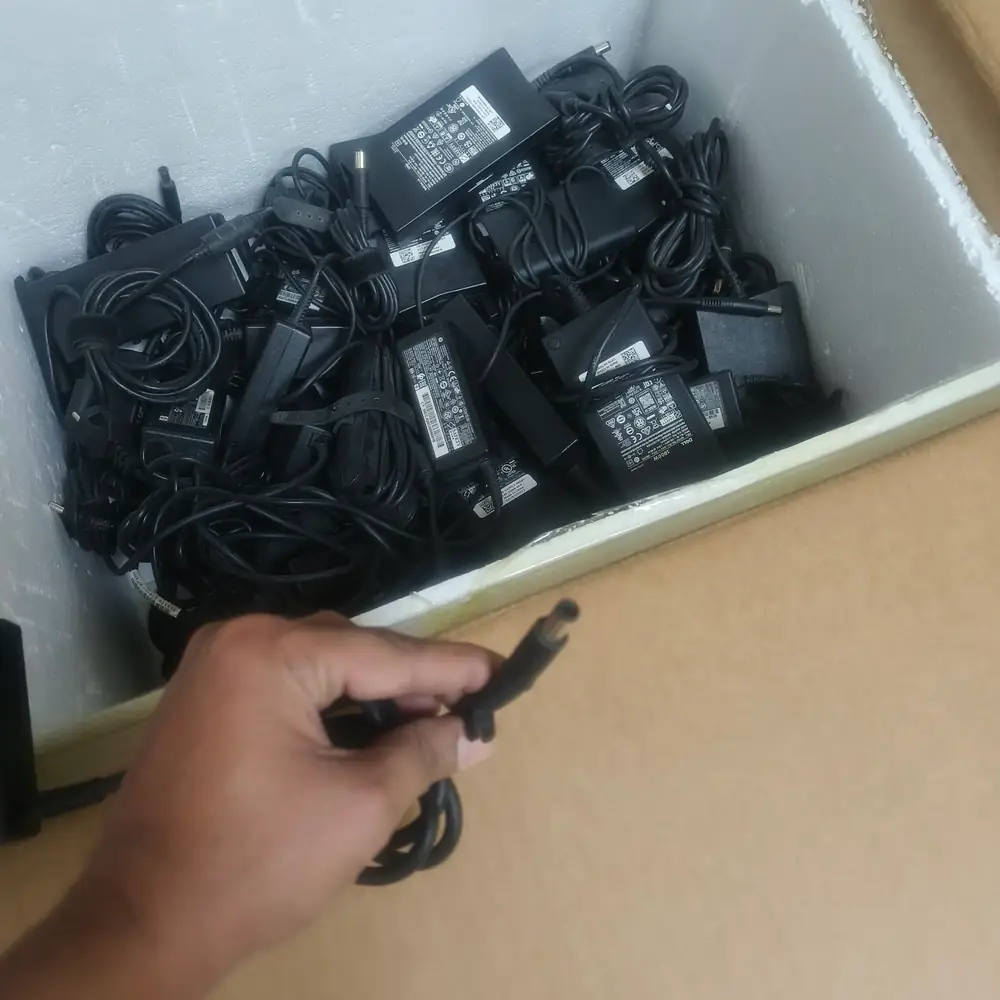
For barrel-jack laptops, use an adapter with the correct connector and manufacturer-compatible voltage and wattage. For USB-C laptops, the charger and cable must support the power level and USB Power Delivery profile the laptop expects. A phone charger may fit physically but still be unable to start or charge a laptop.
3. Check the Charging Port or USB-C Port
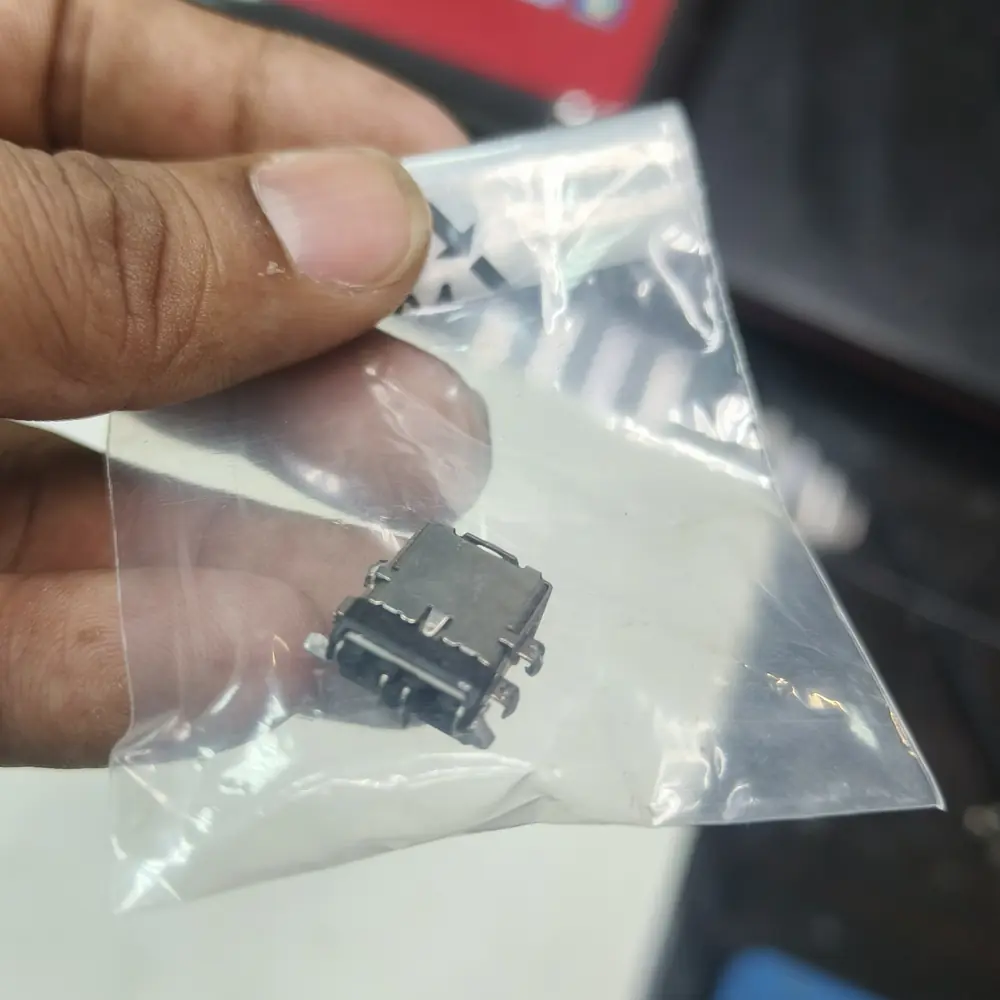
Gently connect the charger and observe the port. The plug should not feel excessively loose, sink into the chassis, spark, or require pressure in a particular direction. A damaged DC jack can interrupt power even when the adapter is good.
On USB-C models, try only another port that the manufacturer designates for charging. Not every USB-C port accepts charging input, and not every cable can carry laptop-level power.
4. Disconnect Accessories and Docking Devices
Remove USB devices, external drives, memory-card readers, HDMI cables, docks, printers, Ethernet adapters and other accessories. Then connect only the charger and try the power button once.
A failed peripheral or dock can occasionally interfere with startup or power negotiation. Removing everything gives you a clean baseline and prevents a bad accessory from confusing the diagnosis.
5. Perform a Safe Power Reset
Shut the laptop down if it is partially responsive, disconnect the charger, and remove the battery only if it is designed to be removed externally without opening the chassis. With external power disconnected, hold the power button for about 15 to 30 seconds. Reconnect the charger and test again.
This does not 'repair' a failed motherboard. It simply clears residual power and can reset a controller that has become stuck in an abnormal state. On laptops with sealed internal batteries, do not open the machine solely to perform this step unless you are comfortable following the manufacturer's service procedure.
Do not use random key combinations as a universal fix
Some brands provide specific emergency reset, battery-reset or firmware-recovery procedures, but they vary by model. A key sequence that is correct for one laptop may do nothing on another. Use the exact manufacturer procedure for the exact model when attempting a special reset.
6. Test With and Without the Battery — Only When Safe
If your laptop has a user-removable battery, remove it, connect the correct charger and try to power the laptop from AC power alone. If it starts normally without the battery, the battery or its connection becomes a strong suspect.
For laptops with internal batteries, battery isolation requires opening the chassis. That is a technician-level step on many modern machines, particularly where the battery is glued, swollen, located beneath fragile ribbon cables or close to exposed board components.
Laptop Battery Warning Signs can help you distinguish ordinary battery wear from swelling, shutdowns, charging abnormalities and other signs that deserve replacement rather than repeated testing.
7. If Lights or Fans Appear, Stop Calling It “No Power”
The moment you have consistent fan spin, keyboard illumination, a power LED or other startup activity, the diagnostic path changes. The motherboard is receiving at least some power and attempting to initialize hardware.
At that point, a black display can come from RAM seating, display cable or panel faults, firmware corruption, GPU problems or another POST failure. Laptop Turns On But Screen is Black is the more accurate problem category for this symptom.
Use the symptom, not the assumption
A customer may describe both a dead motherboard and a working laptop with a failed screen as 'it won't turn on.' Watching the LEDs, fan, screen backlight and external-display behavior is often more informative than the wording of the complaint.
8. What a Technician Checks on a Truly Dead Laptop
If a known-good power source and correct charger produce no useful response, diagnosis moves inside the power path. A technician may verify adapter voltage, inspect the DC jack or USB-C input stage, isolate the battery, check input fuses and protection components, inspect for shorts, and trace the always-on power rails that must exist before the power button can start the machine.
On board-level cases, the goal is not to guess which chip 'looks bad.' Measurements are taken across the power rails to locate where voltage is missing, collapsing or being pulled down by a short. Depending on the design, faults can involve input MOSFETs, charging ICs, shorted capacitors, embedded-controller power, corrosion, damaged connectors or other components.
Motherboard Repair Kuwait is the relevant service when the external power equipment, charging port and battery do not explain a genuine no-power condition. For broader faults where the final cause is not yet known, Laptop Repair Kuwait is the general diagnostic route.
Common Causes of a Laptop That Will Not Turn On
| Feature | Typical clue | Can you check it safely? | Likely next step |
|---|---|---|---|
| Dead wall outlet / extension | Charger works elsewhere | Yes | Use a known-good power source |
| Failed or incorrect charger | No charge light, intermittent cable, wrong USB-C wattage | Usually | Test correct known-good adapter |
| Loose or broken charging jack | Plug moves, charging cuts in/out | Visual check only | Jack/connector inspection and repair |
| Failed or shorted battery | Works only on AC, shuts off instantly, battery swelling | External battery only | Battery isolation and health test |
| Black-screen / POST fault | Lights or fans are present | Partly | RAM/display/firmware diagnosis |
| Firmware / embedded-controller state | Power LEDs or unusual blink codes may appear | Model-dependent | Use exact OEM recovery/reset procedure |
| Motherboard input or power-rail fault | Known-good adapter but no useful response | No, beyond basic checks | Component-level electrical diagnosis |
| Liquid or corrosion damage | Spill history, residue, intermittent power | Do not energize repeatedly | Disconnect power and inspect promptly |
Kuwait-Specific Things Worth Checking
In Kuwait, laptops often move between very hot cars or outdoor conditions and strongly air-conditioned rooms. Heat by itself does not prove a no-power fault, but high ambient temperatures can accelerate battery wear and expose marginal charging or cooling problems. Fine dust can also build up around ports and inside the chassis over time.
If a laptop was left in a hot vehicle, let it return to normal indoor temperature before charging or powering it. If there is visible condensation, moisture or a swollen battery, do not connect power until the machine is safe to inspect.
What Not to Do
Do not repeatedly wiggle a loose charging plug while the laptop is powered. Do not keep reconnecting a charger that sparks, becomes dangerously hot or immediately shuts its own indicator off. Do not puncture, press or bend a swollen battery. Do not apply heat to the motherboard or GPU as a DIY 'reflow' fix. And do not buy a replacement motherboard before the input power path has been measured.
Also avoid assuming that every black-screen laptop needs a motherboard. If power LEDs and fans are present, the fault can be much simpler. Good diagnosis is about narrowing possibilities before spending money.
When Is Professional Diagnosis Worth It?
Professional diagnosis makes sense when the correct charger and a known-good outlet produce no response, the charging connector is physically damaged, the charger repeatedly trips when connected, the laptop has liquid or corrosion history, the battery is swollen, or the machine shows inconsistent power behavior that basic external checks cannot explain.
It is also worth diagnosing before replacing an expensive laptop. A dead machine can sometimes have a localized power-input or motherboard component fault rather than requiring an entire board or a new computer.
KCROC in Kuwait
If the external checks in this guide do not identify the cause, KCROC can test the charger, battery, charging input and motherboard power rails before recommending parts. The aim is to identify the failed stage first, then decide whether repair is technically and financially sensible.
Frequently Asked Questions
Why is my laptop completely dead even when plugged in?
Can a dead battery stop a laptop from turning on?
Why does my charger light turn off when I plug it into the laptop?
My laptop has lights and fan noise but no picture. Is that a no-power fault?
Can I use a phone USB-C charger to test my laptop?
Will holding the power button for 30 seconds fix a dead laptop?
Could BIOS corruption make a laptop look dead?
Is a laptop that won't turn on automatically a motherboard replacement?
Bottom Line
When a laptop won't turn on, the fastest route to the correct answer is to classify the symptom first. No lights and no fan activity is a different problem from a laptop that powers up with a black screen, and both are different from a machine that reaches the logo but cannot boot Windows.
Work from the outside in: verify the wall outlet, correct charger, charging port, accessories and a safe power reset. Stop if there are signs of liquid, swelling, burning or sparking. If the laptop remains completely dead with a known-good power source, the next useful step is measured diagnosis of the charging input and motherboard power rails rather than guessing at parts.
Is Your Laptop Running Slow?
If your laptop freezes, slows down during multitasking, or struggles with everyday apps, our technicians can diagnose whether it's RAM, storage, overheating, or a hardware fault — for free.