
Laptop Won’t Turn On? 15 Causes, Tests & What to Do Before Repair
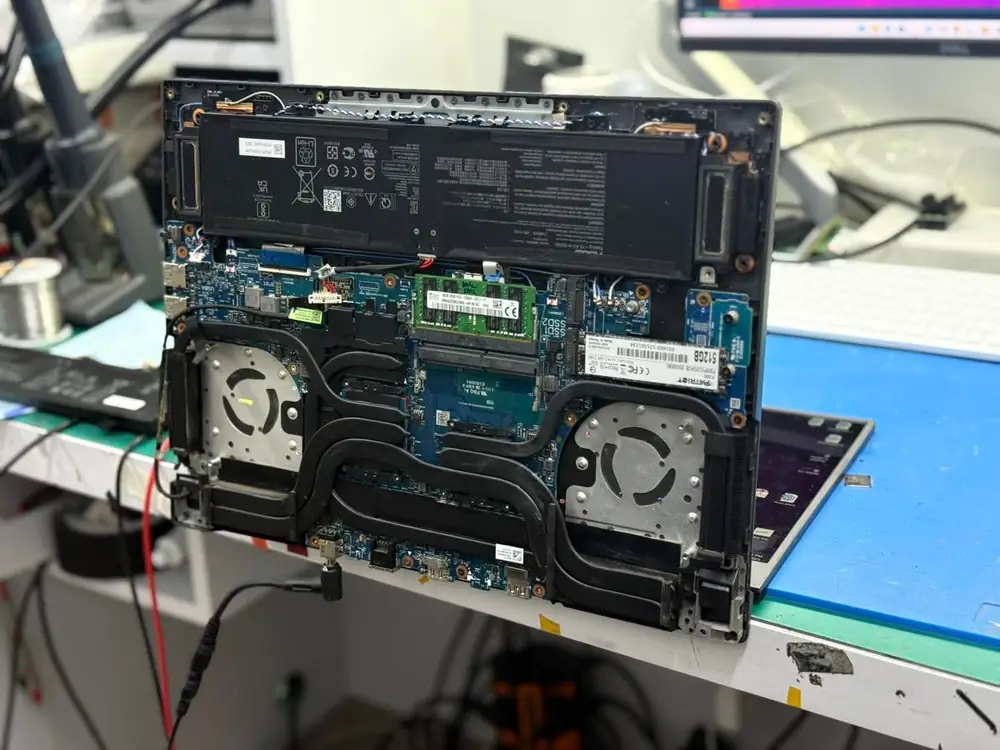
Table of Contents
- First: What Does “Won’t Turn On” Actually Mean?
- 1. The Battery Is Completely Discharged
- 2. The Charger or AC Adapter Has Failed
- 3. The Wall Outlet or Power Connection Is the Problem
- 4. The Charging Port Is Damaged
- 5. The Laptop Is Stuck in a Power State
- 6. A USB Device or Peripheral Is Preventing Startup
- 7. The Power Button or Its Circuit Has a Problem
- 8. RAM or a Memory-Related Fault Is Preventing POST
- 9. The Display Is Dead Even Though the Laptop Is Running
- 10. The BIOS/UEFI or Firmware Has a Problem
- 11. The Laptop Is Overheating
- 12. The SSD or Storage Has Failed
- 13. Liquid Damage or Corrosion Is Preventing Startup
- 14. A Motherboard Power Circuit Has Failed
- 15. Previous Repair or Hardware Damage Has Created a New Fault
- Why won't my laptop turn on at all?
- Why won't my laptop turn on but the charging light is on?
- Why does my laptop turn on but the screen stays black?
- Why does my laptop turn on and then immediately shut down?
- Can a laptop motherboard be repaired?
- Should I keep trying to turn on a laptop after liquid damage?
- Can a dead laptop SSD cause the laptop not to power on?
- Is a laptop that won't turn on always expensive to repair?
- How can I tell whether my laptop has a power problem or a Windows problem?
- When should I take my laptop to a repair technician?
Laptop won't turn on? Learn how to separate a true no-power condition from a black-screen, POST, boot, charging or Windows problem before replacing parts.
A laptop that suddenly refuses to turn on can be worrying—especially when there are no lights, no fan noise, and no response from the power button.
But “my laptop won't turn on” does not always mean the motherboard is dead.
The problem could be something as simple as a faulty charger, discharged battery, stuck power state, damaged charging port, or disconnected peripheral. In other cases, the laptop may actually be receiving power but failing during POST, displaying nothing on the screen, or failing to load Windows.
The first step is therefore to identify exactly where the startup process stops.
At KCROC, we diagnose the fault before recommending a repair. That matters because replacing an expensive motherboard without first identifying the failed component can turn a repairable fault into an unnecessarily expensive replacement.
First: What Does “Won’t Turn On” Actually Mean?
Before trying random fixes, look at what happens when you press the power button.
Situation 1: Absolutely nothing happens
You press the power button and get:
- No power LED
- No keyboard lights
- No fan
- No sound
- No screen activity
- No charging indication
This is most consistent with a power-related problem.
Possible causes include:
- Charger or AC adapter failure
- Battery failure
- Damaged charging port
- Power-button problem
- Internal power circuit failure
- Motherboard fault
- Shorted component
- Liquid damage
Situation 2: Lights come on, but there is no display
The laptop appears to power on:
- Power LED is illuminated
- Fan may spin
- Keyboard may light up
- But the display remains black
This can be a no-video or no-POST problem, rather than a simple no-power problem.
Possible causes include:
- LCD/display failure
- Display cable problem
- RAM/POST failure
- GPU problem
- BIOS/firmware problem
- Motherboard fault
Situation 3: The manufacturer's logo appears, but Windows doesn't load
If you see the manufacturer logo and then the laptop stops, restarts, shows an error, or gets stuck, the laptop is receiving power and getting through at least part of its hardware startup process.
The problem may instead involve:
- Windows
- SSD/storage
- Boot configuration
- Corrupted system files
- Driver problems
- BIOS/UEFI settings
- Hardware instability
Situation 4: The laptop turns on and immediately shuts down
This can point toward:
- Overheating
- Battery/power problems
- Charger problems
- RAM/POST failure
- BIOS/firmware issues
- Shorted hardware
- Motherboard power problems
These situations should not all be diagnosed the same way.
# 15 Reasons a Laptop May Not Turn On
1. The Battery Is Completely Discharged
A deeply discharged battery can make a laptop appear completely dead.
Connect the original or correct-rated charger and leave the laptop connected for a while before trying to start it again.
Look for a charging indicator.
If there is no charging indication at all, don't automatically assume the battery is the problem. The charger, charging port, charging circuit, or motherboard could also be responsible.
2. The Charger or AC Adapter Has Failed
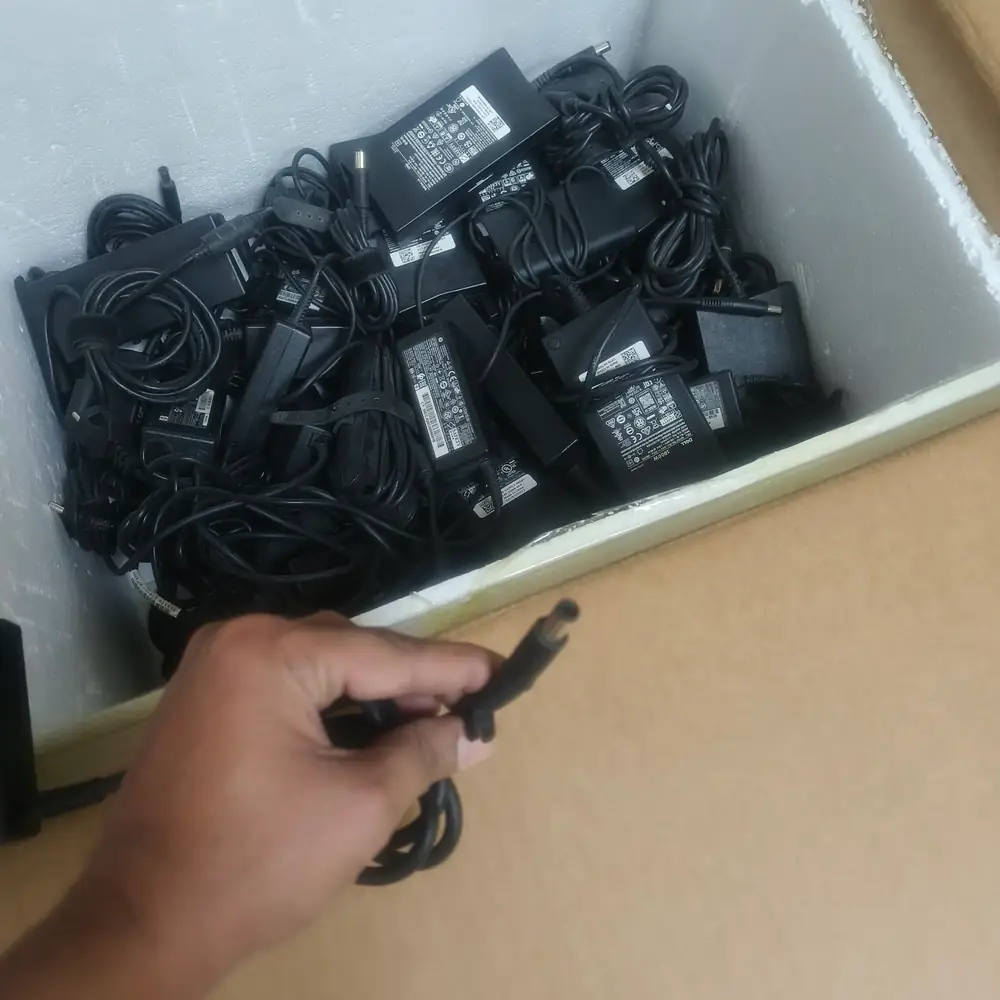
A laptop charger can fail internally even when the cable looks perfectly normal.
Check:
- Is the charger firmly connected?
- Is the wall outlet working?
- Is the charger LED illuminated, if it has one?
- Is the cable damaged?
- Does the laptop show any charging indication?
If you have a known-compatible charger with the correct specifications, testing it can help isolate the problem.
Do not use an incompatible adapter simply because its plug fits.
3. The Wall Outlet or Power Connection Is the Problem
Before assuming the laptop has failed, eliminate the simplest possibilities.
Try:
- A different wall outlet.
- Connecting the adapter directly to the wall.
- Removing unnecessary power strips or extensions.
- Checking both ends of the charger connection.
These basic checks are also recommended in manufacturer troubleshooting guidance.
4. The Charging Port Is Damaged
The laptop may not receive power properly if the DC jack or USB-C charging port is damaged.
Common signs include:
- Charging works only when the plug is held at a certain angle.
- Charging repeatedly starts and stops.
- The connector feels loose.
- The laptop stopped charging after the connector was pulled or hit.
- There is visible physical damage around the port.
A damaged charging port can sometimes be repaired without replacing the entire motherboard.
5. The Laptop Is Stuck in a Power State
Sometimes the laptop's embedded controller or power state can become stuck.
For compatible laptops, a basic power reset may help:
- Disconnect the charger.
- Disconnect removable external devices.
- If the battery is user-removable, remove it.
- Hold the power button for around 15–20 seconds.
- Reconnect the appropriate power source.
- Try starting the laptop again.
The exact procedure varies by manufacturer and model. Dell, for example, documents power-drain procedures as part of its no-power troubleshooting.
Do not open a sealed battery pack or attempt to manipulate an internal lithium battery unless you know exactly what you are doing.
6. A USB Device or Peripheral Is Preventing Startup
Disconnect unnecessary external devices.
Remove:
- USB flash drives
- External hard drives
- USB hubs
- Docking stations
- Printers
- External keyboards
- External mice
- Memory cards
- Other recently connected accessories
Then try starting the laptop again.
A faulty peripheral or external device can interfere with startup or POST on some systems.
If the laptop starts after removing something, reconnect devices one at a time to identify the problem.
7. The Power Button or Its Circuit Has a Problem
If pressing the power button produces no response, the button itself may not be the only suspect.
Depending on the laptop design, the problem could involve:
- Power-button board
- Button cable
- Connector
- Embedded controller
- Motherboard power circuitry
This is particularly worth investigating if the laptop was dropped, exposed to liquid, or physically damaged.
8. RAM or a Memory-Related Fault Is Preventing POST
A laptop can receive power but fail its Power-On Self-Test (POST).
Symptoms can include:
- Power light turns on
- Fan spins
- Screen remains blank
- Keyboard LEDs behave unusually
- Diagnostic LEDs blink
- Beeps occur
- Laptop never reaches the manufacturer logo
Memory problems are one possible cause, although the exact diagnostic indicators vary by manufacturer and model.
If your laptop has accessible memory and you are comfortable working inside it, manufacturer-specific procedures may allow memory testing or reseating.
Otherwise, professional diagnosis is safer.
9. The Display Is Dead Even Though the Laptop Is Running
Sometimes the laptop is actually turning on.
You may hear:
- Fan noise
- Windows startup sounds
- Notification sounds
You may also see:
- Power LEDs
- Keyboard illumination
But the internal display remains black.
This could indicate:
- LCD/OLED panel failure
- Display cable damage
- Backlight problem
- Graphics hardware problem
- Motherboard display circuitry
- Driver/software issue
Testing with a known-good external display can sometimes help separate a laptop-panel problem from a broader startup problem.
Microsoft also distinguishes several Windows blank-screen scenarios, including blank screens with a cursor, after updates, and blinking-cursor situations associated with boot-device problems.
10. The BIOS/UEFI or Firmware Has a Problem
The BIOS/UEFI is involved before Windows loads.
If firmware becomes corrupted or a firmware update fails, the laptop may:
- Stop at startup
- Show no display
- Fail POST
- Restart repeatedly
- Show diagnostic indicators
- Appear completely unresponsive on some models
Some manufacturers provide model-specific BIOS recovery procedures.
Do not randomly flash BIOS firmware using files intended for another model.
A wrong BIOS file or interrupted firmware procedure can create a much more serious startup problem.
11. The Laptop Is Overheating
A laptop that powers on and then shuts itself down can have a thermal problem.
Possible causes include:
- Dust buildup
- Blocked vents
- Failed fan
- Dried thermal compound
- Poor heatsink contact
- Heavy CPU/GPU load
- Thermal sensor problems
If the laptop repeatedly shuts down under load, especially during gaming or demanding work, overheating should be investigated.
Do not continue repeatedly powering on a machine that is becoming abnormally hot.
12. The SSD or Storage Has Failed
A failed SSD can prevent Windows from loading.
However, a bad SSD usually does not explain a laptop having absolutely no power.
This distinction is important.
If:
Power → manufacturer logo → boot error
then storage becomes a stronger suspect.
If:
No lights → no fan → no response
then the SSD is unlikely to be the primary reason for the no-power condition.
A technician should identify which stage is failing before replacing parts.
13. Liquid Damage or Corrosion Is Preventing Startup
If the laptop recently had:
- Water spilled on it
- Coffee spilled on it
- Soft drink spilled on it
- Humidity exposure
- Liquid entering through the keyboard
- A previous liquid incident
do not keep repeatedly pressing the power button.
Liquid can create short circuits and corrosion, and damage may continue even after the exterior appears dry.
For liquid-damaged laptops, the priority should be inspection and controlled diagnosis, not repeated power attempts.
14. A Motherboard Power Circuit Has Failed
This is where the diagnosis becomes significantly more technical.
A motherboard can have a failure involving:
- Input power circuitry
- Charging circuit
- Power MOSFETs
- Voltage regulators
- Embedded controller
- Power rails
- Shorted capacitors/components
- CPU/GPU power circuitry
The symptom may simply be:
“It doesn't turn on.”
But the actual fault could be a small component or power circuit rather than the entire motherboard.
This is why a proper diagnosis matters before someone tells you that you need an expensive motherboard replacement.
15. Previous Repair or Hardware Damage Has Created a New Fault
If the laptop stopped working after:
- Screen replacement
- Battery replacement
- SSD installation
- RAM upgrade
- Cleaning
- Keyboard replacement
- USB-C repair
- Liquid damage
- A fall or impact
the timing is important.
A connector, cable, screw, component or board-level circuit may have been affected.
Tell the technician exactly what happened immediately before the failure.
That information can dramatically reduce diagnostic time.
# What Should You Check First?
Use this quick sequence.
Step 1 — Check the power source
Try a known-good wall outlet.
Step 2 — Check the charger
Look for damage and verify that you're using the correct charger.
Step 3 — Disconnect peripherals
Remove USB devices, docks, external drives and other accessories.
Step 4 — Look for signs of life
Check:
- Power LED
- Charging LED
- Keyboard lights
- Fan
- Beeps
- Diagnostic LED patterns
Step 5 — Perform an appropriate power reset
Use the procedure recommended for your specific laptop model.
Step 6 — Determine whether the screen is actually the problem
If the laptop appears to power on but the display stays black, you're dealing with a different diagnostic path.
Step 7 — Determine whether Windows is the problem
If you see the manufacturer's logo or Windows recovery/startup screen, the machine has progressed beyond a simple “no power” condition.
# Laptop Won't Turn On but the Charging Light Is On
This is one of the most confusing situations.
If the charging indicator works but pressing the power button produces no normal startup, possibilities include:
- Battery problem
- Power-button problem
- Embedded-controller issue
- RAM/POST problem
- BIOS/firmware problem
- Motherboard power fault
The charging LED does not prove that the entire motherboard is healthy.
It only tells you that at least some power circuitry is active.
# Laptop Turns On but the Screen Is Black
Don't immediately conclude that the laptop is dead.
Check whether:
- Fans spin
- Keyboard lights work
- Caps Lock/Num Lock responds
- External display works
- You hear Windows sounds
- Diagnostic LEDs blink
- The manufacturer's logo appears
If the machine is running but the internal screen is black, the problem could be the display panel, cable, graphics subsystem or motherboard rather than the main power system.
# Laptop Turns On Then Immediately Shuts Off
This symptom deserves a different investigation.
Common possibilities include:
- Thermal shutdown
- Battery/charger instability
- RAM/POST failure
- BIOS/firmware problem
- Short circuit
- Motherboard power fault
- CPU/GPU power problem
If this happens repeatedly, avoid repeatedly forcing the machine to start without identifying the cause.
# When Should You Stop Troubleshooting at Home?
Stop and seek professional diagnosis if:
- The laptop was exposed to liquid.
- You smell burning or overheated electronics.
- The charger or port becomes unusually hot.
- There is visible board damage.
- The battery is swollen.
- The laptop repeatedly powers on and immediately shuts down.
- There are unusual sparks or electrical sounds.
- The laptop shows diagnostic LED/beep patterns you cannot identify.
- The laptop has no response after basic power checks.
- You suspect motherboard or charging-circuit damage.
Never puncture, crush, short, or attempt to repair a swollen lithium-ion battery.
# Does a Laptop That Won't Turn On Need a New Motherboard?
Not necessarily.
This is one of the most important things to understand.
A laptop can appear completely dead because of a:
- Charger
- Battery
- Charging port
- Power button
- Small power component
- Shorted component
- BIOS/firmware issue
- RAM problem
- Display problem
- Motherboard-level power fault
Those failures have very different repair paths and costs.
A good diagnosis should establish what failed before deciding what needs to be replaced.
# Component-Level Repair vs. Replacing the Motherboard
Modern laptop motherboards contain many individual components responsible for charging, power conversion, protection and communication.
If a specific component or power circuit fails, board-level diagnosis may identify the defective area rather than automatically replacing the entire motherboard.
At KCROC, the repair philosophy is:
Diagnose first. Quote second. Repair only with approval.
For suitable faults, component-level and board-level diagnosis can be considered before recommending a complete motherboard replacement.
# What Happens During a Professional Diagnosis?
A proper diagnosis can involve checking:
Power input
Is the laptop receiving the expected input power?
Charger and charging path
Is the adapter functioning and is power reaching the laptop correctly?
Battery
Is the battery healthy and communicating correctly?
Power button
Is the power-on signal reaching the appropriate circuitry?
Standby power rails
Are the required standby voltages present?
Embedded controller
Is the system controller responding correctly?
POST
Does the laptop successfully begin its hardware startup checks?
Display
Is the machine running without producing video?
Storage
Is the SSD detected and healthy enough for the system to boot?
BIOS/UEFI
Is the firmware functioning correctly?
Motherboard
Are there signs of a short, failed power component, damaged circuit or other board-level fault?
This is much more useful than simply saying:
“The motherboard is dead.”
# Should You Repair or Replace the Laptop?
The answer depends on:
- Laptop age
- Model
- Original purchase price
- Current replacement cost
- Repair cost
- Parts availability
- Overall condition
- Battery health
- SSD health
- Screen condition
- CPU/GPU performance
- Whether the fault is repairable at component level
A relatively small power-circuit repair can make sense on a valuable laptop, while an old low-value machine with multiple unrelated failures may not.
The right decision should be based on the actual diagnosis and repair estimate, not simply the symptom.
# Laptop Won't Turn On in Kuwait?
If your laptop has stopped powering on and basic checks haven't solved the problem, KCROC can diagnose the fault before recommending repair.
We work with common laptop brands including:
Dell • HP • Lenovo • ASUS • Acer • MSI
Depending on the fault, diagnosis may involve the charger, battery, charging port, display, RAM, SSD, BIOS/UEFI or motherboard.
KCROC's approach is simple:
Diagnose first → explain the fault → provide the repair quote → repair only after approval.
If the laptop is repairable, the goal is to repair the actual fault rather than automatically replacing an expensive board.
Need a laptop diagnosed?
Book a pickup or contact KCROC for laptop repair in Kuwait.
# Frequently Asked Questions
Why won't my laptop turn on at all?
Possible causes include a discharged battery, faulty charger, damaged charging port, power-button problem, stuck power state, RAM/POST failure, BIOS issue, liquid damage or motherboard power failure.
Why won't my laptop turn on but the charging light is on?
A charging light only indicates that some charging/power circuitry is active. The laptop can still have a power-button, POST, BIOS, RAM or motherboard problem.
Why does my laptop turn on but the screen stays black?
The laptop may be running but experiencing a display, cable, graphics, RAM, BIOS or motherboard problem. Test whether there are other signs of startup before assuming the laptop has no power.
Why does my laptop turn on and then immediately shut down?
Overheating, power instability, battery/charger problems, RAM/POST failures, firmware problems and motherboard faults can all produce this symptom.
Can a laptop motherboard be repaired?
Some motherboard faults can be diagnosed and repaired at component level. Whether repair is practical depends on the exact failure, board design, parts availability and damage.
Should I keep trying to turn on a laptop after liquid damage?
No. If liquid has entered the laptop, repeated attempts to power it on can worsen electrical damage. Professional inspection is safer.
Can a dead laptop SSD cause the laptop not to power on?
Usually, a storage failure causes a boot problem rather than a complete no-power condition. If there are absolutely no lights, fan activity or other signs of life, investigate the power system first.
Is a laptop that won't turn on always expensive to repair?
No. A failed charger, battery, connector or other relatively simple component can cause a no-power symptom. The repair cost depends on the actual fault.
How can I tell whether my laptop has a power problem or a Windows problem?
If there are no signs of electrical activity at all, investigate power first. If the laptop reaches the manufacturer's logo or Windows recovery/startup screen, the problem may instead be POST, boot, storage, firmware or Windows-related.
When should I take my laptop to a repair technician?
If basic checks don't restore power, or if there is liquid damage, unusual heat, burning smell, battery swelling, repeated shutdowns or suspected motherboard damage, professional diagnosis is appropriate.
# Final Takeaway
A laptop that won't turn on is a symptom, not a diagnosis.
The most important question is not:
“Which part should I replace?”
It is:
“At which stage is the laptop failing?”
Start by separating no power, no POST, no video and no boot. Then test the simplest possibilities before moving toward component-level diagnosis.
And if the laptop remains completely dead, don't automatically assume that the entire motherboard needs replacement.
The right diagnosis comes first. The repair decision comes second.
KCROC — Kuwait Computer Repair On Call
We fix the board. We don't just swap it.
Is Your Laptop Running Slow?
If your laptop freezes, slows down during multitasking, or struggles with everyday apps, our technicians can diagnose whether it's RAM, storage, overheating, or a hardware fault — for free.