
How Often Should You Clean Your Gaming Laptop and Replace Its Thermal Paste in Kuwait?
Gaming laptops generate sustained heat and move significant amounts of air through compact cooling systems. Learn how often to clean your gaming laptop in Kuwait, when thermal paste actually needs replacing, and how to recognize thermal throttling before it damages performance.
On This Page
- The Short Answer: How Often Should You Clean a Gaming Laptop?
- Why Gaming Laptops Need More Care Than Light-Use Laptops
- How Kuwait's Heat and Dust Affect Gaming-Laptop Cooling
- When Should You Replace the Thermal Paste?
- Dust Cleaning and Thermal Paste Replacement Are Different Jobs
- Signs Your Gaming Laptop May Be Thermal-Throttling
- How to Maintain a Gaming Laptop Safely
- A Practical Gaming-Laptop Maintenance Routine for Kuwait
- What a Proper Gaming-Laptop Cooling Service Should Include
- Frequently Asked Questions
A gaming laptop can deliver desktop-class performance from a compact chassis, but that performance depends on a small cooling system working efficiently. During long gaming sessions, the CPU and GPU may operate at high power for extended periods, pushing heat through fans, heat pipes, vapor chambers, heatsink fins and thermal interface materials. When dust restricts airflow or thermal contact deteriorates, the result can be louder fans, higher temperatures, unstable performance and thermal throttling.
Kuwait adds two practical considerations: warm ambient temperatures reduce the cooling system's available temperature headroom, and dust can accumulate around intake openings, fan blades and heatsink fins. That does not mean every gaming laptop needs annual repasting. The most reliable approach is condition-based maintenance supported by temperature checks, workload behavior, fan condition and the laptop's service history.
KCROC expert recommendation
For a gaming laptop in Kuwait, treat cooling maintenance as a performance-preservation routine: keep vents clear, monitor changes from normal temperatures and fan behavior, inspect internal dust periodically, and replace thermal paste only when diagnosis or a heatsink-removal procedure supports it.
The Short Answer: How Often Should You Clean a Gaming Laptop?
There is no single interval that fits every gaming laptop. A lightly used machine in a clean room may need less frequent internal service than a gaming laptop used daily in a dusty environment. As a practical starting point in Kuwait, inspect vents and cooling behavior monthly, consider an internal dust inspection or cleaning about every 6–12 months for heavily used or dusty systems, and investigate sooner whenever temperatures, fan noise or gaming performance change.
| Feature | Maintenance task | Practical starting point | Service sooner when... |
|---|---|---|---|
| Screen, keyboard and exterior | Every few weeks to a few months | Dust, grime, blocked openings or debris are visible | |
| Intake and exhaust vents | Check monthly; clean when needed | Airflow feels restricted, fans become louder or vents collect dust | |
| Internal fans and heatsink fins | About every 6–12 months for many dusty/high-use Kuwait environments | Temperatures rise, fan noise increases or dust is visibly packed into the heatsink | |
| Thermal paste and thermal interface | Condition-based; evaluate around 2–3 years for some heavily used systems | Persistent high temperatures, throttling or heatsink removal indicate a need |
A calendar is not a diagnosis
The 6–12 month and 2–3 year figures are practical starting points, not mandatory rules. Gaming-laptop cooling designs, workloads, thermal materials and operating environments vary widely.
Why Gaming Laptops Need More Care Than Light-Use Laptops
A gaming laptop's CPU and dedicated GPU can produce far more heat during sustained workloads than a laptop used mainly for browsing or office applications. The cooling system must move that heat through a compact chassis while maintaining acceptable noise and performance. Repeated high-load sessions also make changes in cooling behavior easier to notice: a game that previously ran smoothly may begin to show frame-rate drops, clock-speed reductions or sudden fan surges.
- Gaming loads can keep the CPU and GPU under sustained thermal stress for long periods.
- Compact heatsink fins can lose airflow capacity when dust accumulates between them.
- A blocked intake or soft surface can reduce the amount of cool air reaching the fans.
- Thermal throttling can reduce CPU or GPU clock speeds to control temperature.
- Some gaming laptops use different thermal materials, thermal pads or specialized cooling assemblies that require model-specific procedures.
How Kuwait's Heat and Dust Affect Gaming-Laptop Cooling
A gaming laptop does not cool itself to a fixed temperature; it exchanges heat with the surrounding air. When room temperature is higher, the cooling system has less temperature headroom. Dust creates a separate problem by restricting airflow through fan and heatsink assemblies. Air-conditioning can make indoor conditions comfortable, but it does not eliminate dust exposure or prevent buildup inside a laptop.
The most useful warning sign is a change from the laptop's established behavior under the same game, graphics settings and room conditions. Compare temperatures and performance consistently rather than treating one isolated temperature reading as proof of failure.
When Should You Replace the Thermal Paste?
Thermal paste improves thermal contact between a chip and its heatsink. It is not automatically a yearly consumable. Some gaming laptops remain thermally healthy for years, while others may need attention sooner because of heavy use, poor contact, dried or displaced material, a previous repair, or a cooling assembly that has been disturbed.
- CPU or GPU temperatures are consistently higher than they were under the same gaming workload.
- The laptop begins thermal-throttling, with noticeable clock-speed or frame-rate drops after several minutes of play.
- The system becomes unusually hot, fans remain at high speed, or performance declines as the session continues.
- A proper internal dust clean has been completed but the thermal problem remains.
- The heatsink has been removed during another repair and the service procedure calls for fresh thermal interface material.
- Inspection suggests degraded thermal contact, incorrect previous application or another cooling-system issue.
Do not repaste blindly
Incorrect paste selection, excessive or insufficient application, disturbed thermal pads, uneven heatsink pressure or poor reassembly can make a gaming laptop run worse. Diagnosis and the correct model-specific service procedure matter more than the age of the machine.
Dust Cleaning and Thermal Paste Replacement Are Different Jobs
| Feature | Internal dust cleaning | Thermal paste replacement |
|---|---|---|
| Primary purpose | Restore airflow through fans, vents and heatsink fins | Restore thermal contact between the chip and heatsink |
| Common trigger | Dust buildup, restricted airflow or increasing fan noise | Persistent high temperatures, degraded contact or heatsink removal |
| What it cannot do | It cannot repair a failed fan or poor chip-to-heatsink contact by itself | It cannot remove dust blocking the heatsink or repair a failing fan |
| Gaming symptom | Fan noise, restricted airflow and rising temperatures | Sustained high temperatures or throttling after airflow is confirmed |
| Important risk | Damage to clips, cables, fans or battery during incorrect disassembly | Damaged thermal pads, incorrect material or uneven heatsink seating |
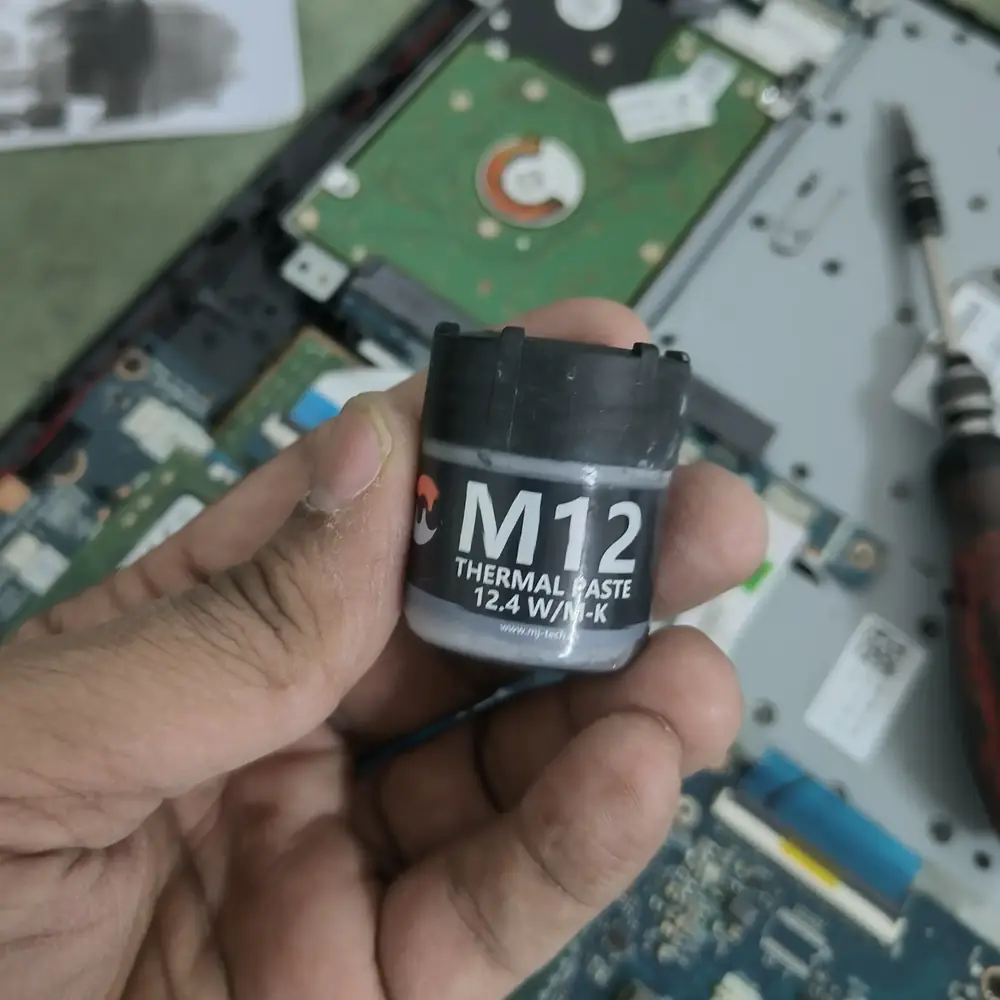
Signs Your Gaming Laptop May Be Thermal-Throttling
Thermal throttling is a protective response in which a processor reduces performance to control temperature. It is not the same as ordinary game lag, a weak internet connection or a graphics-setting issue. Look for a repeatable pattern during sustained workloads.
- Frame rates are stable at first but fall after several minutes of gaming.
- CPU or GPU clock speeds drop while temperatures approach the system's thermal limits.
- Fans become unusually loud even though the laptop is sitting on a hard, open surface.
- The keyboard or exhaust area becomes much hotter than it used to under the same game.
- The laptop slows down during long sessions and recovers after cooling.
- The system crashes, restarts or shuts down during demanding workloads.
- Temperatures remain elevated after a verified internal dust clean.
How to Maintain a Gaming Laptop Safely
For routine external care, shut the laptop down, disconnect power and use a soft lint-free or microfiber cloth. Keep liquids away from openings and never spray cleaning fluid directly onto the chassis. Use the laptop on a hard, level surface and avoid blocking intake or exhaust vents with bedding, carpets or cushions.
Internal cleaning and repasting require the exact procedure for the model. Gaming laptops may contain delicate fan cables, compact heatsinks, thermal pads, vapor chambers, unusual screw layouts or batteries positioned close to the cooling assembly. Compressed air used incorrectly can also overspin fans or push dust deeper into the chassis.
Stop if there is a safety concern
Do not continue opening or testing a gaming laptop with a swollen battery, liquid damage, a burning smell, damaged charging hardware or a physically failing fan. Those conditions need inspection rather than routine cleaning alone.
A Practical Gaming-Laptop Maintenance Routine for Kuwait
Use this as a starting point
Every few weeks
Clean the exterior, keyboard and screen. Keep the gaming laptop on a hard surface and make sure intake and exhaust openings are unobstructed.
Monthly
Notice fan noise, airflow, temperatures and gaming performance. Compare behavior with the same games and settings when possible.
Every 6–12 months
For daily gaming, dusty rooms or heavy workloads, consider a professional internal inspection and cleaning, especially if dust or symptoms are present.
Around 2–3 years, or sooner with symptoms
Evaluate the thermal interface and cooling system. Replace thermal paste only when testing, inspection or the service procedure supports it.
Whenever the heatsink is removed
Clean old thermal material and apply the correct replacement material according to the manufacturer's model-specific procedure.
What a Proper Gaming-Laptop Cooling Service Should Include
A premium cooling service should not be limited to opening the chassis and spreading paste. The technician should identify the laptop model, inspect the cooling assembly, check fan condition and dust buildup, review thermal symptoms, protect the battery and cables during disassembly, preserve thermal pads where required, and verify temperatures and performance after reassembly.
- Model-specific inspection and safe disassembly.
- Inspection of fans, heatsink fins, heat pipes or vapor-chamber assembly.
- Removal of dust from the actual cooling path, not only the visible vents.
- Assessment of thermal paste and thermal pads before replacement.
- Correct thermal material and careful heatsink reinstallation.
- Before-and-after temperature or workload testing when appropriate.
- A clear explanation of whether cleaning, repasting, fan replacement or broader repair is actually needed.
Need gaming-laptop cooling service in Kuwait?
KCROC provides laptop cleaning, thermal maintenance and component-level laptop repair support with free pickup and delivery across Kuwait. The cooling system can be diagnosed before deciding whether it needs dust cleaning, thermal-paste replacement, fan service or a broader repair.
Frequently Asked Questions
How often should I clean my gaming laptop in Kuwait?
How often should I replace gaming-laptop thermal paste?
Does cleaning dust fix gaming-laptop overheating?
Should I repaste my gaming laptop every year in Kuwait?
How do I know whether gaming lag is caused by overheating?
Can I replace thermal paste myself?
What is more important: cleaning the fans or changing thermal paste?
Does a cooling pad replace internal cleaning?
Is Your Laptop Running Slow?
If your laptop freezes, slows down during multitasking, or struggles with everyday apps, our technicians can diagnose whether it's RAM, storage, overheating, or a hardware fault — for free.