
Laptop Temperatures in Kuwait: What Is Normal, What Is Too Hot?
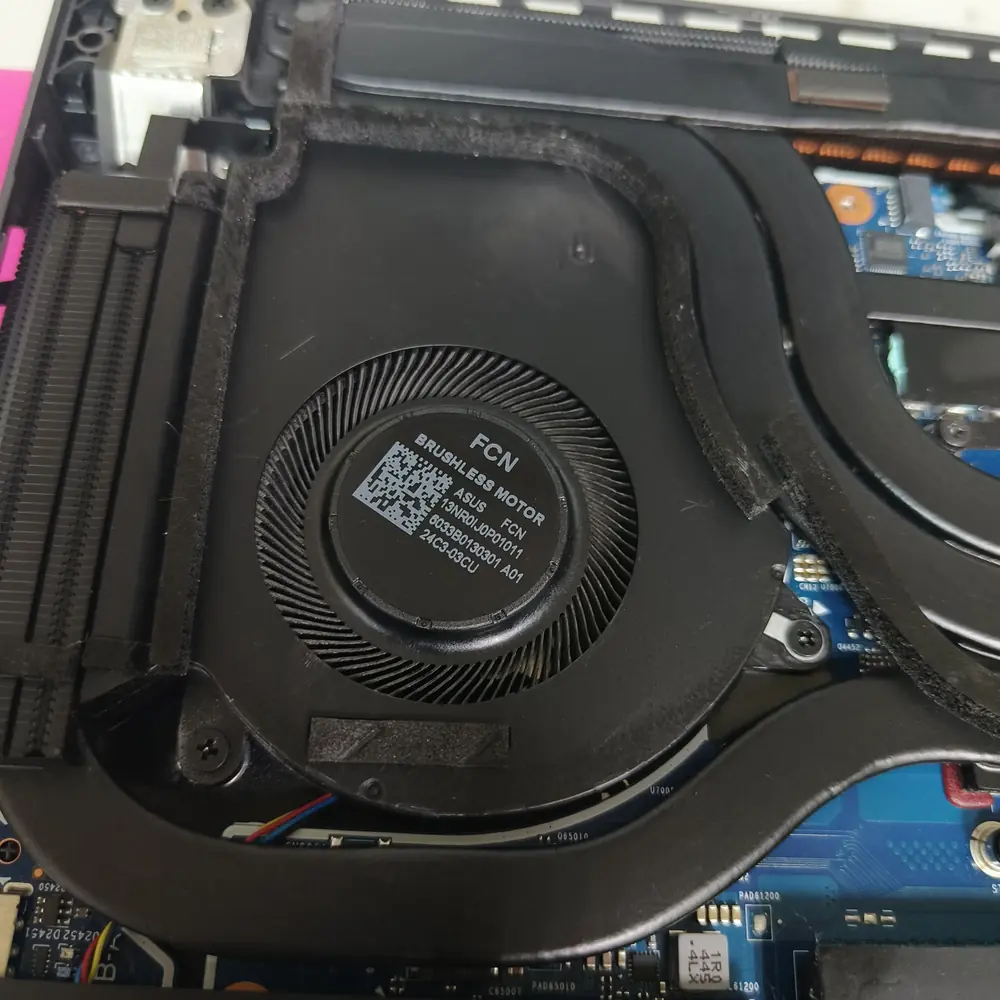
Seeing 85°C, 90°C or higher on your laptop? Learn how to interpret CPU and GPU temperatures, spot thermal throttling, and understand how Kuwait's heat and dust affect laptop cooling.
On This Page
- Normal Laptop CPU & GPU Temperatures by Workload
- Temperature Range vs. Thermal Limit: What Is the Difference?
- Is 90°C Too Hot for a Laptop?
- What Temperature Is Too Hot for a Laptop CPU?
- What Temperature Is Too Hot for a Laptop GPU?
- Don't Confuse Different Temperature Sensors
- How Kuwait's Climate Changes Laptop Temperatures
- Room Temperature vs. Laptop Temperature
- 7 Signs Your Laptop Has a Real Thermal Problem
- Thermal Throttling: Why a Hot Laptop Gets Slower
- How KCROC Diagnoses Laptop Overheating
- How to Check Your Laptop Temperature Properly
- How to Read Temperature and Clock-Speed Data
- Common Causes of High Laptop Temperatures
- When Does a Laptop Need Cleaning or Thermal Repasting?
- What You Can Safely Do Before Bringing It In
- When Laptop Temperature Becomes a Service Issue
- FAQ: Laptop CPU and GPU Temperatures
- Technical Sources & Manufacturer Guidance
Seeing 85°C, 90°C or even higher on a laptop temperature monitor does not automatically mean the laptop is overheating or damaged. A modern laptop can intentionally operate at high temperatures during gaming, rendering, compiling and other demanding workloads.
The more useful question is what the laptop was doing, how long the temperature remained high, what happened to clock speed and performance, and whether the cooling system is behaving normally. At KCROC, we treat temperature as one diagnostic measurement rather than a diagnosis by itself.
When evaluating a thermal complaint, the useful combination is temperature + utilization + clock speed + workload + fan behavior + airflow + ambient temperature. This approach helps distinguish normal high-load operation from thermal or power limiting, restricted airflow, fan problems, degraded thermal interface material or another hardware issue.
Technical review
This guide was written and technically reviewed by Imran Natiq, Hardware Repair Engineer at KCROC, with a focus on laptop thermal troubleshooting, hardware testing and component-level repair in Kuwait.
What this guide covers
This article explains how to interpret laptop CPU and GPU temperatures in Kuwait. For cleaning intervals and thermal-paste replacement decisions, see our gaming-laptop maintenance guide; use this page to understand readings and decide what to investigate next.
Quick answer
As a practical troubleshooting reference, many modern laptops may show roughly 40–60°C at idle or light use, 45–70°C during ordinary work, 70–90°C during sustained high-load work, and 75–95°C during demanding rendering or stress workloads. These are not universal safe limits and are not manufacturer specifications. Your exact CPU/GPU model, laptop design, power limits, cooling system and room temperature matter.
Normal Laptop CPU & GPU Temperatures by Workload
There is no single temperature that is safe or normal for every laptop. CPU and GPU models, chassis design, fan curves, power limits, workload and ambient temperature all change the result. Use the table below as a practical troubleshooting reference rather than a hard specification.
| Feature | CPU | GPU | What matters most |
|---|---|---|---|
| Idle / light use | 40–60°C | 35–55°C | Low background load, stable operation and reasonable fan behavior. |
| Web / office work | 45–70°C | 40–65°C | Short spikes are normal; sustained high readings deserve context. |
| Sustained gaming / high load | 70–90°C | 60–85°C | Watch sustained temperature, clock speed, FPS and airflow together. |
| Heavy rendering / stress load | 75–95°C | 70–90°C | High heat can be expected; persistent throttling or instability is the concern. |
Important: these are not manufacturer limits
A temperature chart cannot replace the specification for your exact processor or laptop. Intel explains that Tjunction max is product-specific and that actual operating temperatures depend on workload and system design. AMD also publishes maximum operating-temperature specifications for individual processors. Use the exact CPU/GPU specification when you need the official thermal limit.
Temperature Range vs. Thermal Limit: What Is the Difference?
A practical operating range and a processor's maximum thermal limit are not the same thing. A laptop may legitimately reach a high temperature during a sustained workload without being defective, while repeatedly reaching its thermal ceiling and losing clock speed can indicate that the system is limiting performance to control heat.
Intel describes Tjunction max (Tjmax) as the maximum junction temperature at which the processor's internal thermal-control mechanisms can reduce power and frequency. Intel's guidance also emphasizes that actual operating temperatures vary with workload and system design. AMD publishes maximum operating-temperature specifications for individual processors as well, so the exact CPU model should be checked instead of applying one universal Ryzen or laptop limit.
Is 90°C Too Hot for a Laptop?
Not automatically. A modern laptop CPU can briefly reach around 90°C or higher during demanding gaming, rendering or other heavy workloads. A single peak is less useful than the pattern around it: workload, duration, clock speed, performance and stability.
| Feature | Situation | What it can mean | What to check |
|---|---|---|---|
| 90°C during heavy workload | May be within the platform design | Sustained temperature, clock speed and manufacturer limit | |
| 90°C for a brief spike | Often less concerning than a sustained high reading | Whether it quickly settles and performance remains normal | |
| 90°C during light browsing | Worth investigating | CPU utilization, background processes, airflow and fan behavior | |
| 90°C + falling clocks / FPS | Possible thermal or power limiting | Temperature and clock speed before and after the slowdown | |
| 90°C + shutdowns / restarts | Requires prompt diagnosis | Cooling system, firmware, power behavior and hardware stability |
What Temperature Is Too Hot for a Laptop CPU?
CPU temperature depends heavily on the processor and its configured power limits. Instead of treating one number as a universal cutoff, look for sustained high temperature together with repeated clock-speed reductions, performance loss, abnormal fan behavior or instability.
CPU temperature by workload
Browsing, documents and video playback normally create less sustained CPU heat than compiling, rendering, exporting or other intensive workloads. If your laptop reaches high-load temperatures while the CPU is apparently doing very little, check background processes and cooling before assuming the processor is faulty.
What Temperature Is Too Hot for a Laptop GPU?
Dedicated laptop GPUs are designed for sustained workloads, but the appropriate temperature depends on the GPU, laptop chassis, power target and cooling design. A practical reference of roughly 60–85°C under demanding graphics load can be useful, but it should not be treated as a universal maximum.
Also remember that monitoring software can expose different GPU sensors, such as GPU temperature or hotspot/junction temperature. Those readings are not interchangeable. When diagnosing a problem, compare the same sensor consistently and use the manufacturer's specifications where available.
Don't Confuse Different Temperature Sensors
Laptop monitoring software can report several different thermal measurements. A CPU package or core reading, GPU temperature, GPU hotspot/junction temperature and laptop surface temperature describe different things and should not automatically be compared as if they were the same sensor.
| Feature | Measurement | What it represents | Diagnostic note |
|---|---|---|---|
| CPU temperature | A processor sensor reading such as package or core temperature | Interpret with CPU utilization, clock speed and workload | |
| GPU temperature | The primary graphics-processor temperature reading | Use the exact GPU specification for its thermal limits | |
| GPU hotspot / junction | A localized maximum temperature reported by some GPUs | Do not compare it directly with the GPU core reading | |
| Laptop surface temperature | Temperature of the chassis, keyboard deck or underside | It is not equivalent to CPU or GPU temperature |
How Kuwait's Climate Changes Laptop Temperatures
A laptop cooling system ultimately rejects heat into the surrounding air. When intake air is warmer, the cooling system has less thermal headroom available for removing heat. Kuwait's warmer indoor and outdoor conditions can therefore make the same laptop run warmer than it would in a cooler room, even when the workload has not changed.
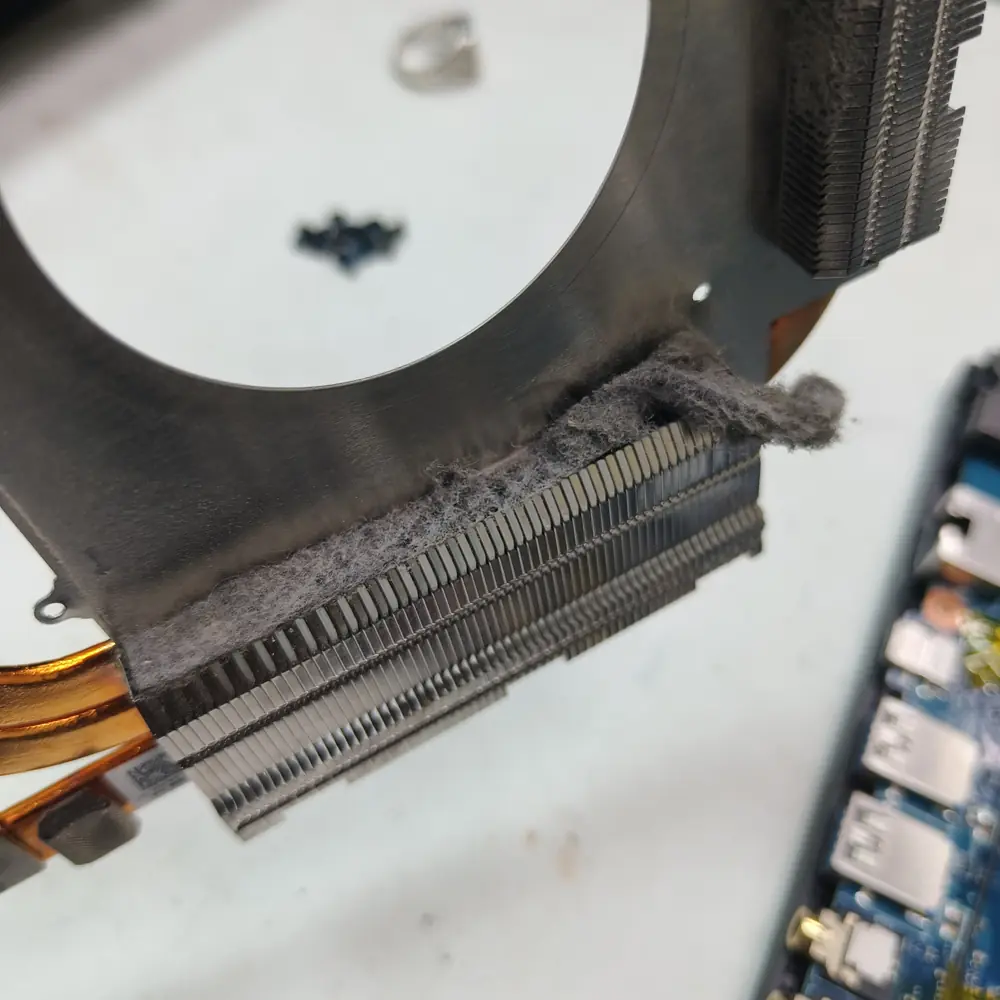
Dust adds a second Kuwait-specific challenge. Fine dust can accumulate around intake paths, fan blades and heatsink fins. A partially restricted heatsink may still move air while transferring heat less effectively, so the laptop can become progressively louder and hotter under the same workload.
Kuwait cooling tip
Use the laptop on a hard, flat surface and keep intake and exhaust vents unobstructed. In a warm room, good airflow becomes even more important because the cooling system starts with less thermal headroom.
Room Temperature vs. Laptop Temperature
Room temperature does not translate into a fixed one-for-one increase in CPU temperature, because fan speed, power limits, workload and chassis design also change. But warmer intake air generally makes heat rejection harder. That is why a laptop can behave differently in a cool air-conditioned room and a much warmer room even when the workload is identical.
| Feature | Condition | Likely effect | What to do |
|---|---|---|---|
| Cool, air-conditioned room | More thermal headroom | Use as a consistent baseline when testing | |
| Warm indoor room | Fans may run more often and sustained temperatures may rise | Keep vents clear and compare like-for-like tests | |
| Very warm environment | Cooling becomes more difficult under sustained load | Reduce unnecessary load and improve airflow | |
| Dust-restricted heatsink | Heat transfer and exhaust airflow can deteriorate | Inspect and clean the cooling path |
7 Signs Your Laptop Has a Real Thermal Problem
High temperature alone does not prove that a laptop needs repair. The strongest warning signs are patterns where heat is accompanied by poor performance, abnormal fan behavior or instability.
What to watch for
1. High temperatures stay elevated for long periods
Especially when the workload is moderate rather than an intentionally extreme stress test.
2. Performance falls after several minutes
FPS, render speed or clock speed drops as the system heats up.
3. Fans run loudly during light workloads
Check background CPU usage, airflow and fan behavior before assuming the fan itself is faulty.
4. The laptop is unusually hot at idle
Check CPU utilization, background processes and cooling.
5. The system shuts down or restarts under load
Thermal protection is one possible cause; repeated events warrant diagnosis.
6. Exhaust airflow feels unusually weak
Restricted fins, a failing fan or blocked vents can reduce airflow.
7. Temperatures have gradually worsened
Dust buildup, fan wear, changing workload or degraded thermal interface material may be involved.
Thermal Throttling: Why a Hot Laptop Gets Slower
Thermal throttling is a protective control mechanism. When a processor or graphics chip approaches a thermal or power limit, the system can reduce frequency and power to control heat. The user may notice lower FPS, stuttering, slower exports or a laptop that performs well for several minutes and then slows down.
A simple thermal-throttling pattern
1. Workload starts
CPU or GPU boosts and temperature begins to rise.
2. Heat accumulates
The cooling system approaches a sustained operating point.
3. Thermal or power limit is approached
The platform may begin reducing frequency or power.
4. Performance changes
FPS, clock speed, render time or responsiveness can decline.
5. Temperature and performance stabilize
The system settles at a lower performance level if the limit remains active.
To confirm a suspected throttling problem, compare temperature, utilization, clock speed and performance at the start of the workload and again after the slowdown. A repeatable relationship between rising temperature and falling clocks is much more informative than a single temperature screenshot.
How KCROC Diagnoses Laptop Overheating
A temperature screenshot is rarely enough to diagnose a laptop cooling problem. Our diagnostic approach is to reproduce the customer's actual symptom where practical and compare thermal behavior under consistent conditions.
KCROC thermal diagnostic process
1. Establish the baseline
Record ambient conditions, idle temperature, utilization, clock speed and fan behavior.
2. Reproduce the workload
Test the game, render, application or other workload that actually causes the heat or slowdown when practical.
3. Watch the temperature trend
Compare sustained temperature with the peak rather than relying on one maximum reading.
4. Compare temperature with clock speed
A repeatable rise in temperature accompanied by falling clocks and performance provides stronger evidence of thermal or power limiting.
5. Inspect the cooling path
Check intake and exhaust paths, fan operation, heatsink fins, dust accumulation and thermal-interface condition where appropriate.
6. Identify the actual cause
Only then decide whether cleaning, thermal-interface service, fan replacement, software/power adjustment or deeper hardware diagnosis is justified.
KCROC diagnostic principle
The goal is not to make a temperature number as low as possible. The goal is to determine whether the laptop is operating normally for its design and workload and, if not, identify why.
How to Check Your Laptop Temperature Properly
Use a reputable hardware-monitoring utility or the laptop manufacturer's monitoring tools where available. Record CPU temperature, GPU temperature, utilization, clock speed and fan behavior while the laptop is idle and while running the workload that causes the problem.
A repeatable temperature test
Test 1 — Idle
Restart the laptop, let Windows settle, then record temperature and utilization after several minutes.
Test 2 — Everyday work
Use the browser, documents or video workload that you normally perform and record sustained behavior.
Test 3 — Real problem workload
Run the game, render, export or application that actually causes the heat or slowdown.
Test 4 — Compare
Compare peak temperature, sustained temperature, clock speed and performance rather than only the highest number.
Better diagnosis
Keep the room, power mode, charger state and workload as consistent as possible when comparing two tests. A useful test tells you how the laptop behaves under the same conditions, not just how high one sensor can climb.
How to Read Temperature and Clock-Speed Data
| Feature | Pattern | Possible interpretation | Next check |
|---|---|---|---|
| Temperature rises then stabilizes; performance stays consistent | Normal sustained operating behavior | Compare with the manufacturer's limits if the reading is high | |
| Temperature rises while clocks fall and performance drops | Possible thermal or power limiting | Check sustained temperature, clock speed and power behavior | |
| High temperature at idle with high CPU usage | Background software or another workload | Identify the process consuming CPU resources | |
| High temperature + loud fan + weak exhaust | Possible airflow restriction or fan problem | Inspect vents, fan and heatsink fins | |
| Temperatures worsen gradually over weeks or months | Possible dust, fan wear or cooling-system degradation | Inspect and clean before replacing parts unnecessarily |
Common Causes of High Laptop Temperatures
When a laptop runs hotter than it used to, the cause is often a combination of workload, airflow and cooling-system condition rather than a sudden failure of the CPU or GPU.
| Feature | Cause | Typical clue | First step |
|---|---|---|---|
| Dust-clogged heatsink | Weak exhaust and rising sustained temperatures | Inspect and clean the cooling path | |
| Fan problem | High temperature with weak, erratic or abnormal fan behavior | Check fan operation and fan health | |
| Aged thermal interface material | Temperatures have worsened over time or after repeated service events | Inspect heatsink contact and TIM condition | |
| Blocked intake | Temperature rises quickly on soft or obstructive surfaces | Move the laptop to a hard, unobstructed surface | |
| High background CPU usage | High utilization while apparently idle | Identify the process causing the load | |
| Aggressive power mode | Higher power draw and heat with no cooling fault | Compare balanced and performance-oriented modes | |
| Firmware or driver behavior | Changed fan, power or performance behavior after an update | Compare settings and vendor-recommended versions |
When Does a Laptop Need Cleaning or Thermal Repasting?
There is no universal cleaning interval that applies to every laptop. Usage, room conditions, dust exposure and chassis design matter more than a fixed number of months. A laptop used heavily in a warm, dusty environment may need attention sooner than a lightly used system in a clean, air-conditioned room.
A better trigger is a measurable change: temperatures are clearly higher than before, fans are louder, performance falls under sustained load, exhaust airflow is weak, or inspection shows dust packed into the cooling fins. Thermal repasting can be appropriate when the thermal interface has degraded or the heatsink has been removed, but it should not be treated as a magic fix for every high-temperature reading.
Technician perspective
Good thermal service is diagnostic, not just cosmetic. A proper inspection checks workload, fan operation, heatsink fins, vent paths, thermal interface and power behavior before deciding whether cleaning, repasting, fan replacement or deeper hardware diagnosis is justified.
What You Can Safely Do Before Bringing It In
Start by confirming the temperature under the exact workload that causes the problem. Then make sure intake and exhaust vents are unobstructed, close unnecessary high-CPU applications, use a hard flat surface, and compare the laptop in a consistent power mode. If the system is already unstable, avoid repeatedly running extreme stress tests just to chase a temperature number.
| Feature | Check | Why it matters | Action |
|---|---|---|---|
| Surface | Soft fabric can restrict intake | Use a hard, flat surface | |
| Airflow | Weak exhaust can indicate restriction | Keep vents clear and observe exhaust behavior | |
| Background load | Hidden processes can create heat at idle | Check Task Manager or equivalent monitoring | |
| Power mode | Higher power targets can increase heat | Compare a balanced mode with your current mode | |
| Temperature trend | A sustained pattern is more useful than a peak | Record idle, workload and post-slowdown readings |
When Laptop Temperature Becomes a Service Issue
Professional diagnosis becomes more worthwhile when high temperatures are repeatable and accompanied by performance loss, abnormal fan behavior, weak exhaust, thermal shutdowns or unexpected restarts. A temperature reading by itself is not enough to justify replacing a laptop or a major component.
The same temperature can mean different things on different laptops. Before recommending a cooling service or hardware replacement, a useful diagnosis should consider the exact processor or GPU, workload, ambient conditions, fan behavior, airflow and the relationship between temperature and performance.
Stop troubleshooting and seek diagnosis
Repeated thermal shutdowns, unexpected restarts under load, a fan that fails to operate normally, severe performance collapse, or unusual burning/electrical smells should not be treated as a routine temperature experiment. Shut the system down when appropriate and have the cooling and hardware condition checked.
FAQ: Laptop CPU and GPU Temperatures
Is 90°C too hot for a laptop CPU?
Is 100°C dangerous for a laptop CPU?
Is 80°C safe for a laptop GPU?
What temperature should a laptop be at idle?
Why does my laptop get hotter in Kuwait?
Can room temperature really affect CPU temperature?
Why does my laptop get slower after 10 minutes?
Does changing thermal paste always lower laptop temperatures?
How often should I clean a laptop in Kuwait?
Does a cooling pad automatically fix overheating?
When should I get a laptop cooling system inspected?
Technical Sources & Manufacturer Guidance
This guide uses manufacturer documentation as the reference point for processor thermal limits. The practical temperature ranges in this article are troubleshooting references from a repair perspective, not manufacturer specifications.
Intel: Processor temperature and Tjunction Max guidance — External source
Intel: Processor throttling and thermal-management guidance — External source
AMD: Ryzen 7 260 processor specifications, including maximum operating temperature — External source
How to use these sources
Manufacturer specifications take priority over generic online temperature charts. If you need to know whether a particular CPU or GPU is at its official thermal limit, identify the exact component and check its current manufacturer specification.
Laptop Running Too Hot?
If your laptop is consistently reaching high temperatures, thermal throttling, shutting down, or running its fans unusually hard, KCROC can inspect the cooling system and determine whether the issue is dust, airflow, fan condition, thermal interface, software load or another hardware fault. If the symptoms already point to overheating, start with the Laptop Overheating Kuwait diagnostic guide rather than replacing the laptop based on one temperature reading.
Is Your Laptop Running Slow?
If your laptop freezes, slows down during multitasking, or struggles with everyday apps, our technicians can diagnose whether it's RAM, storage, overheating, or a hardware fault — for free.