
Windows 11 Background Services You Can Audit in 2026
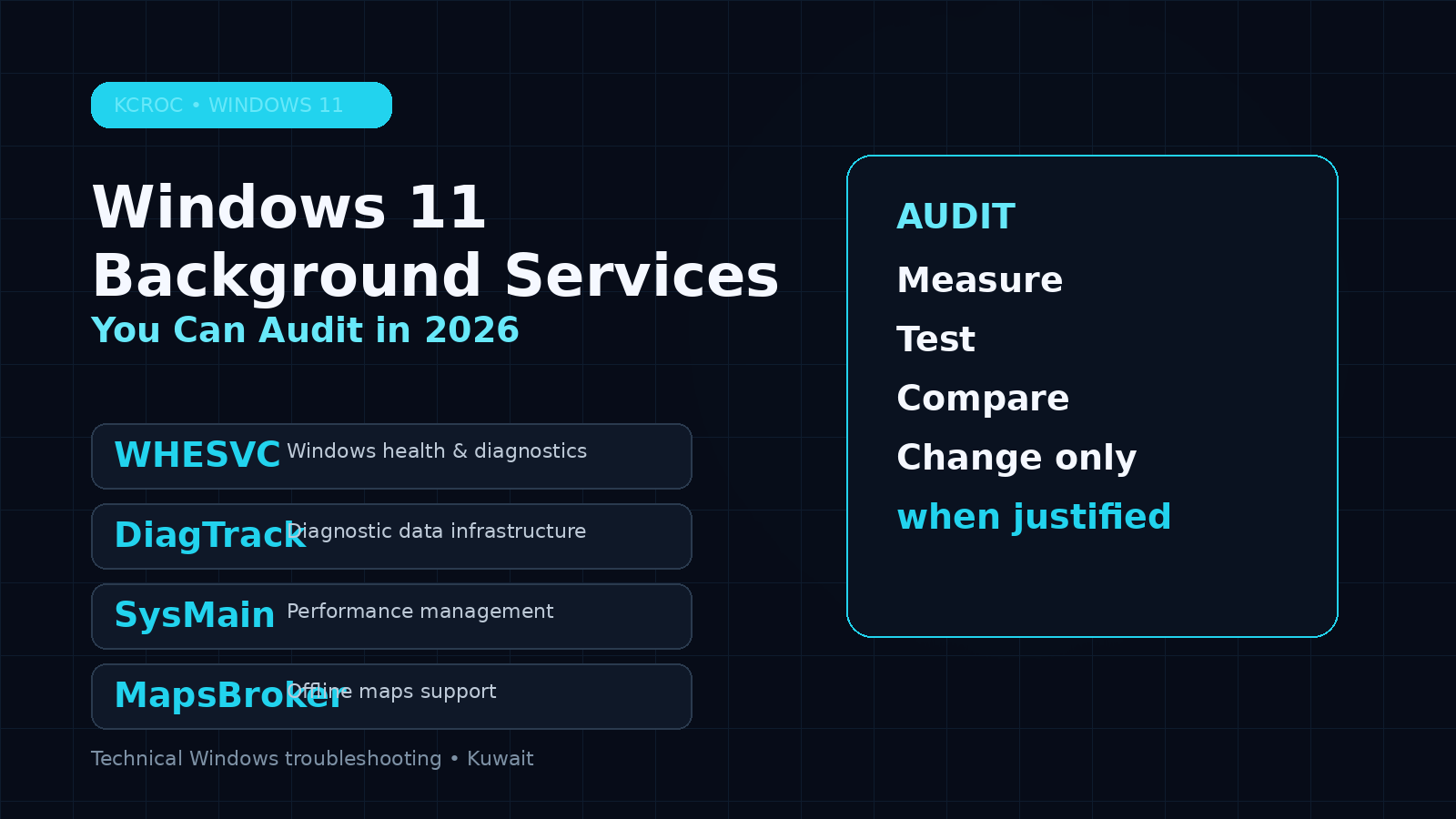
Table of Contents
Windows 11 runs many background services most users never inspect. Learn what WHESVC, DiagTrack, SysMain and MapsBroker do and when disabling them makes sense.
Windows 11 is designed to do a lot before you ever open an application.
A fresh installation can have dozens of Microsoft services, scheduled tasks, background components and helper processes running quietly behind the desktop. Most of them exist for a legitimate reason. Some support security, networking or hardware. Others improve convenience. A few are there for features you may never use.
That distinction matters.
A service appearing in Task Manager does not automatically mean Windows is wasting your CPU or RAM. And disabling every unfamiliar service is not a performance strategy. It can create broken features, failed updates, missing diagnostics or unexpected Windows behaviour.
The smarter approach is to understand what a service actually does, decide whether your particular PC benefits from it, and change only what you have a reason to change.
At KCROC, this is the same principle we use when diagnosing slow Windows laptops and desktops in Kuwait: measure first, change second.
This guide looks at four Windows components that are worth understanding in 2026:
• Windows Health and Optimized Experiences (whesvc) • Connected User Experiences and Telemetry (DiagTrack) • SysMain • Downloaded Maps Manager (MapsBroker)
Some may be worth disabling on a particular machine. Others are better left alone unless they are demonstrably causing a problem.
How We Verify
Technical note: Service recommendations in this guide are based on Microsoft documentation, Windows diagnostic behaviour, and hands-on troubleshooting methodology. Service behaviour can vary by Windows 11 version, hardware, policy and installed software.
First: Don't Treat Every Background Service as Bloat
There is an important difference between running in the background and consuming significant resources.
Windows services are often idle until something needs them. A service can exist in memory without continuously using meaningful CPU time, and Windows may start components only when a feature actually calls them.
That is why a list of 80 or 100 services in Windows Services does not mean your computer is carrying 100 active performance problems.
Before changing anything, check:
Task Manager → Processes → CPU / Memory / Disk
Then look for a pattern.
If your computer is slow because the SSD is constantly at 100%, disabling a random service is unlikely to solve the real problem. The cause could instead be memory pressure, Windows Update activity, an aging SSD, indexing, malware, a failing drive or thermal throttling.
The objective is not to make Windows run the fewest services possible.
The objective is to make your particular PC run correctly with only the features you actually need.
A relatively new Windows component that deserves a closer look
Windows Health and Optimized Experiences is one of the newer Windows 11 services and became a subject of significant technical discussion in 2026.
You may encounter it under the service name:
Windows Health and Optimized Experiences
and internally as:
whesvc
The component is associated with Windows diagnostic and performance-health functionality. Independent reverse-engineering work has found that it can collect local system information and generate diagnostic traces under particular scenarios. That does not mean it is automatically spyware, nor does the existence of telemetry code prove malicious behaviour.
There is also a genuine security history here that is worth knowing about.
Microsoft assigned CVE-2025-59241, a local privilege-escalation vulnerability affecting Windows Health and Optimized Experiences on certain Windows 11 builds. The vulnerability was rated CVSS 7.8 High, and the affected versions were subsequently addressed through Microsoft's security servicing.
So the correct lesson is not:
WHESVC is spyware. Disable it immediately.
The more useful lesson is:
This is a legitimate Windows component with diagnostic functionality and a real security history, so keep Windows patched and understand why it is present.
Should you disable WHESVC?
For most users, I would not make disabling it the first troubleshooting step.
On a machine that is fully updated and behaving normally, there is little reason to modify a Microsoft health component simply because its name is unfamiliar.
On a dedicated desktop, however, a technician may decide that a particular diagnostic feature provides little practical value for that system. That is a configuration decision rather than a universal Windows optimization rule.
For laptops, the health and power-management context can be more relevant because battery state, thermals and changing power conditions are much more important to the experience.
KCROC recommendation
Leave enabled by default.
Investigate it when:
• you are troubleshooting unusual Windows diagnostic activity; • you are maintaining a highly controlled workstation image; • or you have a measured reason to reduce optional background functionality.
Most importantly, keep Windows updated before deciding that the service itself is the problem.
More commonly seen as a generic Service Host process
Another service that often attracts attention is:
Connected User Experiences and Telemetry
Its service name is:
DiagTrack
Depending on how Windows displays it, you may encounter it underneath a generic svchost.exe process rather than seeing the service name immediately.
Microsoft documents Connected User Experiences and Telemetry as part of the Windows diagnostic-data system. Depending on the diagnostic settings and configuration of the machine, Windows can collect information such as device characteristics, crash information, application activity and performance-related diagnostic data. Microsoft also documents the network endpoints used to transmit diagnostic information.
That makes this service relevant to privacy-conscious users, but it is important to keep the terminology accurate.
Telemetry is not automatically malware.
It is a Microsoft diagnostic mechanism.
Why some users choose to reduce it
A user who wants the minimum practical amount of diagnostic collection may prefer to review Windows':
Settings → Privacy & security → Diagnostics & feedback
before touching the underlying service.
That is usually a better first step because it uses Microsoft's supported privacy controls rather than trying to force Windows into a state it was not designed to operate in.
There is also an important distinction between:
reducing diagnostic data
and
forcibly disabling a Windows service
The first is a privacy configuration.
The second can become a maintenance problem, especially on managed or heavily updated installations.
What about high CPU usage?
DiagTrack should not normally be treated as a permanent high-CPU process.
If you see an unusual CPU, disk or network spike associated with it, investigate the event rather than assuming that telemetry is the cause.
Useful checks include:
• Task Manager resource usage • Resource Monitor • Windows Update activity • Reliability Monitor • Event Viewer • recent driver installations • recent Windows updates
Microsoft itself documents diagnostic components as part of troubleshooting and system-health collection, so removing them indiscriminately can also remove information that may be useful when diagnosing a Windows problem.
KCROC recommendation
Review privacy settings first.
Disable or alter the service only when there is a specific administrative or troubleshooting reason.
For most home PCs, the privacy settings provide a more sensible starting point than aggressive service removal.
The old service that still has a purpose
SysMain is one of the most misunderstood services in Windows.
Older Windows users may remember it as Superfetch. Its job is broadly related to maintaining and improving system performance by learning usage patterns and managing data that Windows may benefit from having available. Microsoft continues to document SysMain as a performance-related Windows service.
This is where a lot of Windows optimization advice goes wrong.
You will still find articles claiming:
SSD installed? Disable SysMain immediately.
That is too simplistic.
Modern SSDs changed storage performance dramatically, but that does not automatically make SysMain useless. Microsoft continues to include and support the service, and there are real circumstances where SysMain can be associated with increased CPU activity or disk activity. Microsoft has even documented specific SysMain CPU-spike scenarios.
When SysMain becomes interesting
SysMain is worth investigating when a machine shows a repeatable pattern such as:
• unexplained disk activity after startup; • abnormal CPU usage from the svchost.exe instance hosting SysMain; • slow application launches accompanied by heavy storage activity; • or a noticeable improvement after stopping the service during troubleshooting.
But the key phrase is:
during troubleshooting.
Don't treat a service as guilty simply because it appears in Task Manager.
A better test
If you suspect SysMain:
1. Open **Services**. 2. Locate **SysMain**. 3. Stop the service temporarily. 4. Reproduce the problem. 5. Compare CPU, disk activity and system responsiveness. 6. Re-enable it if there is no meaningful improvement.
This gives you evidence.
If stopping SysMain changes nothing, the original problem is probably somewhere else.
If stopping it produces a repeatable improvement, you now have a useful diagnostic clue.
What we look for in repairs
A slow Windows PC with high disk activity can be caused by:
• insufficient RAM; • an SSD beginning to fail; • Windows Update; • excessive startup software; • browser workload; • malware; • indexing; • corrupted Windows components; • thermal throttling; • or storage drivers.
SysMain is only one possibility.
KCROC recommendation
Do not automatically disable SysMain just because you have an SSD.
Investigate it when resource usage is abnormal or when controlled testing shows that it contributes to the problem.
That is a much more reliable approach than applying a one-size-fits-all “Windows optimization” script.
Useful for offline maps — irrelevant if you never use them
The fourth service is much easier to understand.
Downloaded Maps Manager, also known as:
MapsBroker
supports downloaded/offline map functionality in Windows.
Microsoft states that if offline maps have been downloaded, the service can run in the background to keep them updated. Microsoft also notes that it normally consumes very few system resources.
That makes the advice here much more straightforward.
If you have never downloaded offline maps and never use a Windows application that depends on them, the service may provide little value to you.
But there is a catch.
Microsoft also warns that disabling this service can cause the Windows Maps application to stop working correctly or display maps incorrectly.
So again, this is a feature trade-off rather than a free performance upgrade.
Who might disable it?
A controlled desktop workstation that never uses offline maps could reasonably have the service disabled as part of a custom Windows configuration.
A travel laptop that relies on downloaded maps should obviously keep it available.
KCROC recommendation
Optional.
Keep it enabled if you use offline maps.
If you know the machine will never use the feature, disabling it is one of the less controversial service changes — but don't expect a dramatic performance improvement from doing so.
One of the easiest mistakes to make when repairing a slow Windows PC is to open Task Manager, see a Microsoft service using resources and immediately decide:
“That's the problem.”
Sometimes it is.
Often it isn't.
A service may be using CPU because another Windows component requested work from it. A service may use disk because an update is being installed. A diagnostic component may become active because Windows detected a problem. A storage-heavy workload may simply expose the limitations of an old drive.
This is why professional troubleshooting starts with measurements.
1. Check CPU usage
Look for processes that remain consistently high rather than brief spikes.
A short spike during startup is not automatically a fault.
2. Check memory pressure
If physical RAM is nearly full, Windows may be paging data to storage. In that situation, disabling three services will not magically turn an 8GB system into a 16GB system.
3. Check disk activity
A machine showing 100% disk usage needs investigation.
Look at the process generating the activity and determine whether the drive itself is healthy.
4. Check temperatures
On laptops and gaming systems, thermal problems can look like software problems.
A CPU that repeatedly reaches thermal limits may throttle itself and make Windows feel slow even when Task Manager appears relatively normal.
This is especially relevant in Kuwait, where ambient temperatures and dusty cooling systems can make thermal management much harder than the same machine would experience in a cooler environment.
5. Check startup applications
Third-party launchers, cloud-sync tools, RGB software, gaming clients and browser helpers can create much more unnecessary background activity than a quiet Windows service.
6. Check Windows health
Use tools such as:
• Reliability Monitor • Event Viewer • Windows Security • sfc /scannow • DISM • SMART/drive-health tools • Task Manager • Resource Monitor
The objective is to identify the actual bottleneck.
Instead of asking:
“Which Windows services can I disable?”
ask:
“Which Windows services does this computer actually need?”
That small change in thinking prevents a lot of unnecessary damage.
A gaming desktop may have very different requirements from:
• a corporate laptop; • a home-office PC; • a travel notebook; • an engineering workstation; • or an older family computer.
Windows is not one configuration.
It is an operating system adapting to thousands of different hardware and software combinations.
When we troubleshoot a slow Windows machine, we don't start by running a giant “debloat” script and hoping for the best.
We first identify the bottleneck.
Then we test.
Then we make the smallest change capable of solving the problem.
That might mean:
• removing unnecessary startup applications; • cleaning excessive software; • repairing Windows system files; • replacing a failing SSD; • upgrading RAM; • correcting thermal problems; • cleaning a blocked cooling system; • fixing driver conflicts; • or, in some cases, changing a specific Windows service.
That last option is a tool, not a religion.
| Feature | What it does | Disable by default? | Better approach |
|---|---|---|---|
| Windows Health and Optimized Experiences (whesvc) | Windows health/diagnostic functionality | No | Keep Windows patched; investigate only when relevant |
| Connected User Experiences and Telemetry (DiagTrack) | Diagnostic and usage data infrastructure | No | Review Privacy & security settings first |
| SysMain | Windows performance-management functionality | No | Test only when it is linked to a measurable problem |
| Downloaded Maps Manager (MapsBroker) | Offline map support | Optional | Disable only when offline maps are genuinely unnecessary |
The pattern is deliberate.
There is no magic list of “bad” Windows services.
There are services that are useful, services that are optional, and services that can occasionally become part of a real performance or troubleshooting problem.
Those are three different things.
Windows 11 does contain a substantial amount of background functionality.
That is not automatically bloat.
Some components exist for security. Some support diagnostics. Some improve performance. Some keep optional features working. Others may be irrelevant to your particular machine.
The best Windows optimization strategy in 2026 is therefore not to disable everything you don't recognize.
It is to audit intelligently.
Start with measurable symptoms.
Find the process or service actually associated with the problem.
Test one change at a time.
Keep a way to reverse the change.
And never trade system stability for a theoretical saving of a few megabytes of RAM.
For a normal desktop, the performance difference from disabling an unused low-resource service may be almost impossible to notice. By contrast, fixing an overheating CPU, failing SSD, insufficient RAM, excessive startup software or corrupted Windows installation can transform the machine.
That's where real optimization begins.
Frequently Asked Questions
Should I disable Windows 11 services to make my PC faster?
Is SysMain useless on an SSD?
Is DiagTrack spyware?
What is WHESVC in Windows 11?
Can I disable Downloaded Maps Manager?
Why is my Windows 11 PC slow if these services are not using much CPU?
How can I find what is really slowing my computer?
KCROC Expert Advice
A fast Windows PC is not created by making the Services window look empty.
It's created by making sure the hardware, drivers, cooling system, storage, memory and Windows configuration are all working together properly.
If your Windows 11 laptop or desktop is slow, freezing, overheating or showing unexplained CPU or disk activity, the right first step is diagnosis — not a random debloat script.
KCROC — Kuwait Computer Repair On Call
Professional laptop and desktop troubleshooting in Kuwait, with free pickup and delivery across Kuwait.
No Fix, No Fee.
Is Your Laptop Running Slow?
If your laptop freezes, slows down during multitasking, or struggles with everyday apps, our technicians can diagnose whether it's RAM, storage, overheating, or a hardware fault — for free.